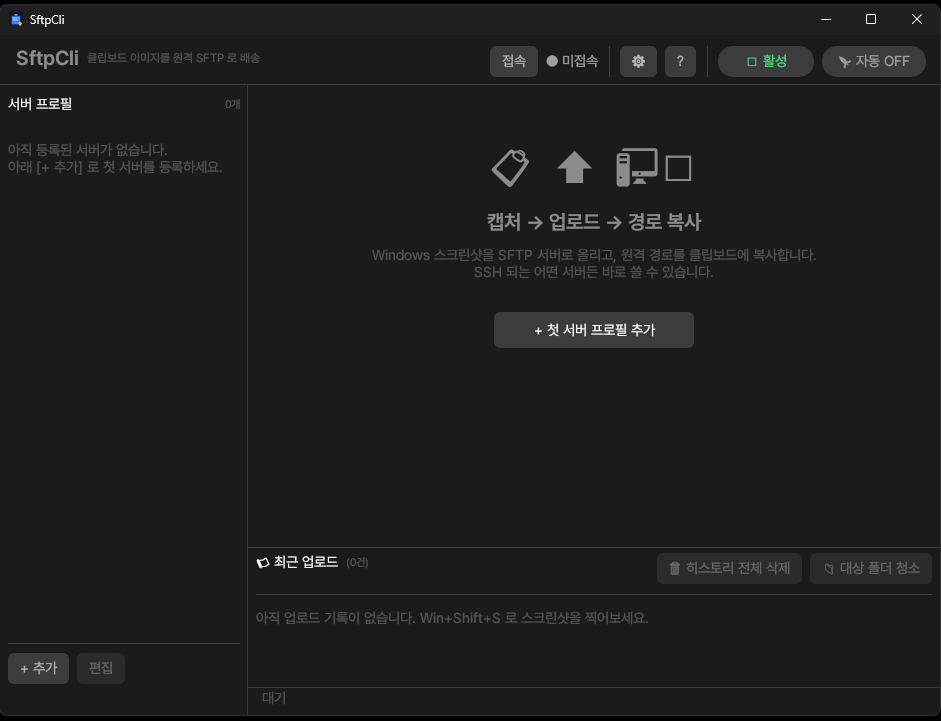
The fastest way to show a screenshot to a terminal AI
These days many of us SSH into a remote server and code with an AI CLI (Claude Code, Zed CLI, Aider, gpt-cli). The biggest hassle in that workflow was "showing an error screenshot to the AI." A terminal can't paste an image, and moving it over with scp every time or uploading to an image host to grab a URL is far too slow.
SftpCli ends that whole process in a single capture.
Win+Shift+S to capture a region → (auto-upload) → Ctrl+V in the terminal → Enter
What gets pasted into the terminal is a remote path like @/tmp/ccimg/screen-20260422-060732.png. CLIs that support the @ syntax, such as Claude Code and Zed CLI, recognize it as an image right away, and even CLIs that don't just need the AI to read the file.
With any server you can reach over SSH — push a screenshot from your local Windows machine to the server almost instantly, then just paste the path into your CLI. 8MB, single executable, no install.
Key features
Local capture → SFTP upload → path copy
- Detects a Win+Shift+S capture → uploads to the remote server instantly
- The remote path is copied to the clipboard, ready to paste into the terminal
- Auto-prepends the
@prefix (compatible with Claude Code and Zed CLI), with an option to turn it off
Works with every SSH server
- AWS, GCP, your own VPS, home NAS, company server — nothing to install on the server
- If OpenSSH sshd is present, SFTP is built in by default
- Supports both password and SSH-key authentication
Multi-server profile management
- Switch between servers instantly with a sidebar click (auto-reconnect)
- Each profile remembers its own "default remote folder"
- Right-click to edit, duplicate or delete
Explorer-style remote folder browsing
- Breadcrumbs, double-click to enter, Backspace to go up a folder
- 📌 Set here in one click to choose the upload target folder
- 🏠 root / 🔄 refresh / type a path directly
🚀 Auto-upload mode
- ON: capture detected → upload instantly with no popup + copy the path
- OFF: preview in a popup → confirm filename and folder before uploading
- Toggle 🟢 active / ⏸ paused to switch it off briefly
Security and safety
- Passwords are stored encrypted with Windows DPAPI (decryptable only on this PC / by this user)
- Choose per profile whether to save the password (if not, enter it each time)
- Standard SSH/SFTP encrypted transfer (port 22)
- Single-instance guarantee — duplicate launches are blocked automatically
Convenience
- Lives in the tray — keeps running even when you close the window
- Option to launch automatically on Windows startup
- 50-entry upload history + a re-copy path button
- Korean UI (Pretendard font embedded)
How to use
Initial setup (one time)
- Click [+ Add] in the left sidebar
- Enter server name, address, port, user ID and auth method (password / SSH key) → [Save]
- Click the profile → auto-connect → browse the remote folders
- Navigate to the folder where you'll store screenshots, then click 📌 [Set here] (e.g.
/tmp/ccimg) - For convenience, toggle 🚀 [Auto ON] at the top
- Click the window's X → hides to the tray (not a full exit)
Everyday use (auto mode)
- Win+Shift+S → drag to capture a region
- SftpCli detects it → "⚡ Auto-uploading..." → the path lands on your clipboard
- In your terminal's AI CLI window, press Ctrl+V → "analyze this error" → Enter
Example of what actually gets pasted: @/tmp/ccimg/screen-20260422-060732.png
Manual mode (auto OFF)
- Win+Shift+S capture
- The popup appears automatically (preview, edit filename and folder)
- Click ⬆ Upload and copy path
- Ctrl+V in the terminal
Supported AI CLIs (path-paste verified)
- Claude Code (Anthropic CLI) — supports
@/pathsyntax - Zed CLI — supports
@/pathsyntax - Aider — auto-recognizes file paths in text
- gpt-cli / chatgpt-cli — can ask it to read the path manually once it's visible
- inside tmux — anything, as long as it can paste from the clipboard
For a CLI that doesn't need the @ prefix, uncheck it in ⚙ Settings → copy just the path.
Security and password storage
Passwords are encrypted with Windows DPAPI (CryptProtectData) and stored in %APPDATA%\SftpCli\config.json.
- Copying config.json to another PC won't let it be decrypted
- It can't be decrypted from another Windows account on the same PC either
- Not even Administrator privileges can decrypt the original (the user profile is required)
- To avoid saving it, uncheck ☐ "Save this password to disk" in the profile editor
- SSH-key authentication is the most recommended (
~/.ssh/id_ed25519, etc.)
Specifications
| Platform | Windows 10 / 11 (x64) |
| Language | Rust (pure-Rust cross-compile: Linux → x86_64-pc-windows-gnu) |
| UI | eframe + egui (glow backend) |
| SSH / SFTP | russh + russh-sftp (pure Rust, no libssh dependency) |
| Tray | tray-icon |
| Clipboard | arboard + Win32 GetClipboardSequenceNumber polling |
| Encryption | Windows DPAPI (windows crate) |
| Font | Pretendard Regular / SemiBold embedded |
| Executable size | about 8 MB (single .exe, no runtime) |
| License | Freeware (free for personal / business) |
Recommended for
- Developers working with AI CLIs like Claude Code, Zed, Aider on SSH servers
- Anyone who wants to quickly show error screens or UI screenshots to an AI
- Anyone tired of copying scp commands or image-host URLs every time
- Anyone hopping between multiple servers (profile switching)
- Anyone in a corporate/school setting where external image hosts are off-limits (upload to your own server)
Install and uninstall
Install: save sftpcli.exe to any folder → double-click. If a SmartScreen warning appears, click "More info" → "Run anyway." (unsigned binary)
Uninstall: delete the executable + the settings folder (%APPDATA%\SftpCli\). No leftover registry entries.
Author and contact
SftpCli is personal freeware. Use it freely. Bug reports, improvement suggestions and feedback are all welcome.
- Author: Youngsam.net (youngsam.net)
- Contact: info@youngsam.net