You open Outlook to read mail, and the first thing you see is an ad —
a banner above the list, a subscription pitch, app shortcuts you have never clicked.
Outlook Cleaner is a free tool that hides those promotional elements in the new Outlook for Windows — only the ones you choose. No editing config files, no digging through the registry: flip the toggles, press one button, and Outlook restarts with your choices applied. Changed your mind? One "Remove" button puts everything back.
10 cleanup items picked individually |
1click apply button Outlook restarts itself |
5 interface languages KO·EN·JA·ZH(Hans·Hant) |
0 cost no account, no ads |
Revert one Remove click mail data untouched |
The new Outlook is built with web technology. Its layout differs from the old Win32 Outlook, and the ads and promo banners arrive as interface elements inside the app. Outlook Cleaner uses that fact: it makes Outlook load a small cleanup configuration as it starts. Your mail data and account settings are never touched — only what you see changes.
Pick what you want, apply with one button
Launch it and you get current status on the left, cleanup items on the right. The app detects your new Outlook installation path by itself and shows it at the top, so there is no path to type in. Every item is an independent toggle, so you can hide the ads but keep the app shortcuts — whatever suits you.
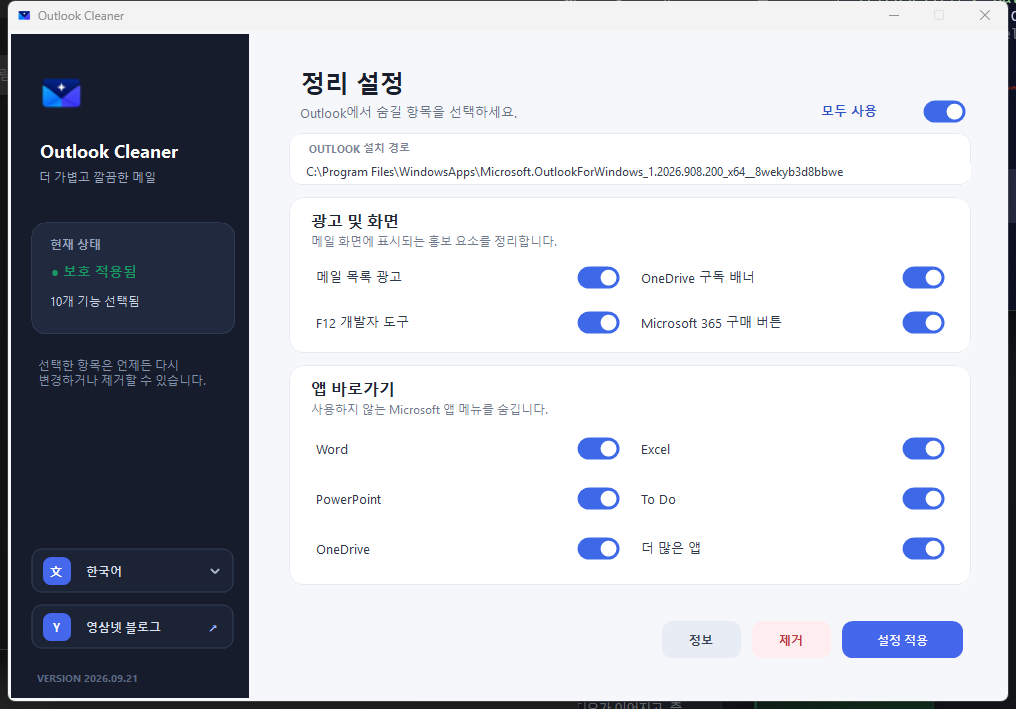
The status card on the left tells you whether the cleanup is currently applied and how many features are selected. You can reopen the app at any time to change items or turn everything off.
What you can hide
The items come in two groups: the ads and promotional elements that appear in the mail view, and the Microsoft app shortcuts pinned at the lower left.
| Group | Item | What disappears |
|---|---|---|
| Ads & interface | Mail list ads | Ad entries wedged between messages in the inbox list |
| OneDrive subscription banner | The banner suggesting a storage upgrade | |
| Microsoft 365 purchase button | The upsell button — and the empty gap it leaves behind | |
| F12 developer tools | Choose whether they stay available (off means no accidental opening) | |
| App shortcuts | Word · Excel · PowerPoint | Office shortcut icons in the left app bar |
| To Do · OneDrive | Entry points for the bundled side services | |
| More apps | The menu that expands the additional app list | |
| Layout touch-up | Top-right icon spacing | Fixes the spacing and window drag area that look off once elements are hidden |
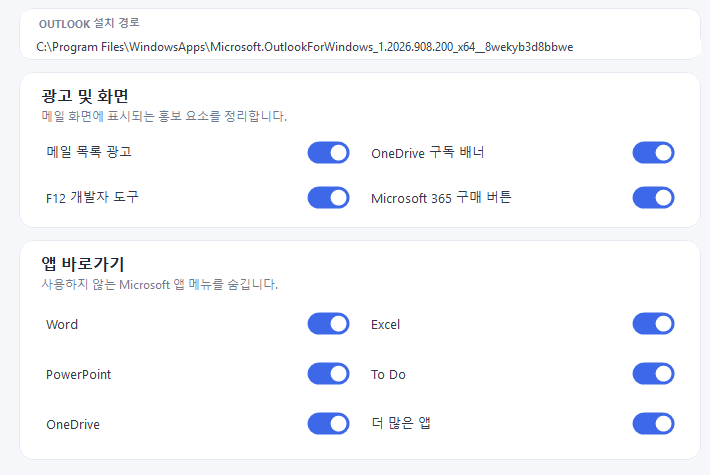
That last row, layout touch-up, is easy to overlook but matters. Hiding an element often leaves a hole that looks worse than the element did, so the spacing and the window drag area are adjusted together to make the result look like the screen was always that way.
Four clicks to apply
- Unzip and run
OutlookCleaner.exe— there is no installer. - Turn on the toggles for the items you want hidden (or press Enable all at the top right).
- Click Install & apply (or Apply settings if it is already applied) at the bottom right.
- Choose Yes in the Windows administrator prompt → Outlook closes and restarts automatically.
If you do not like it, put it back
For a tool like this, the thing that matters most is whether reverting is reliable. Outlook Cleaner keeps removal inside the app itself. Run it again, press Remove at the bottom right, approve the administrator prompt, and the applied settings are released while Outlook restarts.
- Outlook itself is not uninstalled.
- Mail, calendar and account data are never touched.
- After removal you are back to the original Outlook interface.
Changing your selection works the same way. Reopen the app, adjust the toggles, press "Apply settings", and Outlook restarts once with the new configuration.
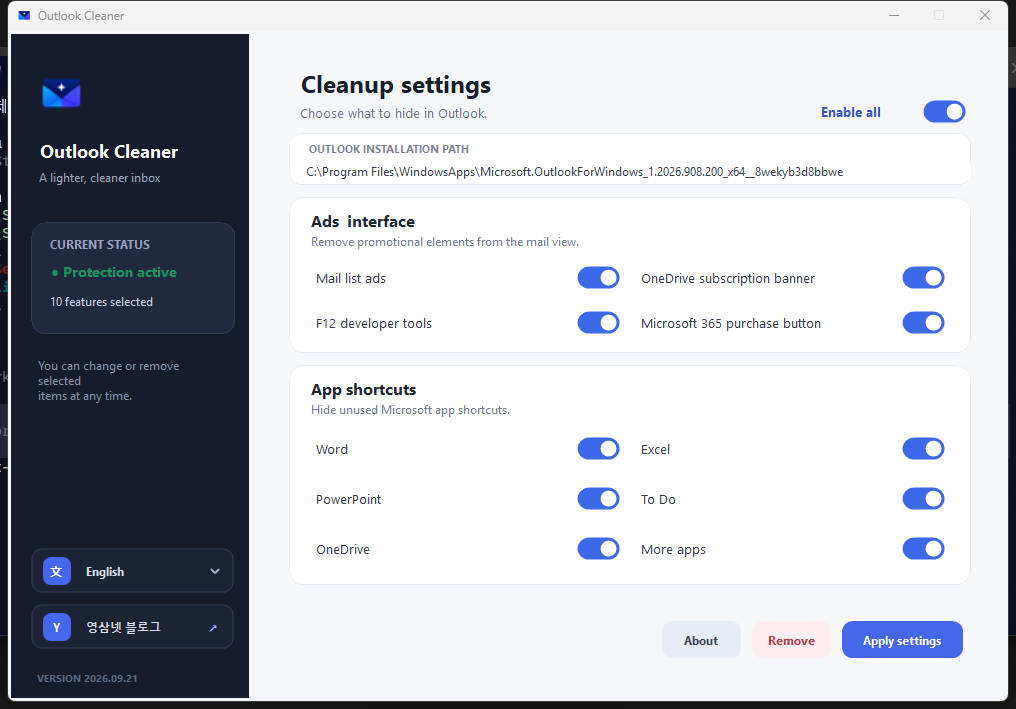
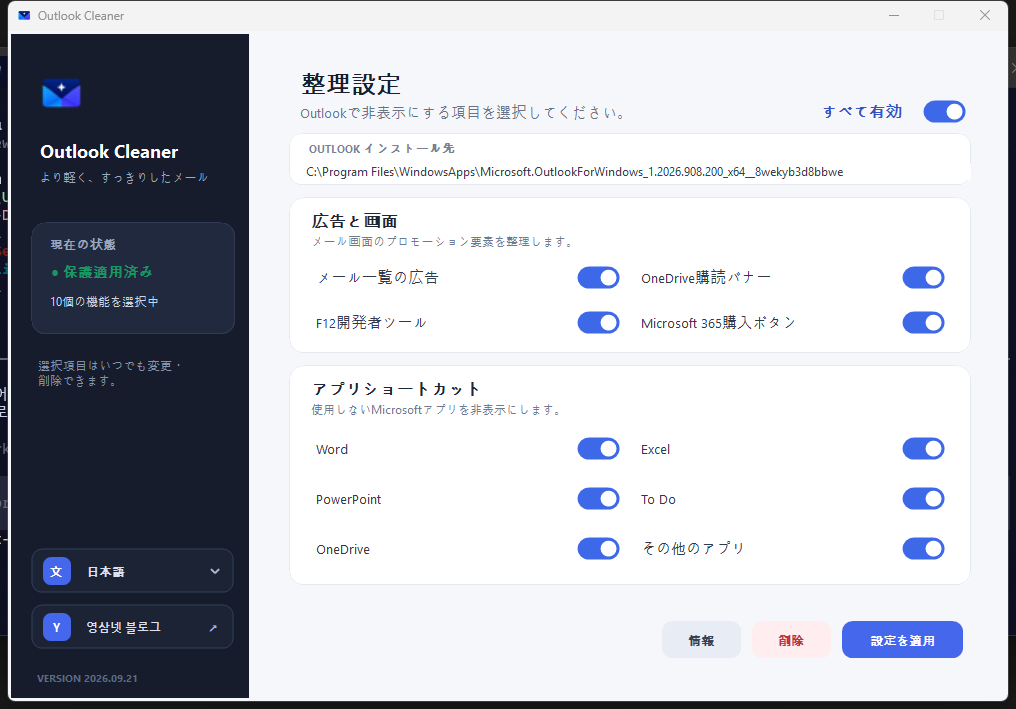
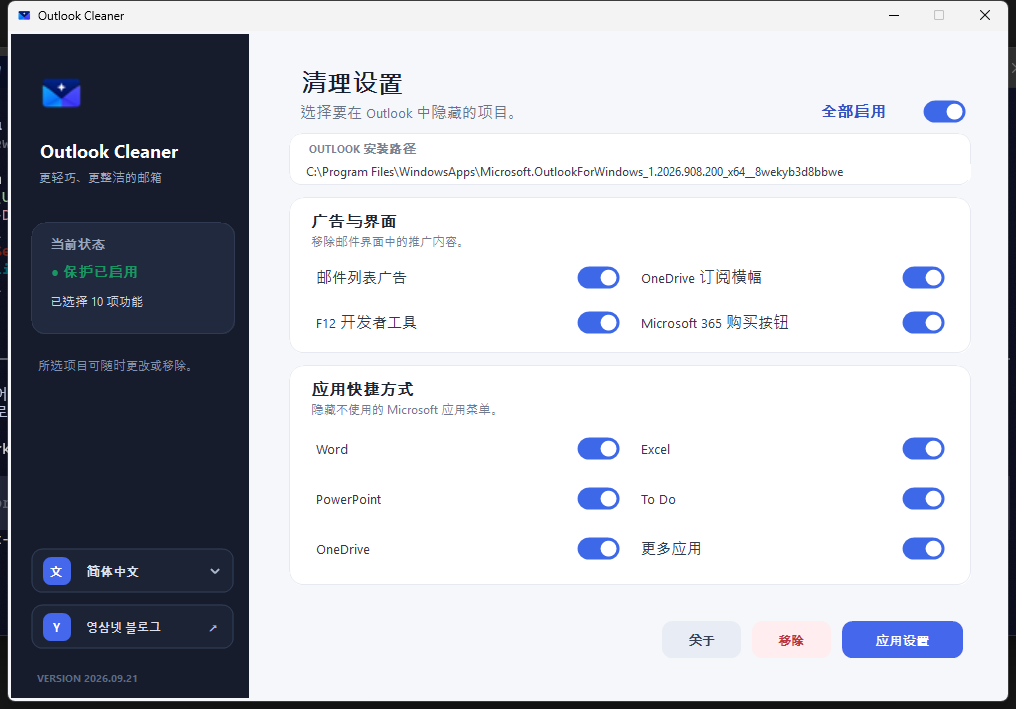
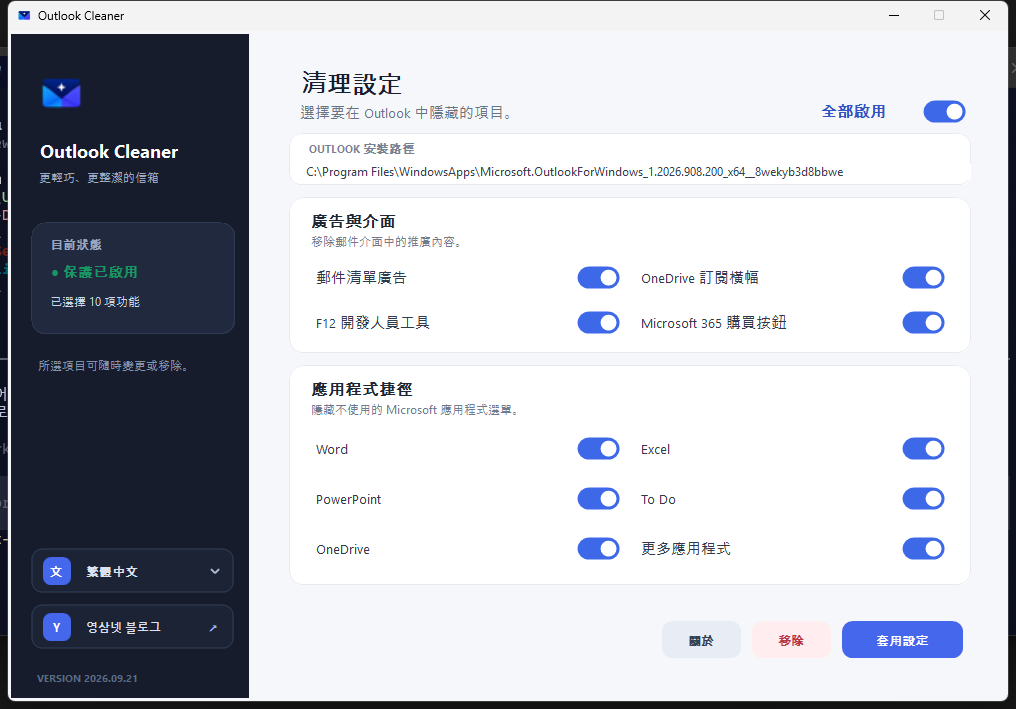
Five interface languages — Korean, English, Japanese, Chinese (Simplified & Traditional)
The language picker at the lower left switches the whole interface. Item names, descriptions and buttons are all translated, so you can hand the tool to family or colleagues who do not read Korean.
Requirements
| Operating system | Windows 10 or Windows 11 (64-bit) |
| Target app | Microsoft new Outlook for Windows (classic Outlook not supported) |
| Runtime | .NET 8 Desktop Runtime |
| Installation | None — unzip and run |
| Privileges | Normal by default; administrator approval only when applying or removing |
| Price | Free (no account, no ads, no payment) |
Good to know before you start
- Outlook updates — the new Outlook ships updates often. If its interface changes, an individual item may stop working for a while; press Remove to revert and wait for an updated build.
- Managed devices — on a company or school PC, check your organisation's security policy first. Your environment may not allow this kind of change.
- Classic Outlook — the old Win32 Outlook (2016 / 2019 / Microsoft 365 desktop) has a completely different interface and is not supported.
- Not a Microsoft product — this is an independent tool. It does not bypass any Outlook policy or licence; it only tidies the interface on your own PC.
What this tool does not do
- It does not read or modify mail, calendar or contact data.
- It does not send account information or usage data anywhere.
- It does not stay resident in the background — close it once the settings are applied.
- It does not add Outlook features or change your subscription state. It only makes things invisible on screen.
Download and integrity check
Use the download section above to get the zip archive (recommended) or the single executable. The archive contains the executable together with Korean and English readme files and the SHA256 value. To confirm that your copy matches the original, compare the hash with the commands below.
# PowerShell
Get-FileHash .\OutlookCleaner.exe -Algorithm SHA256

# Command Prompt
certutil -hashfile OutlookCleaner.exe SHA256

# Expected (2026.09.21)
# OutlookCleaner.exe
# a187147ea649c4468e7ed4fa6862eee7157c85b6052ed18f239d5d107a174fd9
Frequently asked questions
Is Outlook Cleaner free?
Yes. There is no account, no payment and no advertising inside the tool. You can use it for personal or work machines alike, with no time limit.
Which Outlook does it work with?
It works with Microsoft's new Outlook for Windows. You need 64-bit Windows 10 or 11 and the .NET 8 Desktop Runtime. The older classic Outlook (Win32, part of the Microsoft 365 desktop apps) has a completely different interface and is not supported.
Will my mail data be deleted or changed?
No. The tool only hides elements drawn on screen. Mail, calendar and contact data as well as account settings are never touched, and removing the tool leaves Outlook itself intact.
Does it require administrator privileges?
The app itself runs with normal privileges. Administrator approval is requested only at the moment settings are applied or removed, because system-level settings change then. At any other time no elevation is needed.
Can I revert the applied settings?
Yes. Run the app again, press "Remove" at the bottom right and approve the administrator prompt; the settings are released and Outlook restarts. If you only want to change some items, adjust the toggles and press "Apply settings" instead.
My antivirus shows a warning. Is that expected?
A small cleanup DLL is loaded during Outlook startup, and some security products flag that pattern for confirmation. The actual behaviour is limited to hiding interface elements, and the SHA256 of the released files is published in this page so you can verify your download. If you would rather not keep it, "Remove" reverts everything at any time.
Do I have to reapply after Outlook updates?
Most of the time the settings survive updates. If the new Outlook changes its interface substantially, an item may stop applying; reopen the app and press "Apply settings". If that does not help, use "Remove" to return to the original state and wait for an updated build.
Can I use it on a company-managed PC?
It works technically, but managed devices often restrict system-level changes through policy. Check with the team that administers your device before using it.
Can I change the interface language?
Yes. The language picker at the lower left offers Korean, English, Japanese, Simplified Chinese and Traditional Chinese. Item names, descriptions and buttons all switch to the selected language.