Opening a heavy image editor just to grab one colour —
that ends with a single shortcut.
ColorPick is a free colour picker
that grabs any colour on your screen and copies it straight to the clipboard.
It starts in about 0.03 seconds and uses roughly 6MB of memory. Press Ctrl+Alt+C,
the magnifier appears within about 0.2 seconds, and the moment you click you get the value in one of
13 formats — HEX, RGB, HSL, CMYK, OKLCH and more.
0.03s startup measured 26–47ms |
6MB memory leave it running |
13 copy formats custom template included |
48× magnifier zoom pixel-accurate |
Portable single exe runs from a USB stick |
If you do web or app design, front-end work or product pages, you sample colours from the screen several times a day. Doing that through an image editor — launch it, find the eyedropper, copy the value by hand — is a small annoyance repeated endlessly. ColorPick exists to compress that into one shortcut and one click.
One shortcut, one click
Press the global shortcut and the screen freezes while a circular magnifier follows your cursor. Pixels are enlarged until they are visible as squares, so a one-pixel border or a specific point in a gradient is easy to hit.
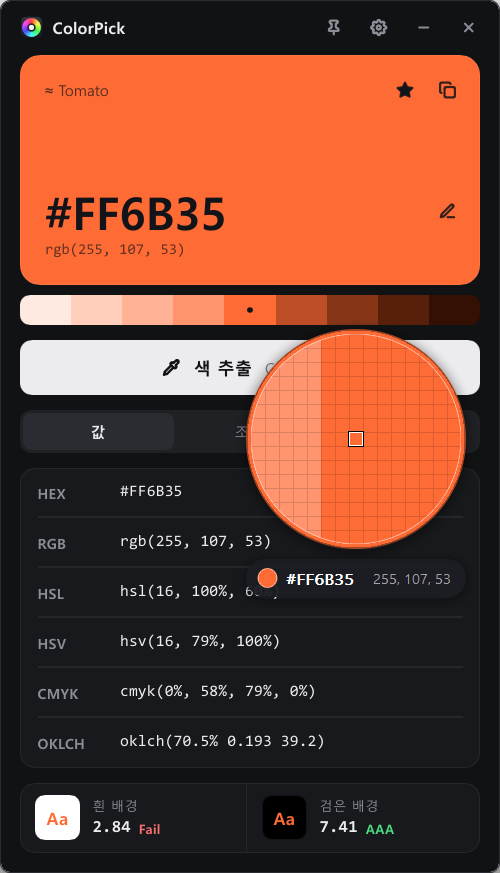
Enter · Space — pick the colour under the cursor+ · - — zoom in and out (up to 48×)Shift for tenThe picking click is not passed through to the window behind it, so sampling a colour over your editor or browser never triggers anything there.
Copied the instant you pick it
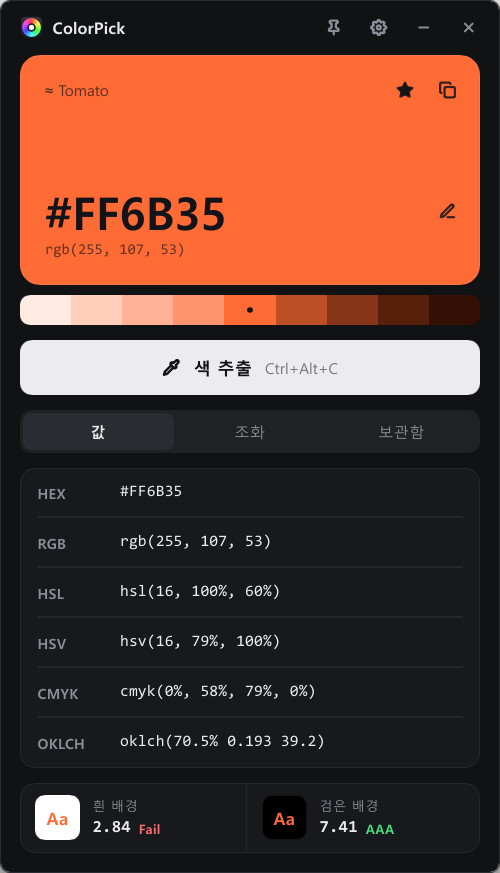
The colour lands on your clipboard in the format you chose, right as you click. Click any row in the value list to copy that format instead, or click the large colour card to copy the HEX.
| Format | Example | Typically used for |
|---|---|---|
| HEX | #FF6B35 | CSS and design tools in general |
| RGB · HSL · HSV | rgb(255, 107, 53) | web styling, colour tweaking |
| HWB · CMYK | cmyk(0%, 58%, 79%, 0%) | print work |
| LAB · OKLCH | oklch(70.5% 0.193 39.2) | modern CSS, perceptual colour work |
| 0x · Delphi · decimal · float | 16739125 · 1.000, 0.420, 0.208 | hard-coding colours in source |
| Custom template | Color({r}, {g}, {b}) | whatever your language or framework expects |
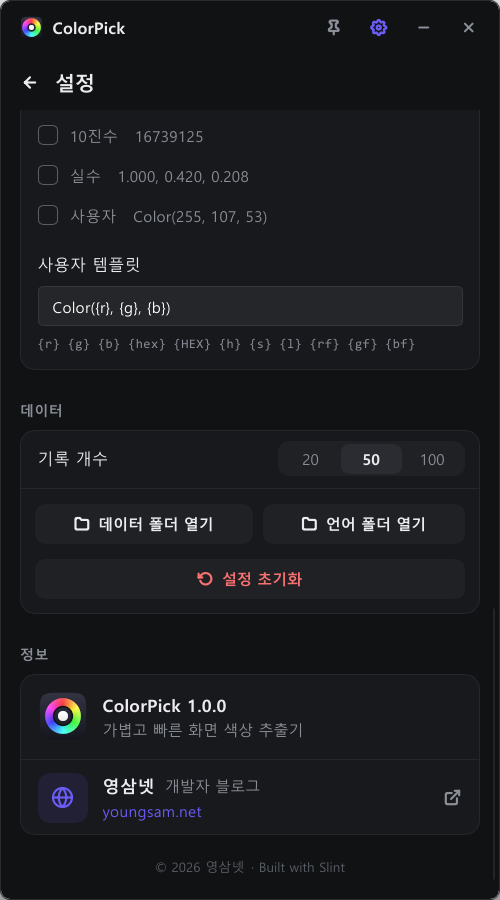
The custom template accepts placeholders such as {r} {g} {b} {hex} {HEX} {h} {s} {l} {rf} {gf} {bf},
so you can shape the output exactly like the code you write every day.
Three things you will actually use in design
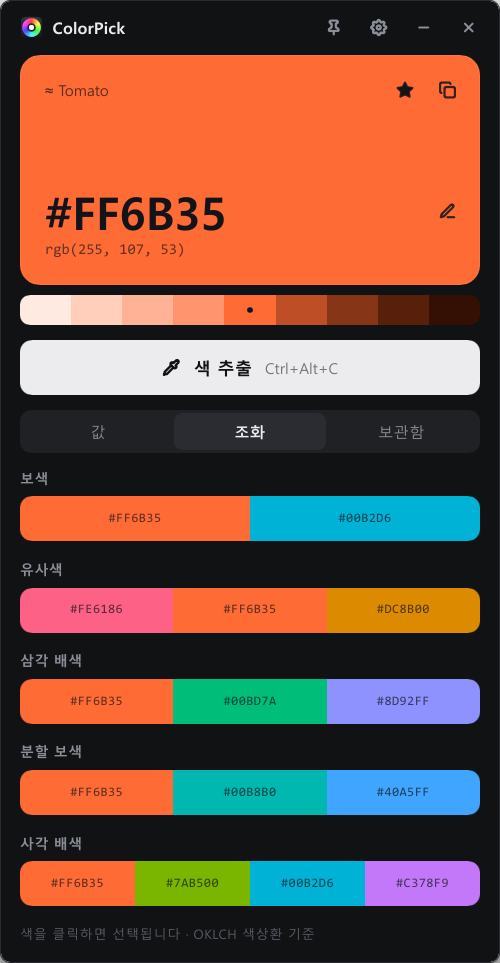
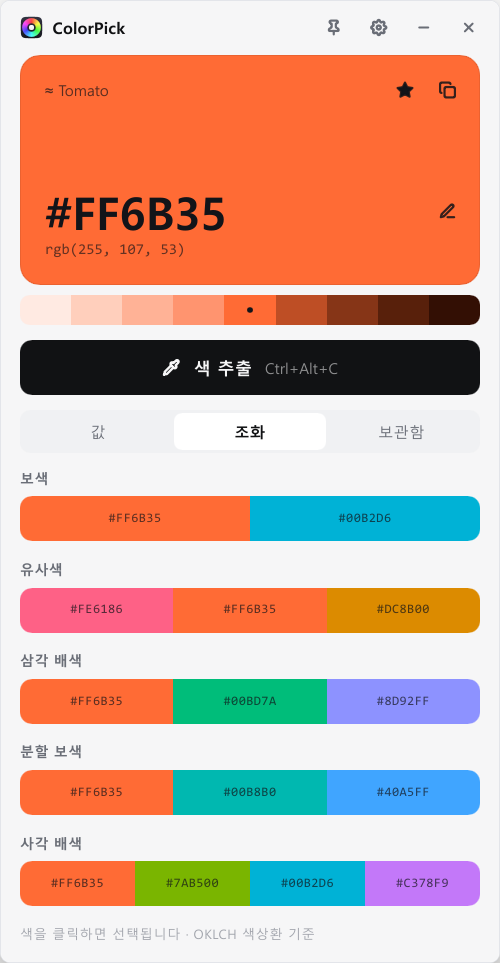
Press ✎ on the colour card to type a value directly — HEX, rgb(), hsl() or a CSS colour name such as tomato.
The nearest CSS colour name is shown above the card as ≈ Tomato.
Library — history, favourites, palette export
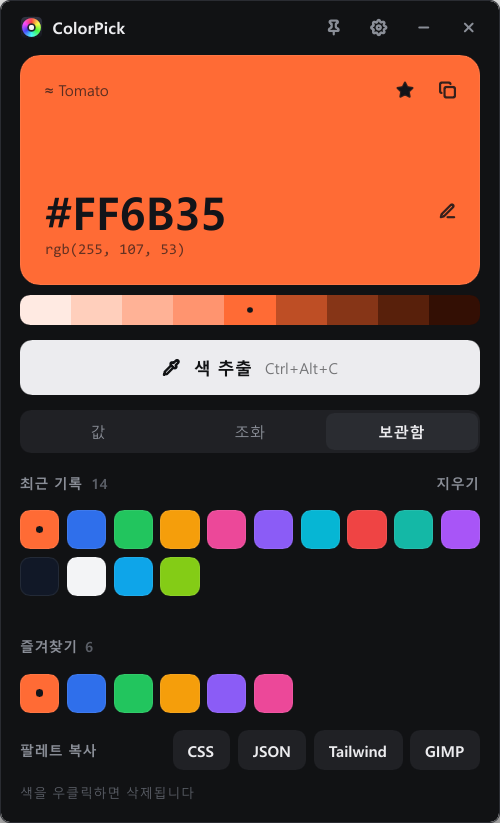
Every colour you pick is kept in the history (20, 50 or 100 entries, your choice), and anything worth keeping goes into favourites with ★. The favourites palette exports in one click, in formats you can paste straight into code.
--color-1: #FF6B35; variablesJSON — an array your code can read directly
Tailwind — a colour object for your config file
GIMP — a .gpl palette for GIMP and Inkscape
Settings — shape it to your hand
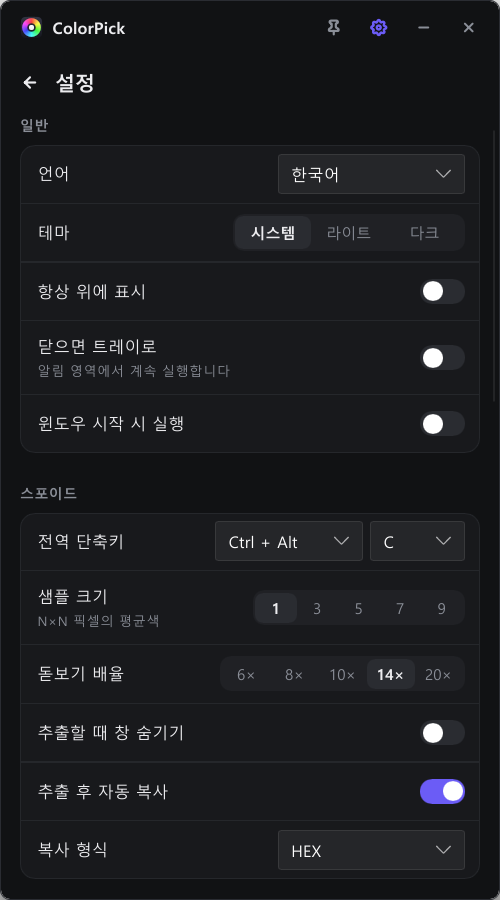
| Global shortcut | Default Ctrl+Alt+C, changeable to any combination |
| Sample size | 1×1 to 9×9 pixel average — useful on noisy photos |
| Magnifier zoom | 6× · 8× · 10× · 14× · 20× (wheel goes up to 48×) |
| Auto-copy after picking | choose the copy format; optionally hide the window while picking |
| Window behaviour | always on top · close to tray · start with Windows |
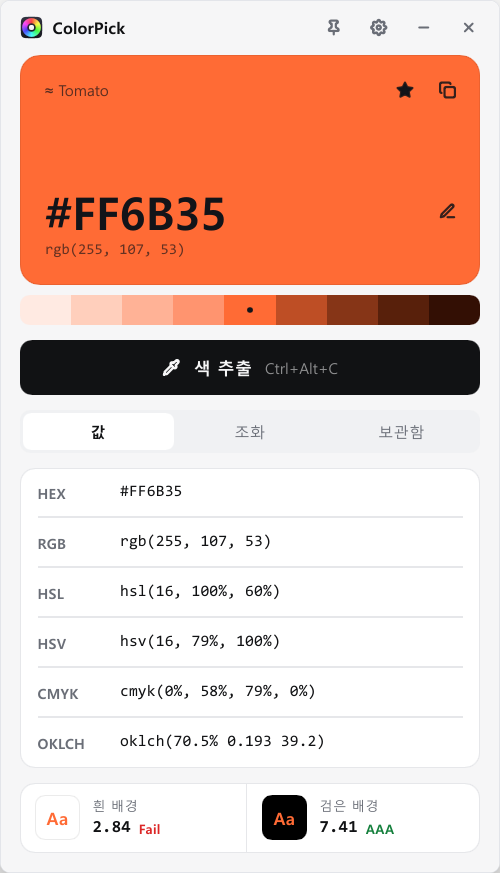
| Theme and language | system · light · dark / Korean · English · Japanese · Chinese |
What accuracy took
- Multiple monitors at different scaling — coordinates and pixels are computed correctly even when each display runs at a different scale (125%, 150% and so on).
- N×N averaging — on photos and compressed images, a 3×3 or 5×5 average gives a far more representative colour than a single pixel.
- Frozen screen — the screen is captured at the moment of picking, so you can sample an exact frame of a video or animation.
- No click leaking — the picking click never reaches the application underneath.
What "lightweight" actually means here
A colour picker is a tool you open dozens of times a day, so how fast it starts and how much memory it holds matter as much as its feature list.
ColorPick runs from a single executable with no installation, and stores its configuration in settings.toml next to the program —
carry it on a USB stick and your settings come with it.
Add your own language
Korean, English, Japanese and Chinese ship with the program. Drop a .toml language file into the Languages folder
and it appears in the list immediately — copy an existing file, translate the strings, done.
ColorPick/
├─ ColorPick.exe          executable (about 10MB)
├─ README.txt             usage notes
├─ settings.toml          settings (created on first run)
└─ Languages/
   ├─ ko.toml  en.toml  ja.toml  zh-CN.toml
   └─ (drop new language files here)
How to use it
- Unzip and run
ColorPick.exe— there is no installer. - Press the Pick colour button or
Ctrl+Alt+C. - Click the spot you want — the value is copied in your chosen format.
- Need a different format? Click that row in the value list.
Requirements and download
| Operating system | Windows 10 or Windows 11 (64-bit) |
| Installation | none — unzip and run (portable) |
| Settings location | settings.toml in the program folder |
| Price | free — no ads, no account, no payment |
To confirm your download matches the original, compare the hashes below.
# PowerShell
Get-FileHash .\ColorPick-1.0.0-win64.zip -Algorithm SHA256
Get-FileHash .\ColorPick\ColorPick.exe -Algorithm SHA256

# Expected (1.0.0)
# ColorPick-1.0.0-win64.zip
# a2028b1b6b43568e316dcb0e629ae9a823adc03bb015b9990ce960955e76e124
#
# ColorPick.exe
# 3bef0ef71703f3b3e0065e5123b42b6639e84d7505855e26371b70e6f3a9dd45
Frequently asked questions
Is ColorPick free?
Yes. No account, no payment, no advertising and no time limit. You can use it on personal and work machines alike.
Does it need to be installed?
No. Unzip the archive and run ColorPick.exe. Settings are stored in settings.toml inside the program folder, so the whole thing works from a USB stick with your preferences intact.
Which colour formats are supported?
HEX, RGB, HSL, HSV, HWB, CMYK, LAB, OKLCH, 0x, Delphi, decimal and float — twelve built-in formats plus your own custom template, thirteen in total. The format you choose is copied automatically when you pick, and clicking another row copies that one instead.
Is it accurate across several monitors with different scaling?
Yes. Displays running at different scale factors (125%, 150% and so on) are handled explicitly, so the pixel under your cursor is the pixel you get on any monitor.
What about photos where colours are noisy?
Raise the sample size to 3×3 or 5×5 and ColorPick averages the surrounding pixels. That removes the error you get from landing on a single compression artefact or a dithered pixel.
Will the application behind the cursor react to my click?
No. The picking click is not forwarded to the window underneath, so sampling a colour over your editor or browser leaves it untouched.
Can I change the shortcut?
Yes, in the global shortcut section of the settings. The default is Ctrl + Alt + C; change it if another program already uses that combination.
Does it support languages other than Korean?
Korean, English, Japanese and Chinese are included. Adding a .toml file to the Languages folder makes a new language available immediately, so you can translate it yourself if your language is missing.