
the fastest Windows file search
FastFind is a free Windows program that finds files by name. It reads the NTFS file table (MFT) that already exists on your drive, indexing 4.66 million files in about 45 seconds, and answers even a first-time query in 5.3ms — 15.7x faster than Everything (82.8ms) measured on the same PC. Type ㅅㄱㄷㅁ (just the initial consonants) to find ‘설계도면’ (design drawings); the index never leaves your PC.
Type only the initial consonants
Most of the time you don’t remember a file name exactly. Was it ‘설계도면’, ‘설계 도면’, or just ‘설계도’? Type the first consonant of each syllable and you’re done.
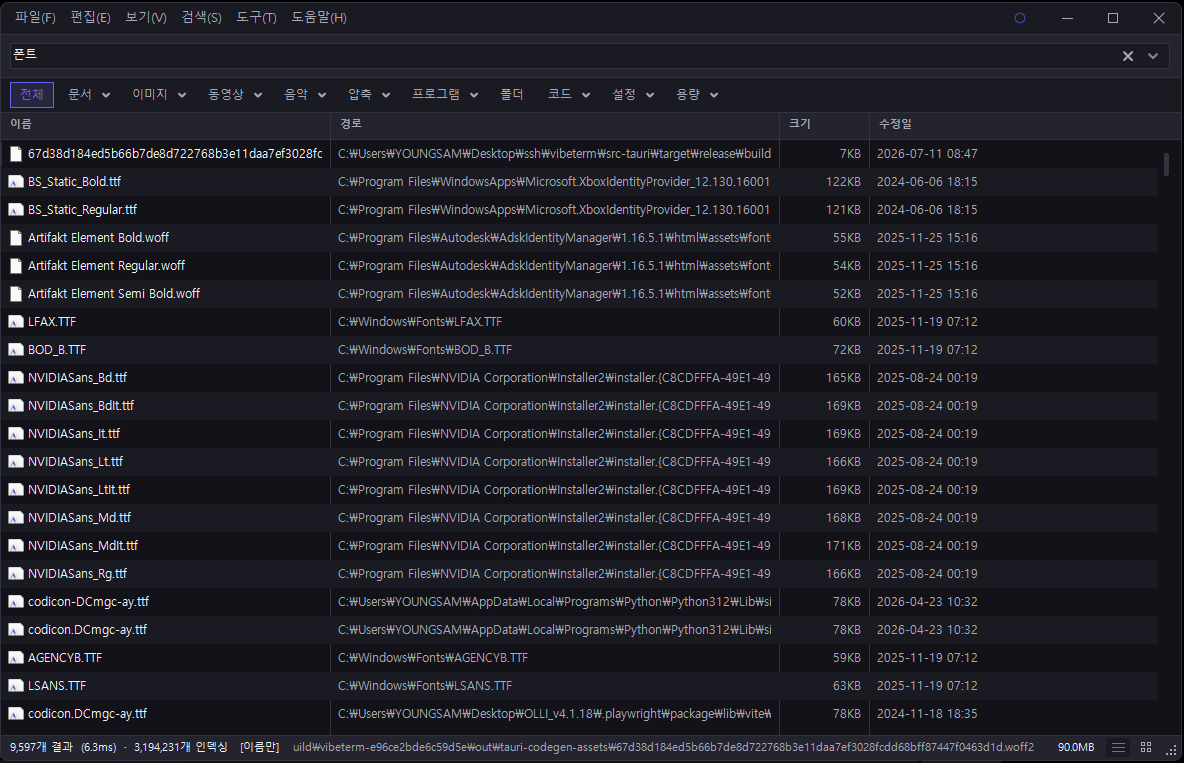
Type ‘font’ and you get fonts
No need to memorize extensions. Type what you’re looking for in plain words and it searches the matching extensions.
You can mix in other words. Typing 나눔 폰트 (Nanum font) · 휴가 사진 (vacation photo) · 계약서 문서 (contract document) narrows to the category first, then matches the name within it. It even understands phrases like 작은 엑셀 파일 찾아줘 (find small Excel files) — it drops ‘find’ and keeps only the size and extension.
What you need after finding
Name search is the core; preview, filtered search and duplicate finding sit on top.
Measured side by side with Everything
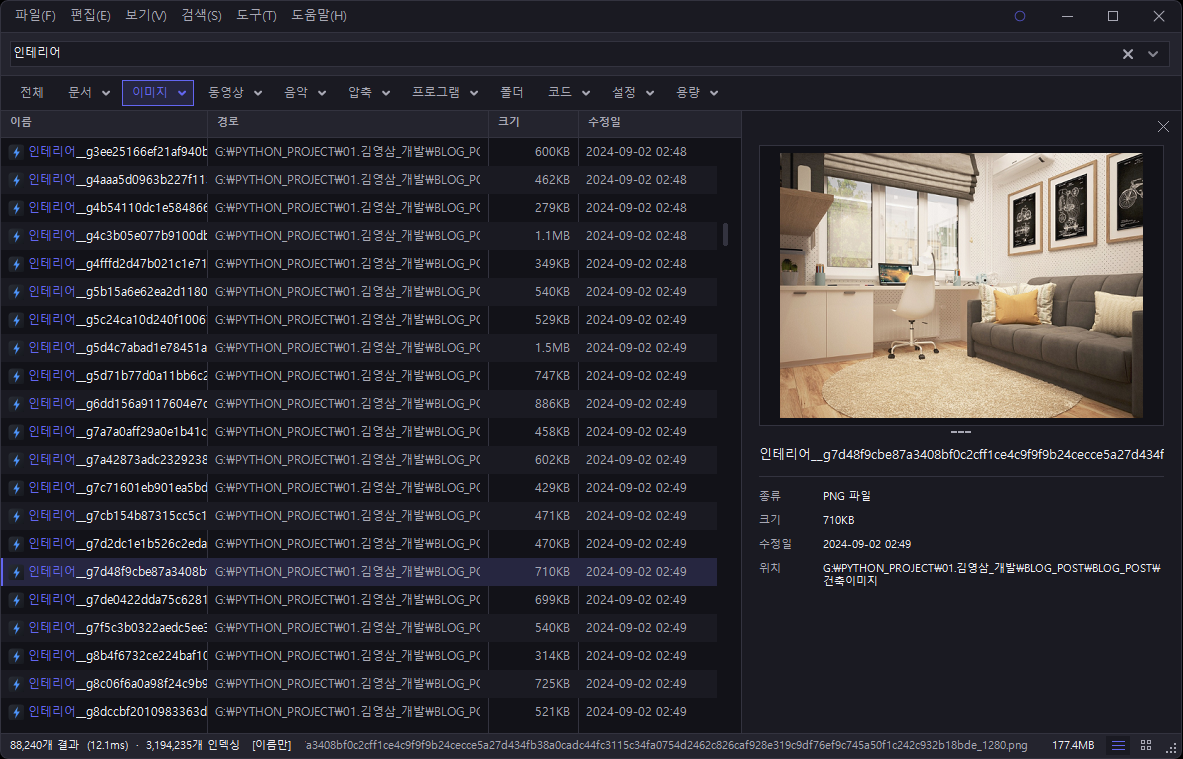
Same PC · same time · Windows 11 Pro · both programs running together · 7 NTFS volumes · FastFind 0.38.1 vs Everything 1.4.1.1032. All FastFind exclusions were turned off so indexed items matched at 4.66M vs 4.72M (‘인테리어’ results: 88,384 vs 88,384).
Measured 2026-08-12. On repeat queries Everything is faster because it caches results — we kept the rows we lost. The full comparison table is in the fastfind.kr benchmark data.
From Explorer, the keyboard, the command line
Even opening a search box is a chore. So FastFind can be called right where your hands already are.
FastFind.exe -s invoice
FastFind.exe -p "C:\Work" -s invoice
FastFind.exe --console ext:log > list.txt
On Windows 11 it sits under Show more options at the bottom of the right-click menu — hold Shift while right-clicking to get there in one step. Windows decides that location, so it can’t be moved. On Windows 10 it appears directly.
Build your own programs on top
While running, FastFind also hosts a small search server on your PC. It answers only on 127.0.0.1, so it can’t be reached from outside.
GET http://127.0.0.1:9090/api/search?q=invoiceWe actually built MyStart with it — find files on your PC right from your browser start page. You can also pull file lists into PowerShell or Python, or add your own actions to the result right-click menu. See the developer docs for how.
Colors that suit your eyes
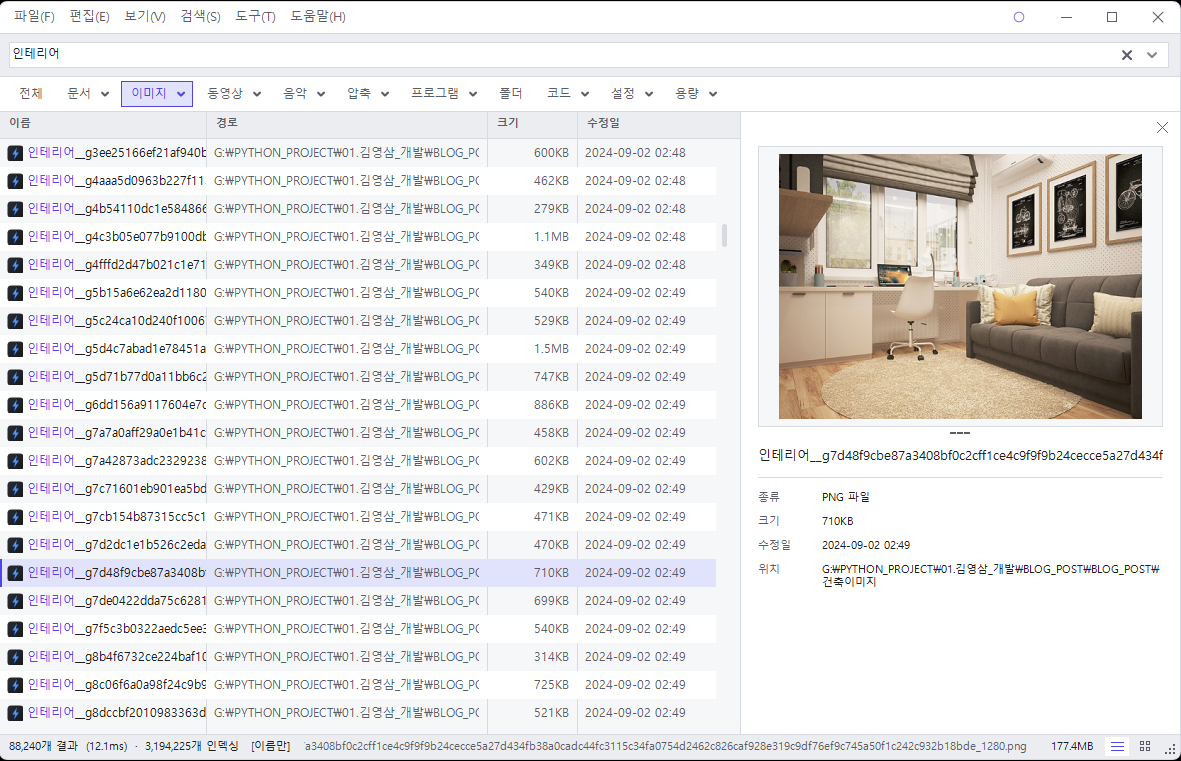
The same screen can be switched between several color themes. The UI is available in Korean · English · 日本語 · 简体中文 · 繁體中文 (per the official site).
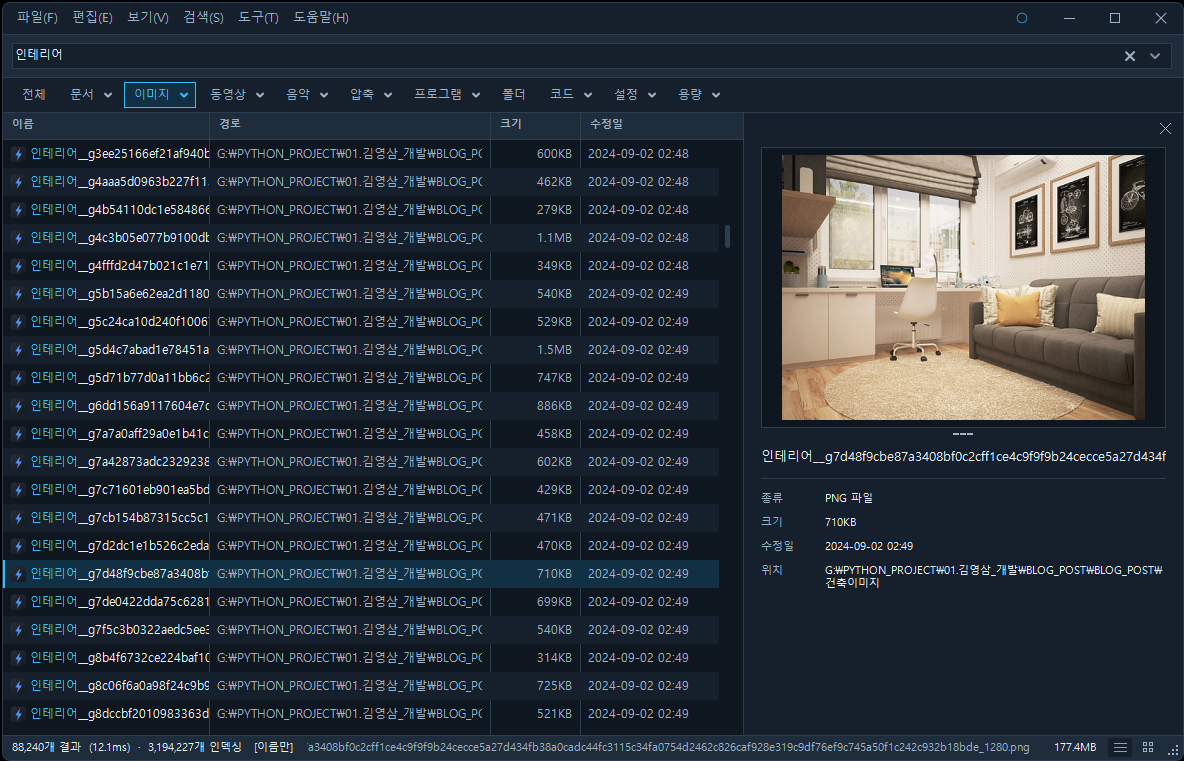
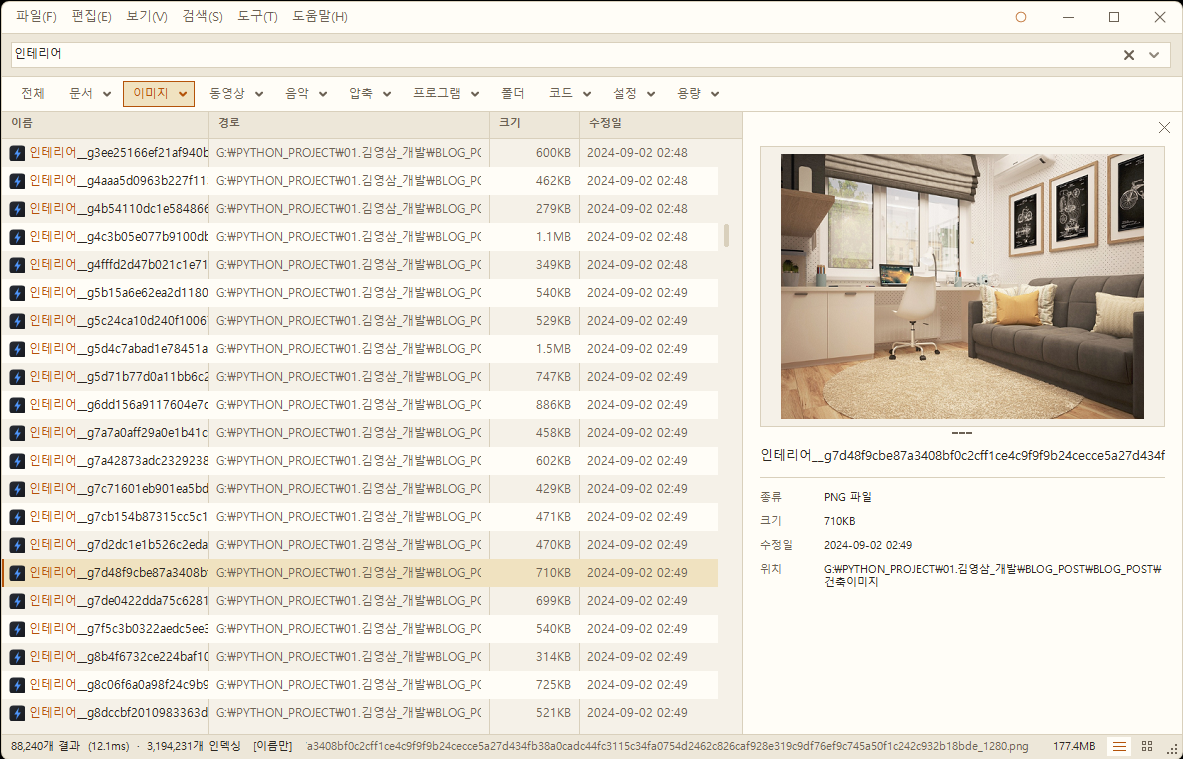
Your file list never leaves your PC
Download
FastFind.exe# PowerShell
Get-FileHash .\FastFind-0.96.6-Setup-x64.exe -Algorithm SHA256
Get-FileHash .\FastFind-0.96.6-x64.zip -Algorithm SHA256
Get-FileHash .\FastFind-0.96.6-x64.exe -Algorithm SHA256
# Expected (0.96.6)
# FastFind-0.96.6-Setup-x64.exe
# e8d1ad711fec9a3fde6c11928025a6ab791d618f7fd9a083c494baedfb24e634
#
# FastFind-0.96.6-x64.zip
# 291e87232783f33a14935316c57a23c8299e264703102081aa0c97f2535aa9ca
#
# FastFind-0.96.6-x64.exe
# bb3272f3e40434d73f563ee59eb3d51eaf81c0d6e061c2538daafb6b66294c71FAQ
Windows Explorer file search is so slow — is there a fast free alternative?
FastFind is a free file search program that builds its index by reading the NTFS file table (MFT) directly. It indexes 4.66 million files in about 45 seconds and then answers even first-time queries in 5.3ms (median). File changes are tracked through the USN journal, so there are no rescans.
Is FastFind really free?
Yes. No ads, no bundled installs, no feature limits. The installer, portable ZIP and single executable are all free, and it’s also on the Microsoft Store.
Can it replace Everything? How is it different?
Running both on the same PC, first-time queries took 5.3ms vs 82.8ms and memory was 65.9MB vs 473.5MB. It also supports Korean initial-consonant search and plain-word category search (‘font’, ‘photo’). On repeat queries, though, Everything is faster because it caches results, and idle CPU is effectively the same. Most Everything syntax (!, |, quotes, sizedupe: etc.) works as-is.
Can I use it alongside Everything?
Yes. They don’t interfere with each other — the benchmark above was run with both programs open.
Can I find files by Korean initial consonants?
Type ㅅㄱㄷㅁ and files containing ‘설계도면’ show up. Initial consonants use a dedicated structure, so it finishes in about 2.8ms.
Can it find and remove duplicate files?
dupe: finds files with the same name; dupe:content (dupe:내용) finds files with identical content. Sizes are already in the index, so there’s no full disk rescan — it narrows by size → first part → full content to confirm. Results are listed side by side.
Can I search by text inside files, not just names?
Use content:contract and it extracts text from Word, Excel, PPT and Hangul (hwpx) documents. Since each file must be opened, narrow the scope with name or extension conditions.
Do I need administrator rights?
No, but it’s much faster with them. As admin it reads the NTFS file table in one go and indexes in tens of seconds; without admin it walks folders one by one, takes several times longer and skips folders it can’t access.
Can I search only inside a specific folder?
Right-click that folder (or empty space inside it, or a drive) in Explorer and a search box scoped to it opens. From the command line use FastFind.exe -p "C:\Work" -s invoice, and in the search box narrow with path:Downloads.
Does it search USB drives, NAS or network drives?
Yes. Non-NTFS locations can’t be read via the file table and must be scanned folder by folder, so enable them separately in Settings › Index scope (off by default).
Is my file list uploaded to the internet?
No. The index stays on your PC, searches finish on your PC, and no internet connection is needed. Settings and index are in %LOCALAPPDATA%\FastFind.
I get an ‘Unknown publisher’ warning when installing. Is it safe?
There’s no code-signing certificate yet, so SmartScreen treats the file as unfamiliar. Proceed with “More info → Run anyway”, and you can first verify the download with the SHA-256 values on this page.
Windows is a trademark of Microsoft Corporation. Everything is a product of voidtools and is not affiliated with FastFind. Benchmark figures were measured on the single PC and versions described above and may vary by environment. Bug reports and feature requests are welcome at fastfind.kr.