Improved bolder, thinner — the boldest is now about twice as thick as before, and the thinnest can go even thinner
Aiming to be the free PDF editor
that handles Korean documents best.
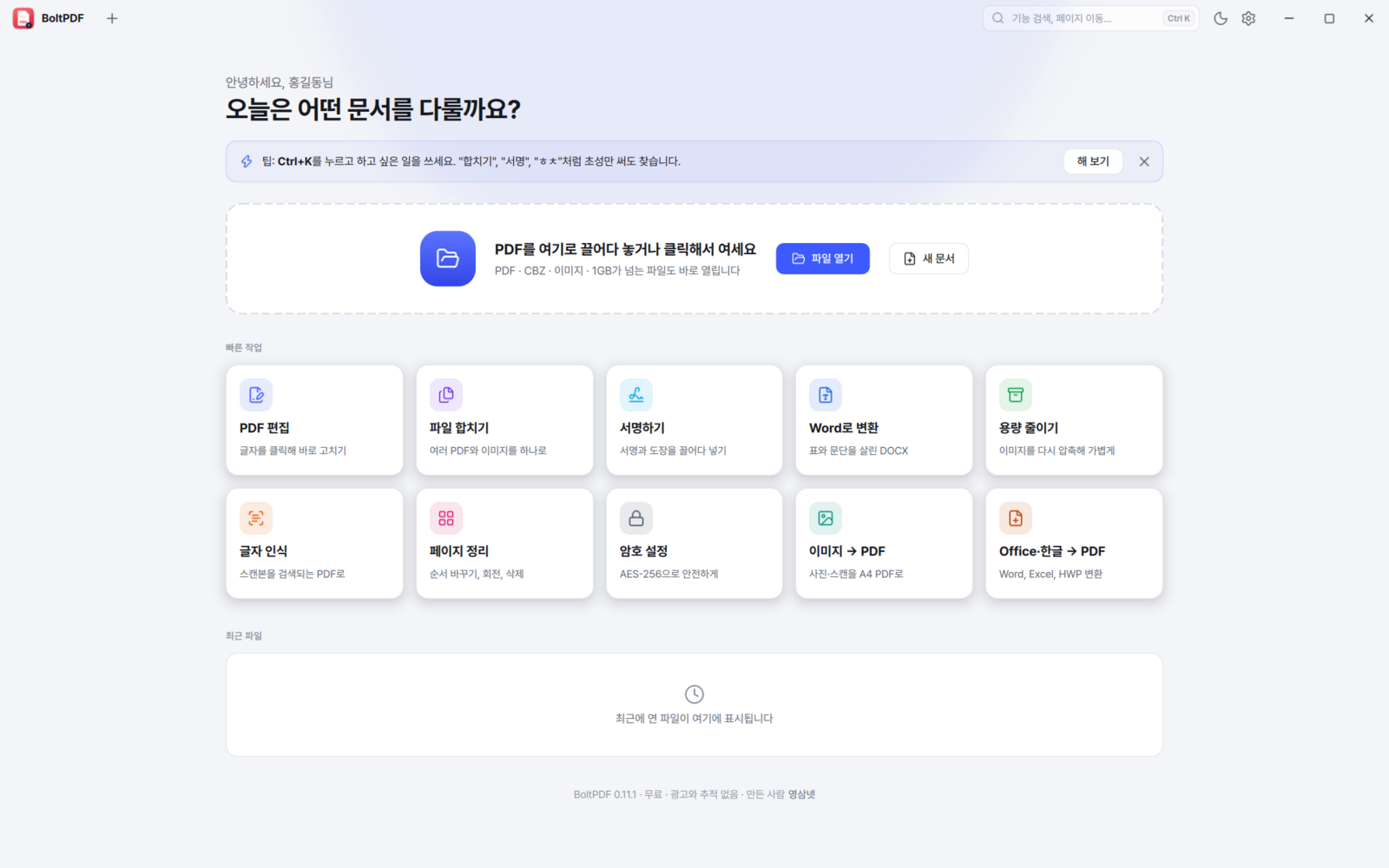
BoltPDF is a Windows PDF editor that covers viewing, editing, signing and converting in one program. It reads scanned Korean with very few mistakes, edits text inside a photo while matching the colour, weight and background, and adds up the totals in a form PDF for you. Completely free — no ads, no sign-in, no tracking.
3.5x Opening a document vs the previous engine |
49ms 2,000-page PDF time taken to open it |
40% less memory vs the previous engine |
4 languages Korean first English, Japanese, Chinese |
0 cost Ads, sign-in, tracking none of them |
The PDF engine is now our own
From 0.10.0 the PDF engine changed from the widely used open-source MuPDF to YsPDF, written from scratch in Rust. These are three alternating runs on the same PC with the same 2,000-page PDF, against 0.9.3 which used MuPDF.
| Measurement | 0.9.3 MuPDF | 0.11 YsPDF | Difference |
|---|---|---|---|
| Open the document | 172–186 ms | 49–51 ms | about 3.5x |
| First page painted | 40–49 ms | 19–22 ms | about 2x |
| Jump to page 1,000 and paint | 14–32 ms | 13–15 ms | faster and steadier |
| Search the whole file (first run) | 476–480 ms | 117–202 ms | about 2.5–4x |
| CPU for one second of smooth scrolling | 500–1,187 ms | 390–640 ms | less CPU |
| Memory after the test | 709–834 MB | 463–475 MB | about 40% less |
※ The comparison is against BoltPDF 0.9.3, which used the MuPDF engine. These are not figures against another company's product; they were measured alternately with the same files on the development PC (AMD Ryzen 9 3900X).
Strong with Korean
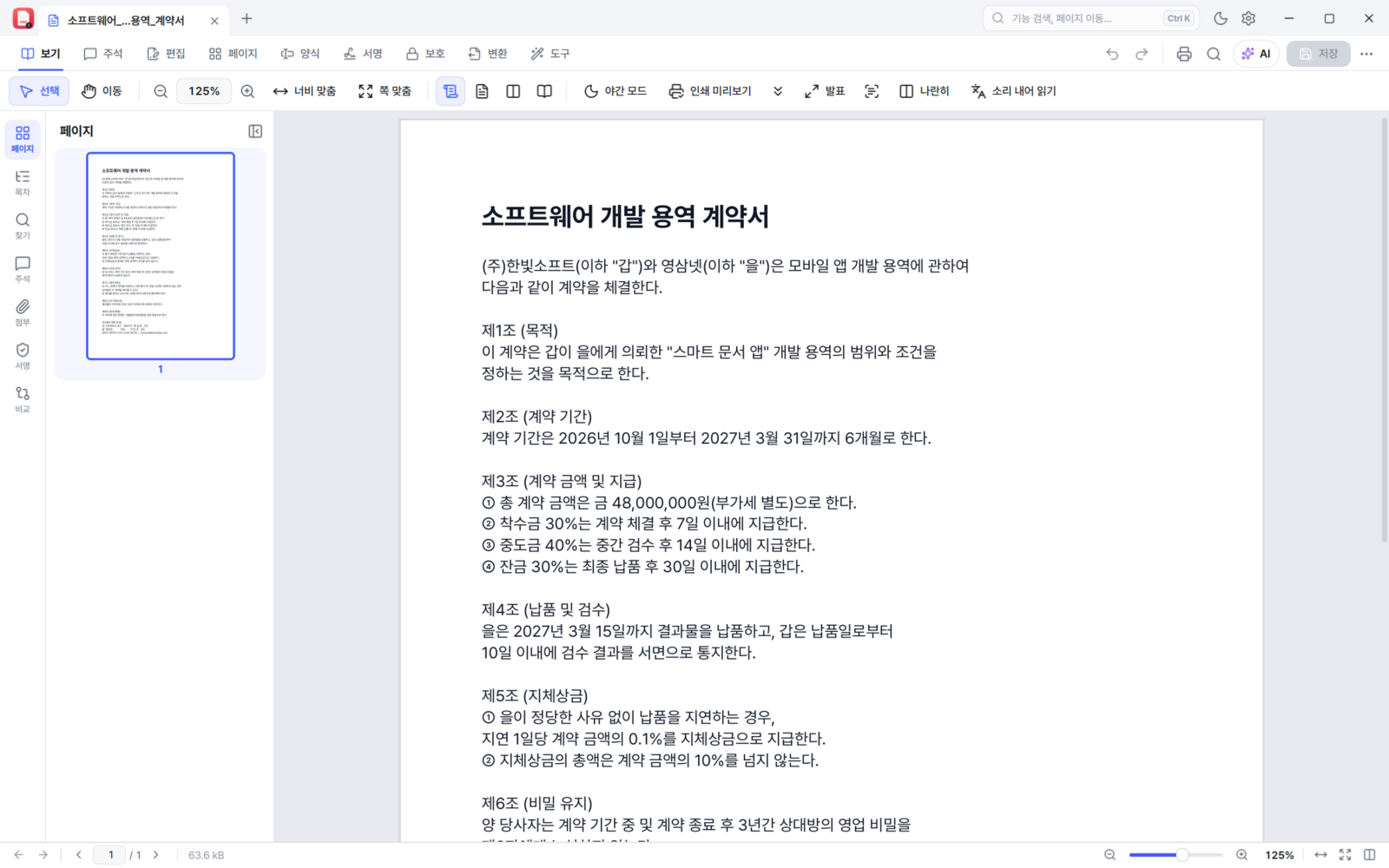
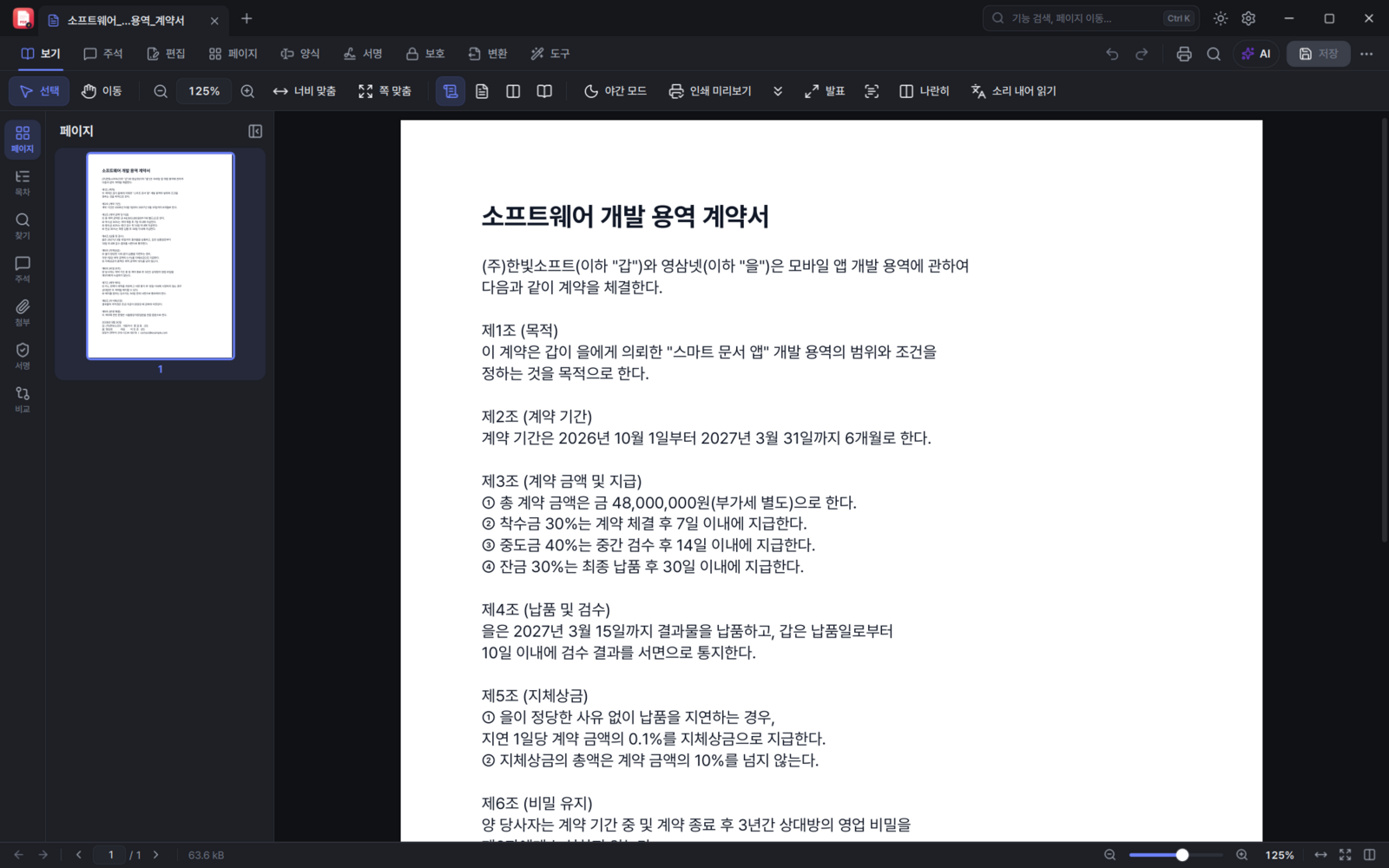
This is where most of the work went in 0.11.1. Korean in a scan or a photo is read first with the Korean recogniser built into Windows 10 and 11. Area text recognition and "make a searchable PDF" both use it; on a PC without the Korean recogniser it falls back to the built-in engine (Tesseract) as before.
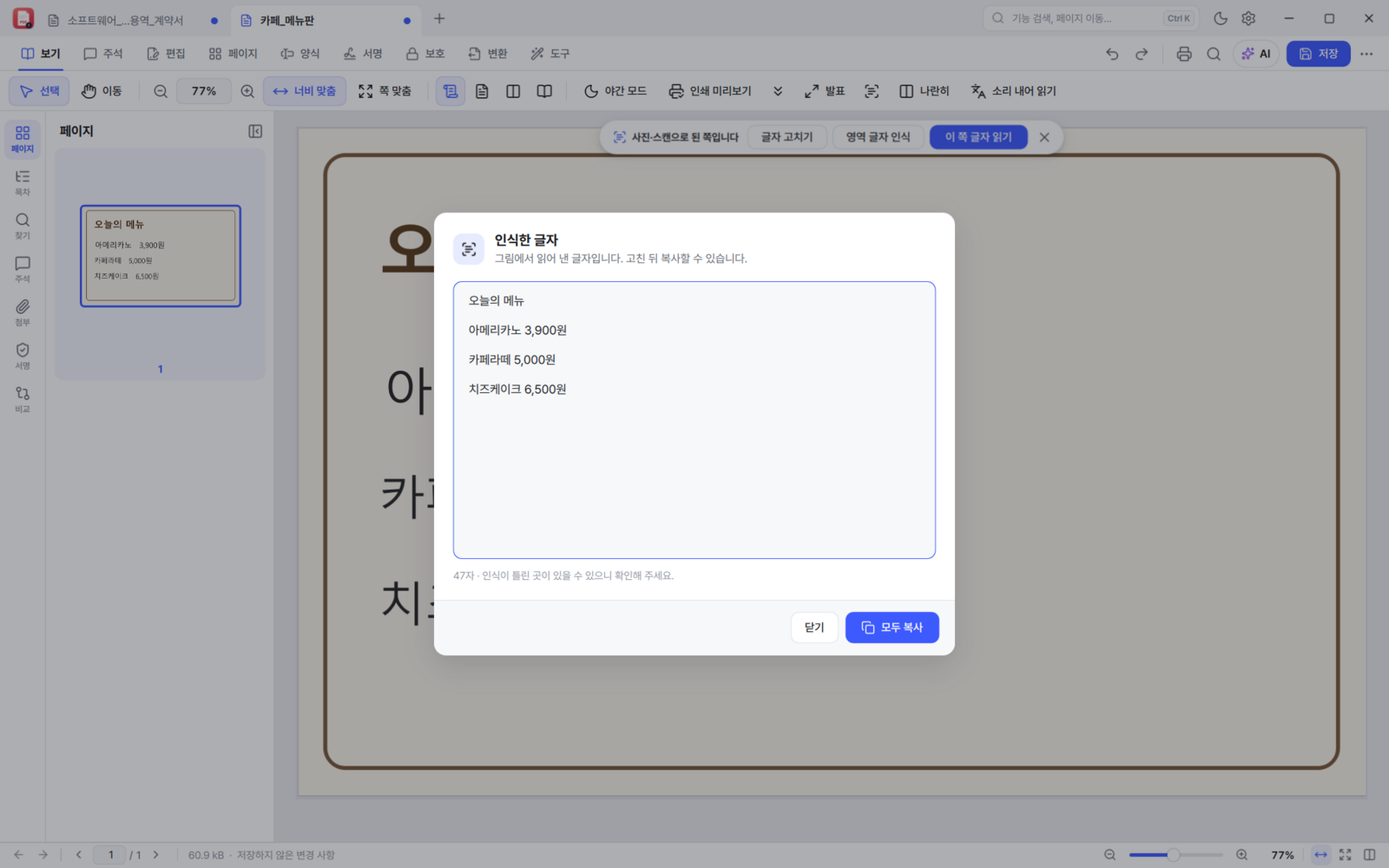
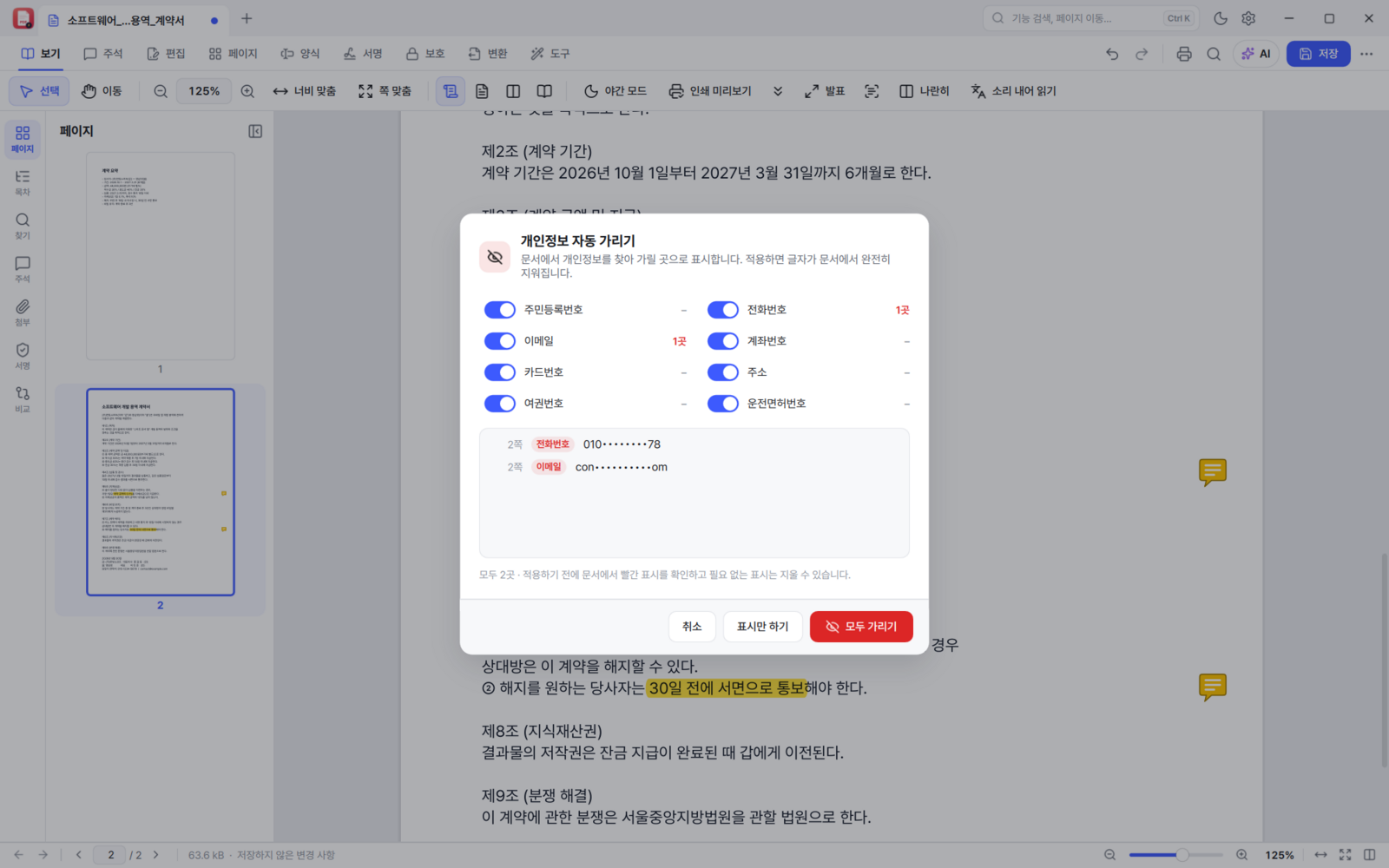
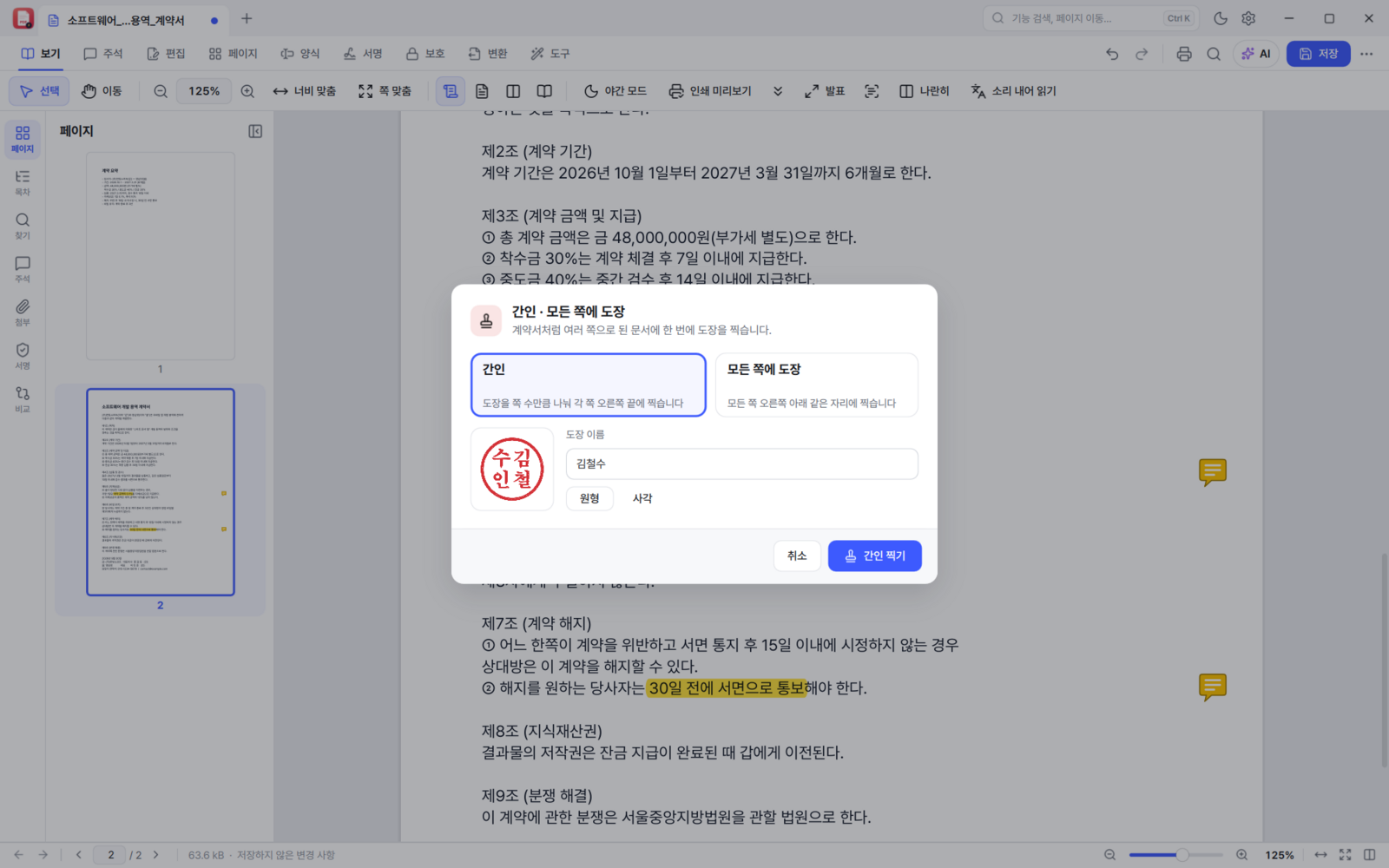
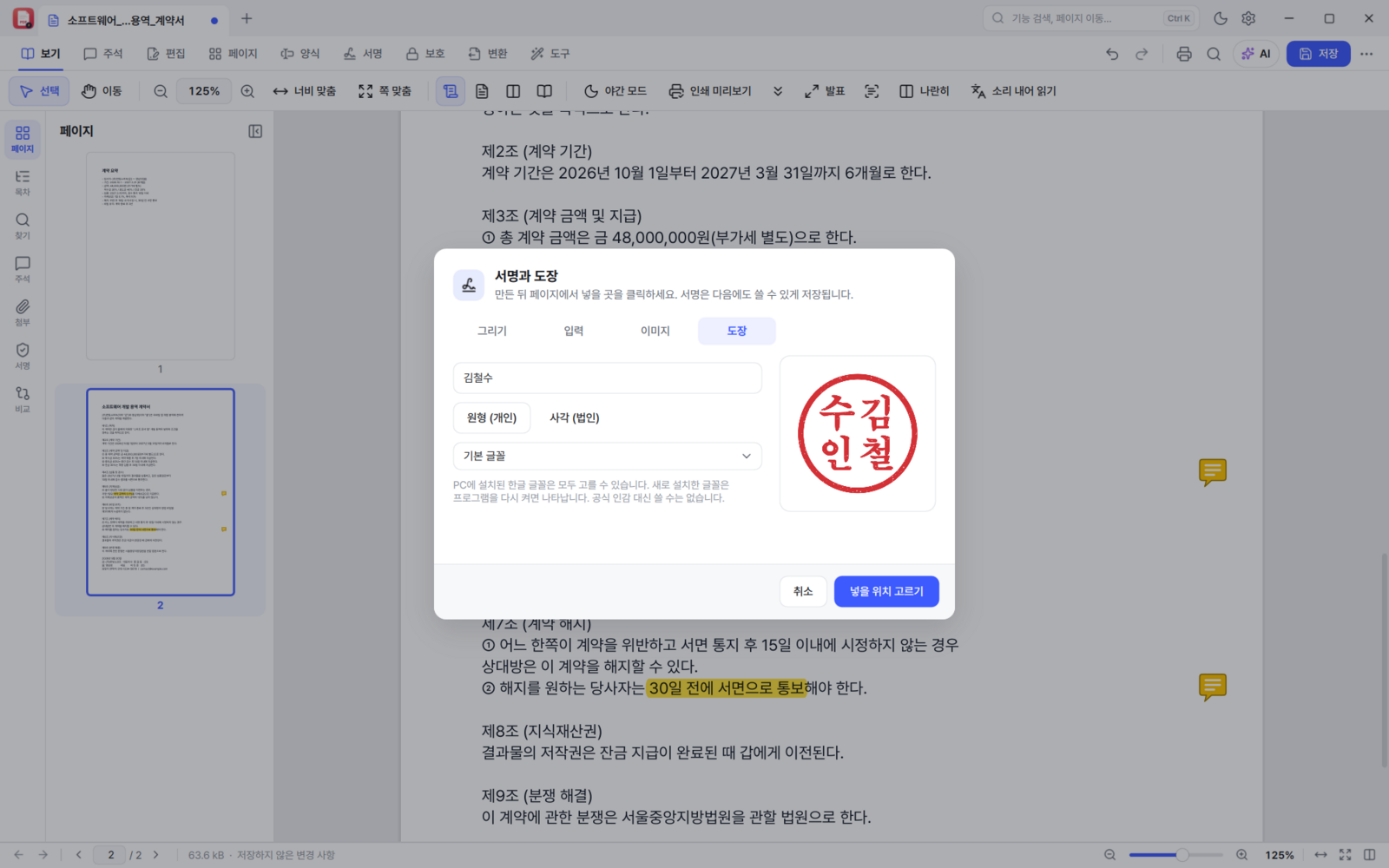
It also has the things people in Korea actually need: seal across page edges (ganin), stamping every page, and making Korean-style signatures and seals; Hangul (HWP) → PDF conversion; automatic redaction of personal data such as resident registration, account and phone numbers; and Korean formats such as ₩ and "yyyy년 m월 d일".
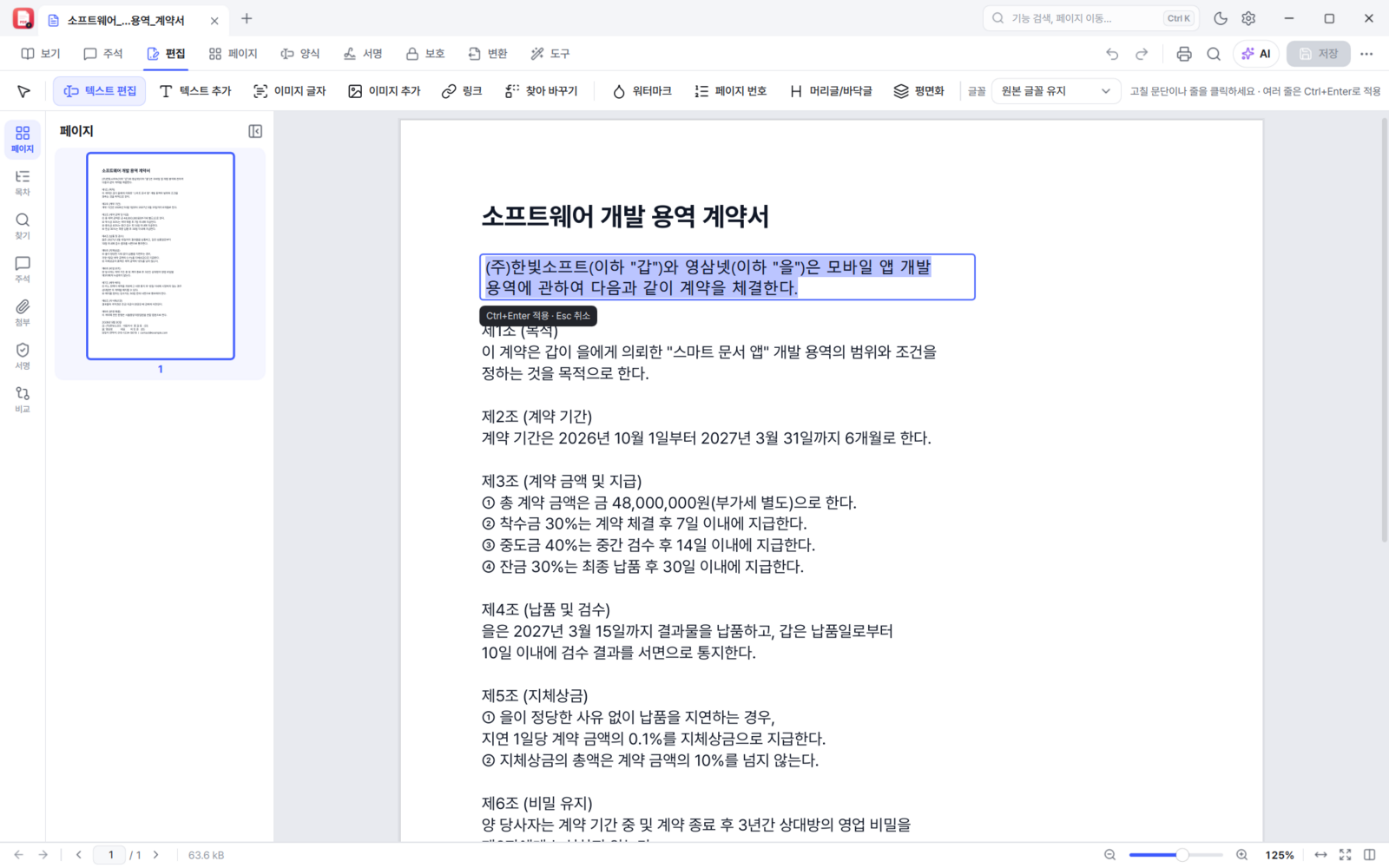
Editing text inside a photo
For when the prices on a menu board changed but the original file is long gone, or a single character in a scanned document is wrong. 0.11.1 brings this up to the level of paid software.
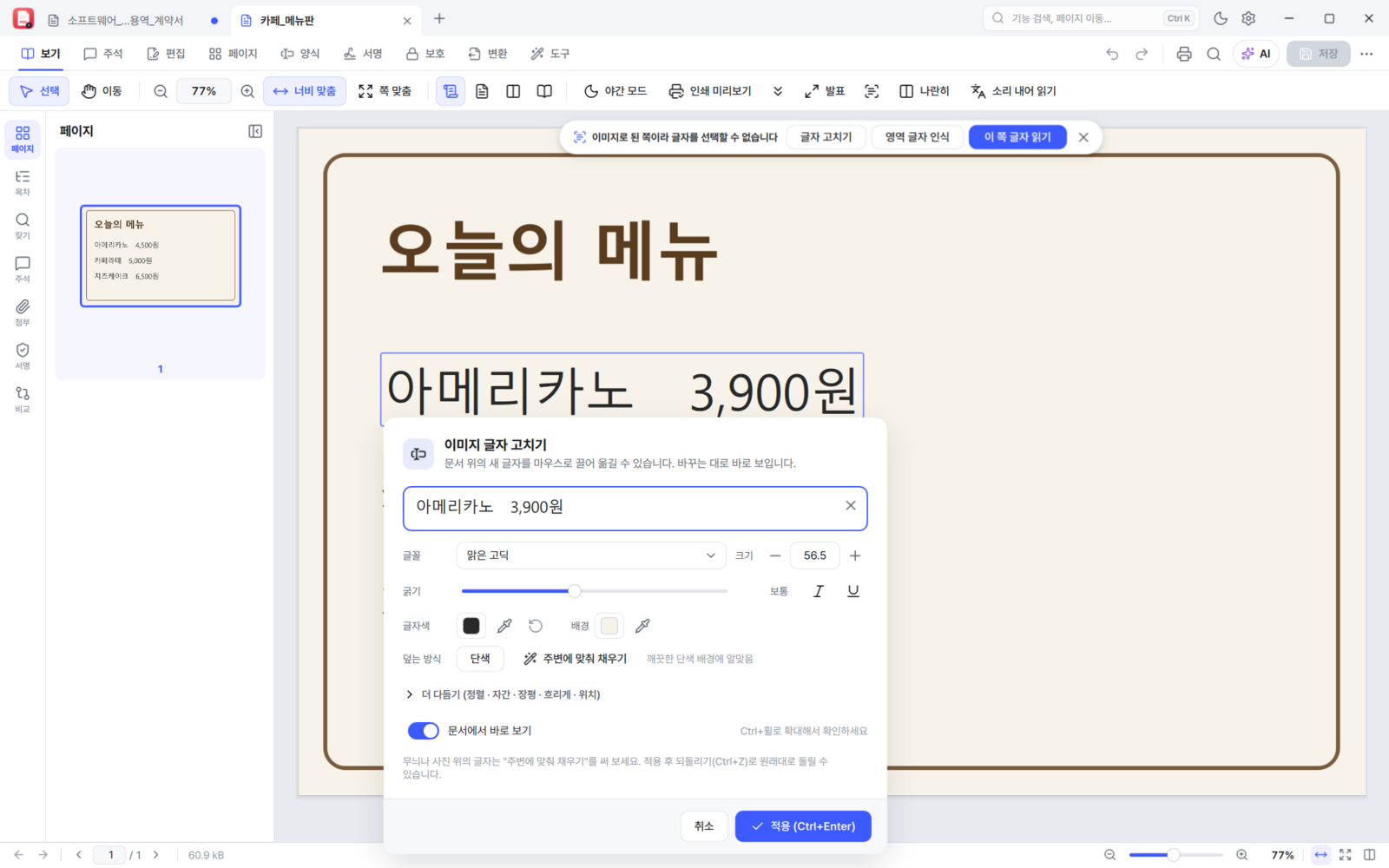
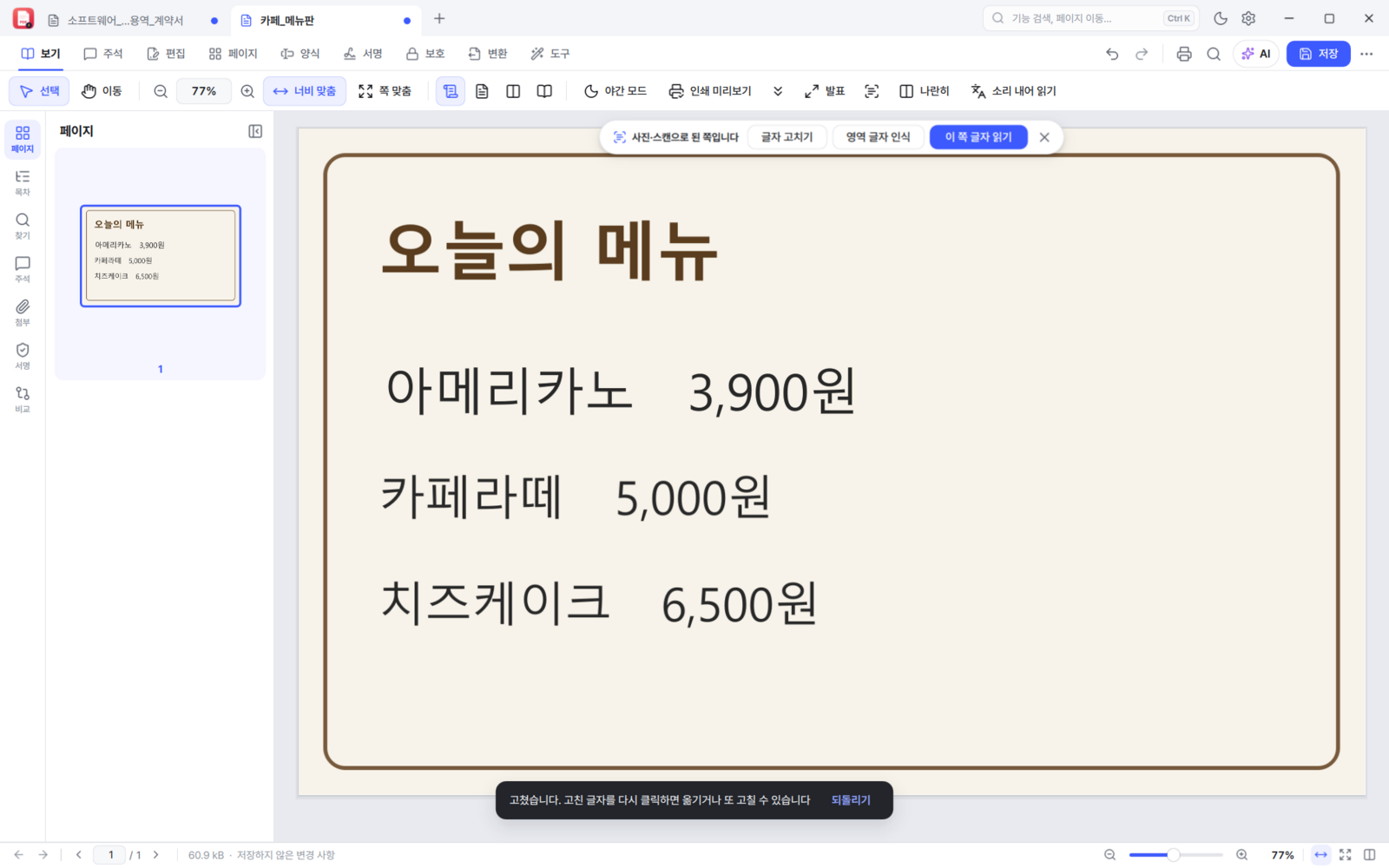
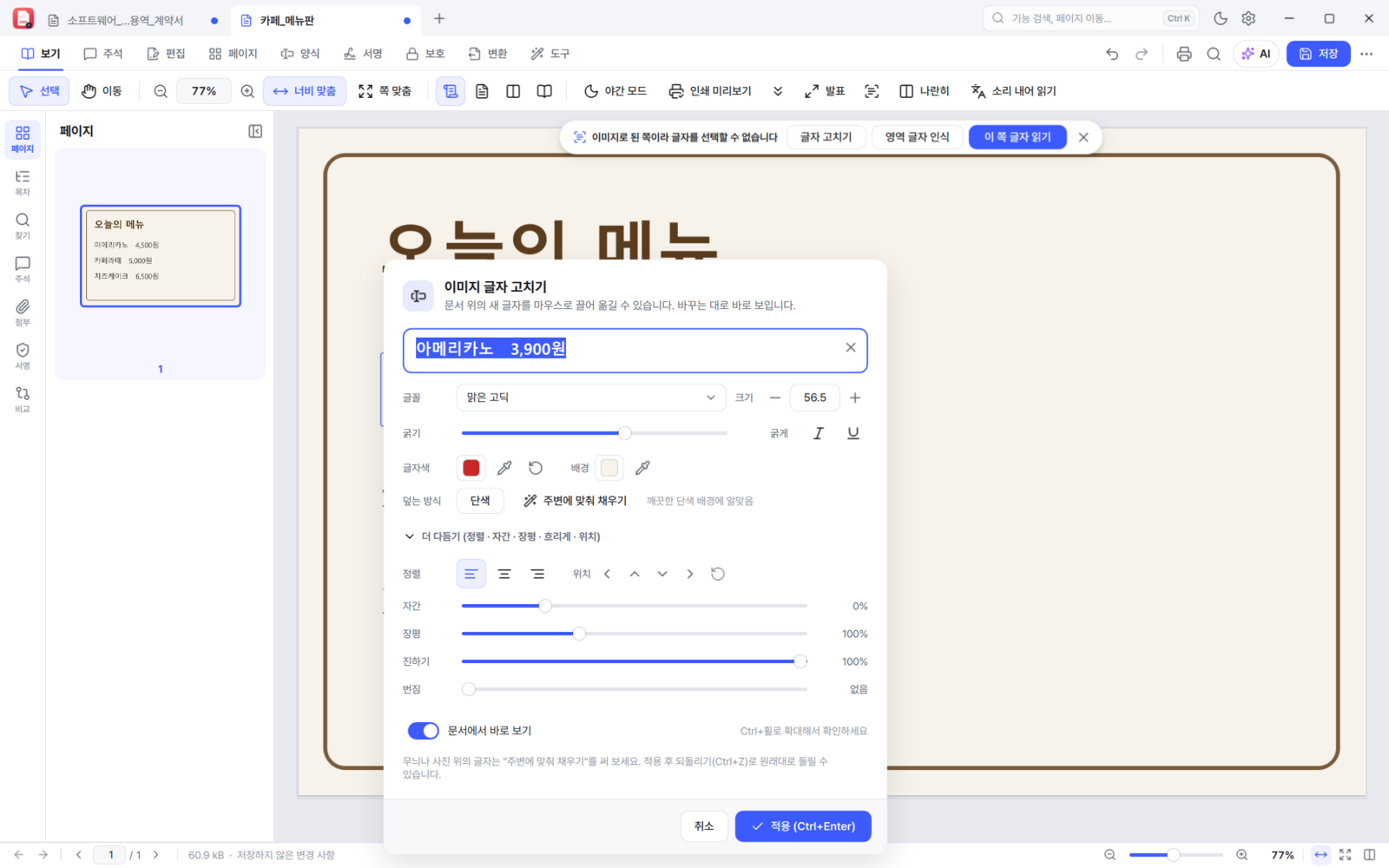
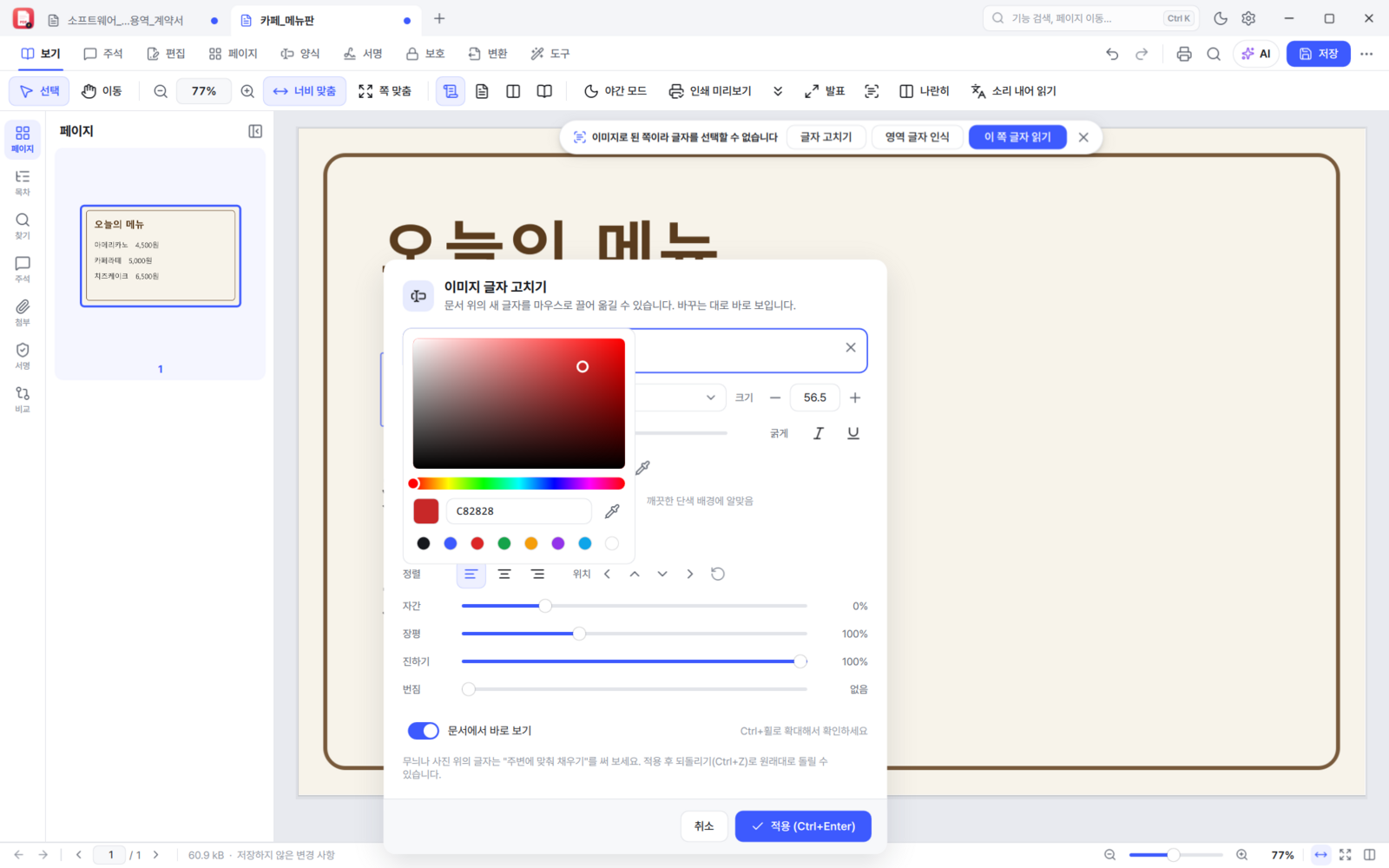
New text is dragged with the mouse (hold Shift to keep it on one axis) and nudged a step at a time with Alt and the arrow keys. Even after applying, hovering over it offers "double-click to edit or move", and double-clicking reopens it, replacing the earlier edit cleanly.
Form PDFs and print work
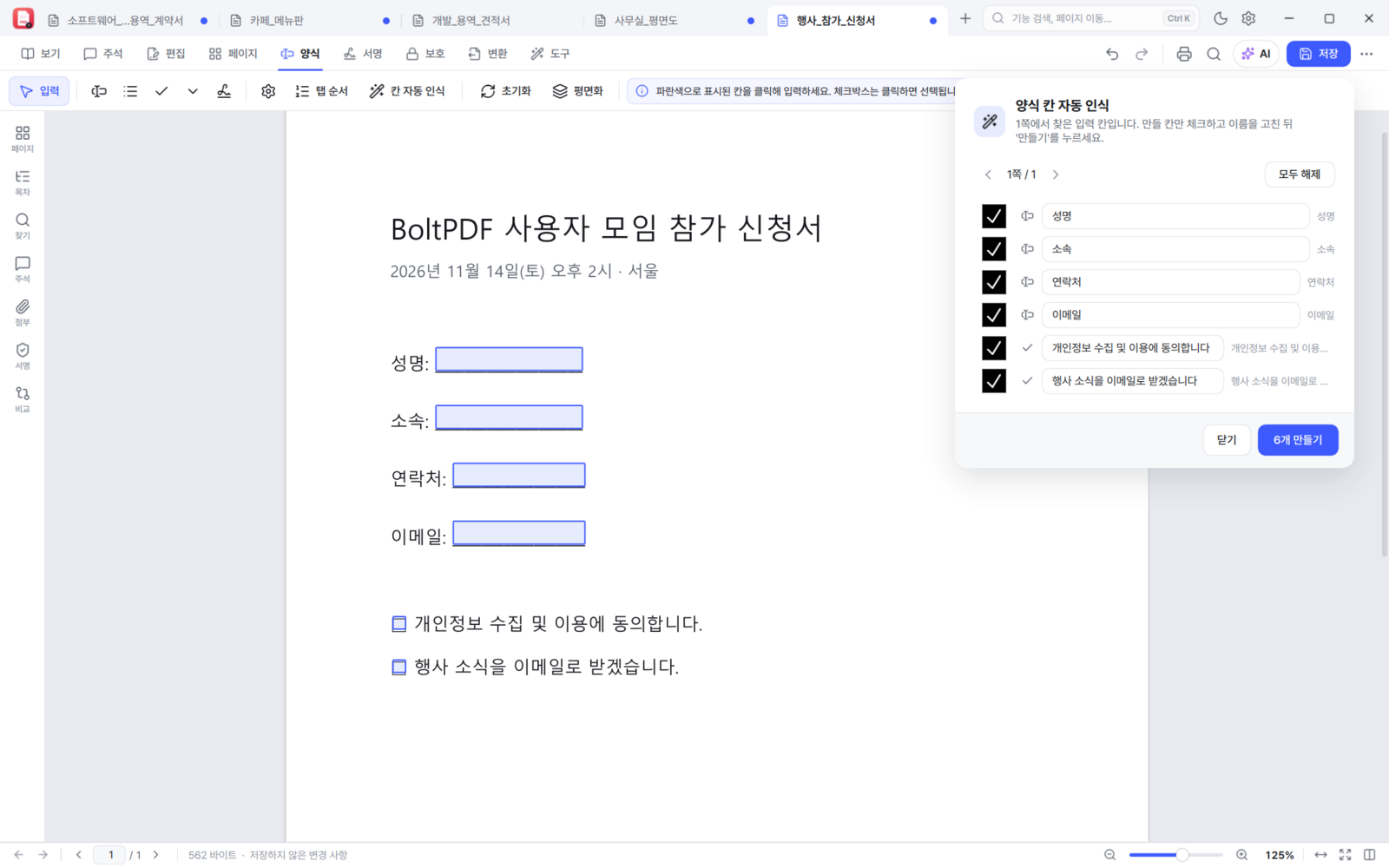
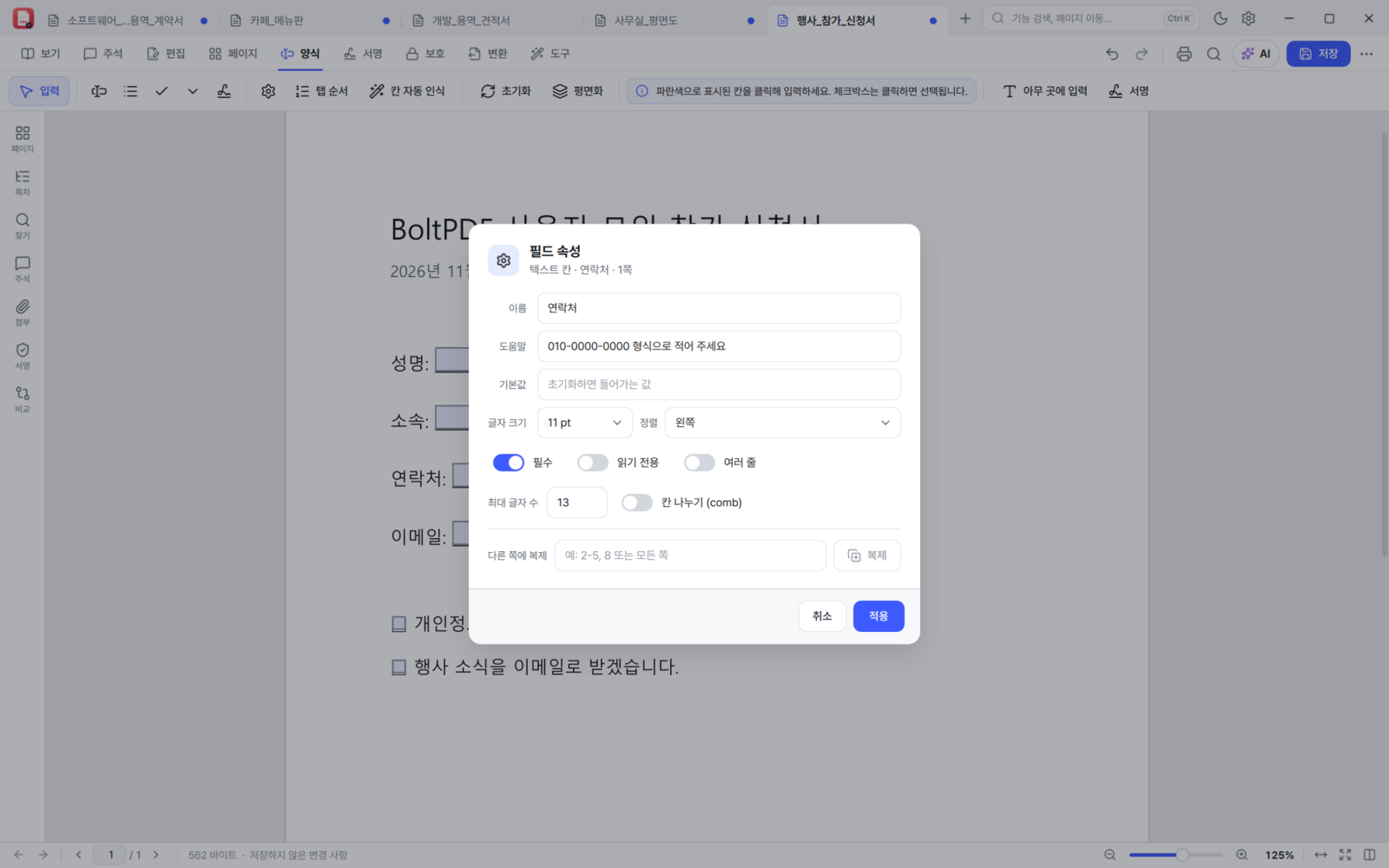
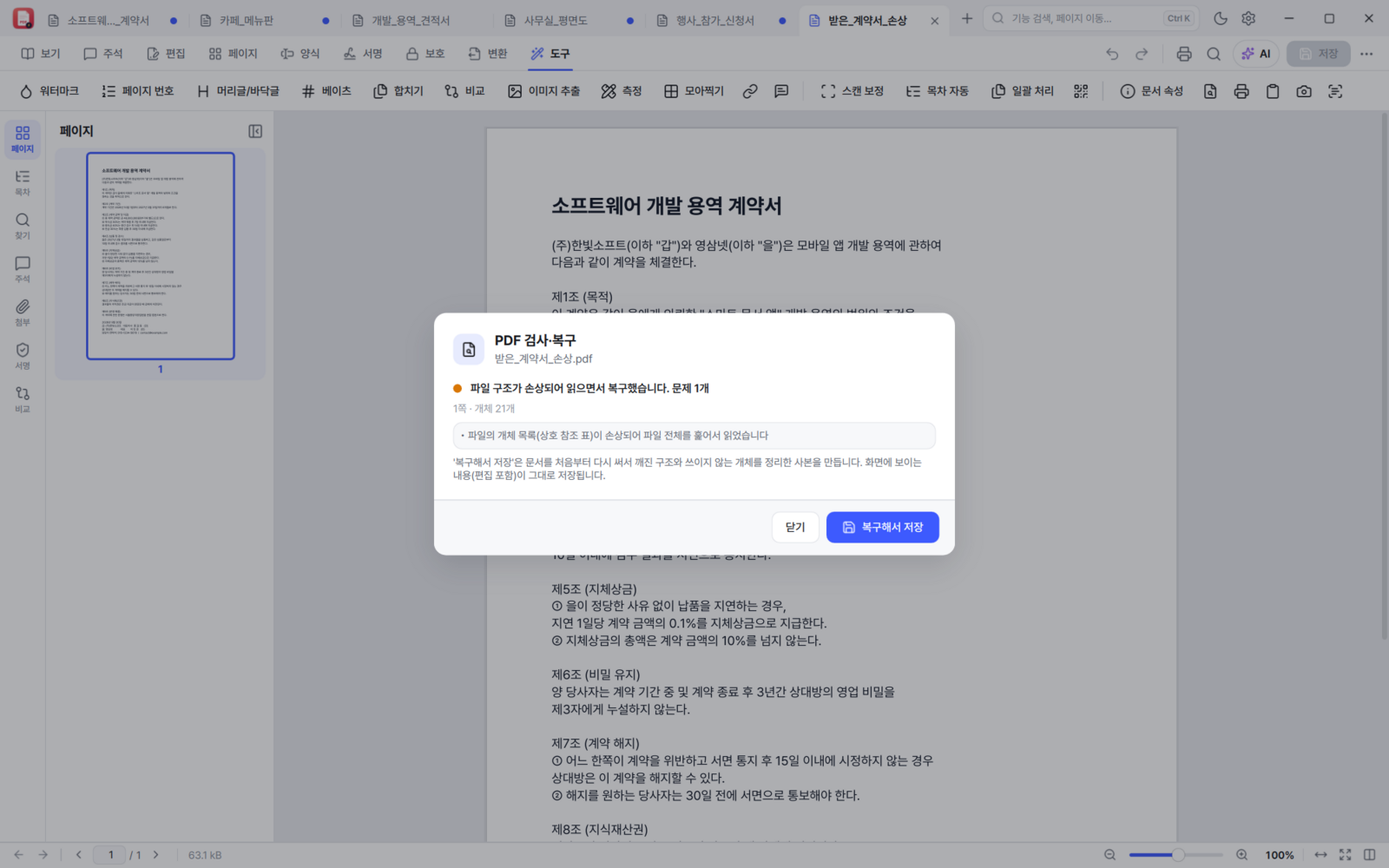
In a PDF with fields — a quotation, an application form — type in a quantity and the total updates by itself. Calculations built in another PDF program (sum, average, product, max, min) work as they are, alongside number, currency (₩), percentage, date, time and phone formats, and input range checks. Enter something that does not fit and it tells you in Korean, like "The 'Quantity' field only accepts values between 1 and 99.".
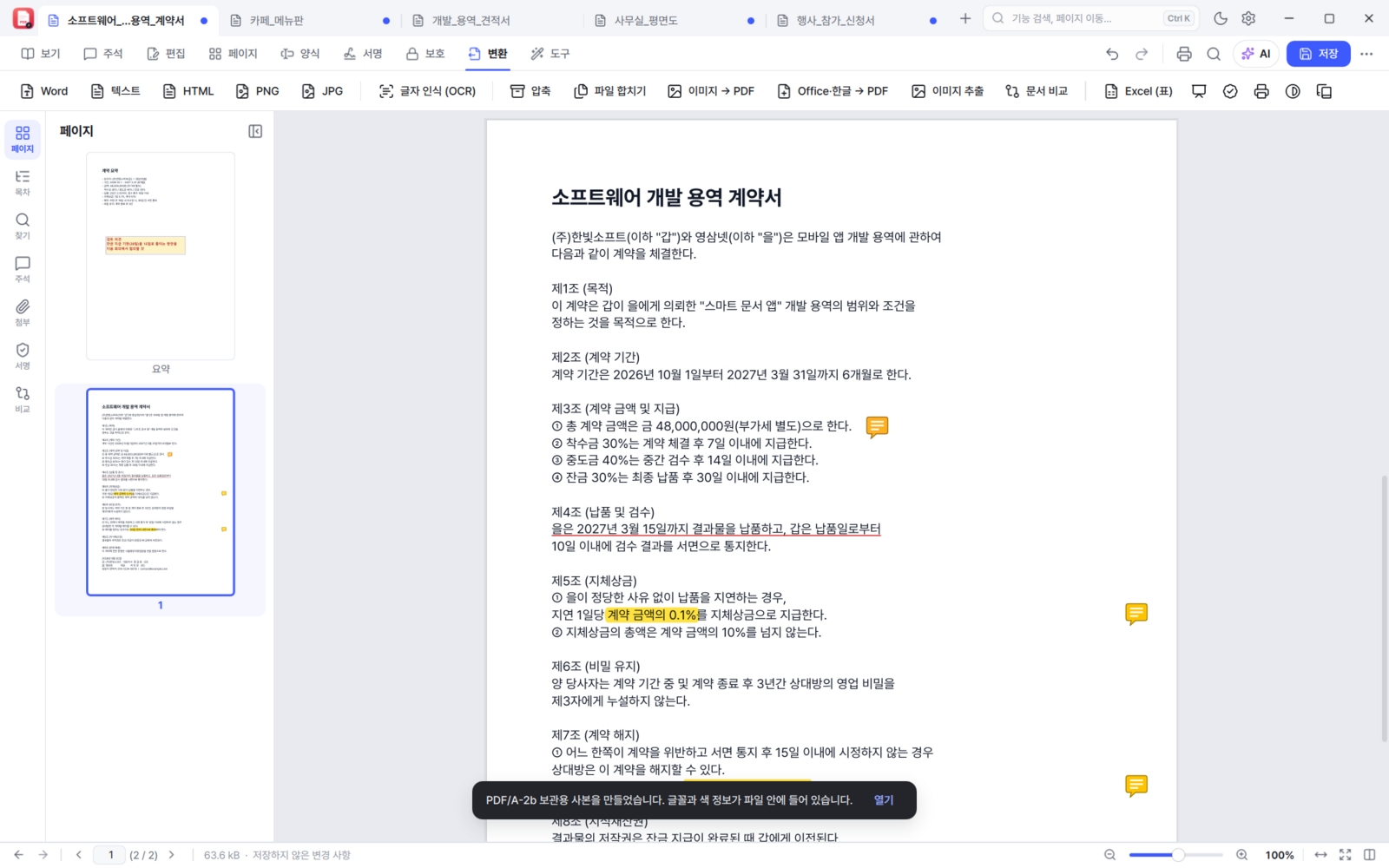
Before sending anything to a print shop, print preview (overprint) shows on screen how the overprint settings will actually come out (View tab; only the display changes, the file does not). In 0.11.1 the print colour (CMYK) display was rebuilt on the international print standard (ISO 12647-2), so what you see is closer to the printed result. There is also print-ready PDF (outlined text), PDF/A archival export, and PDF inspection and repair.
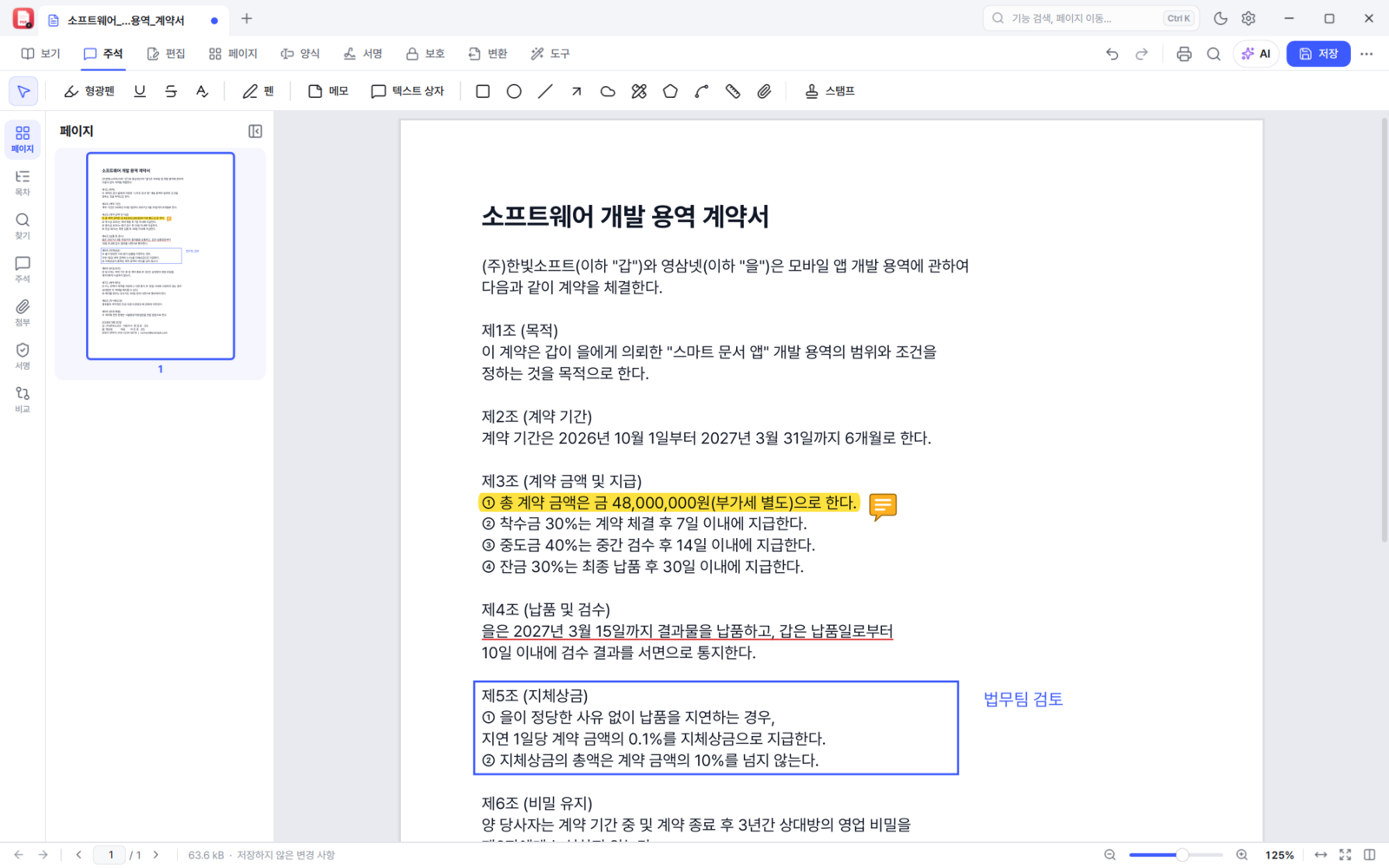
Finding, marking and working together
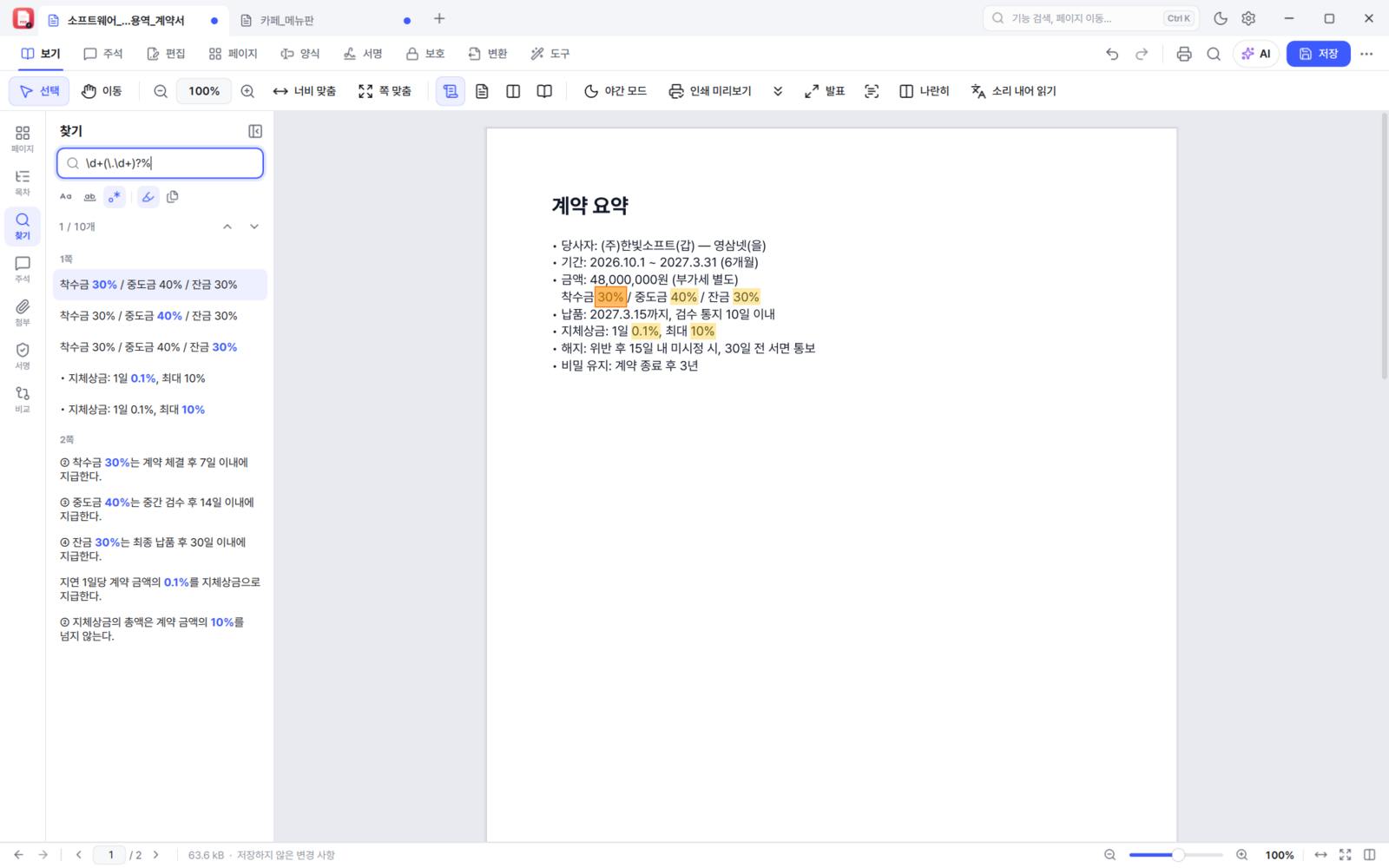
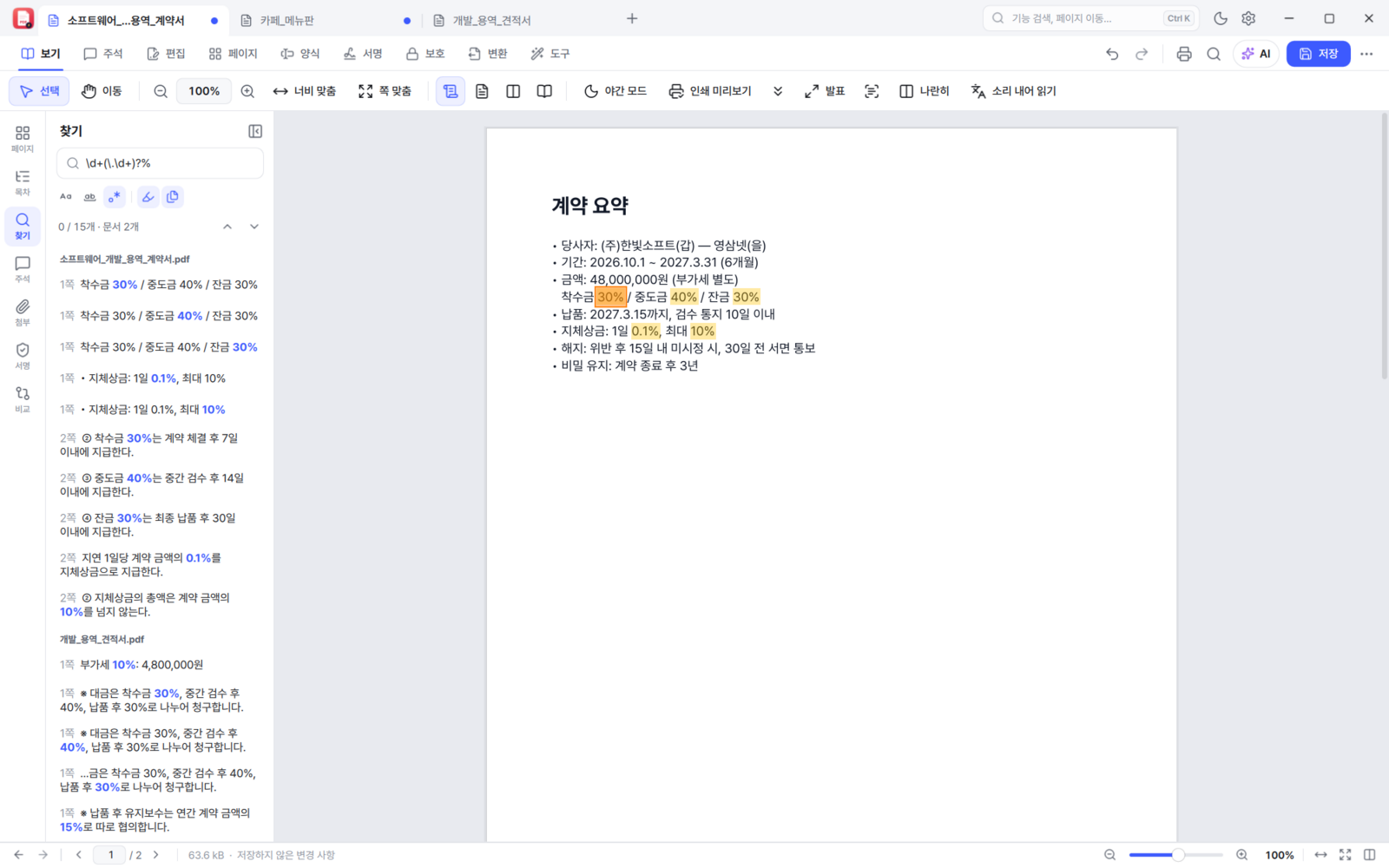
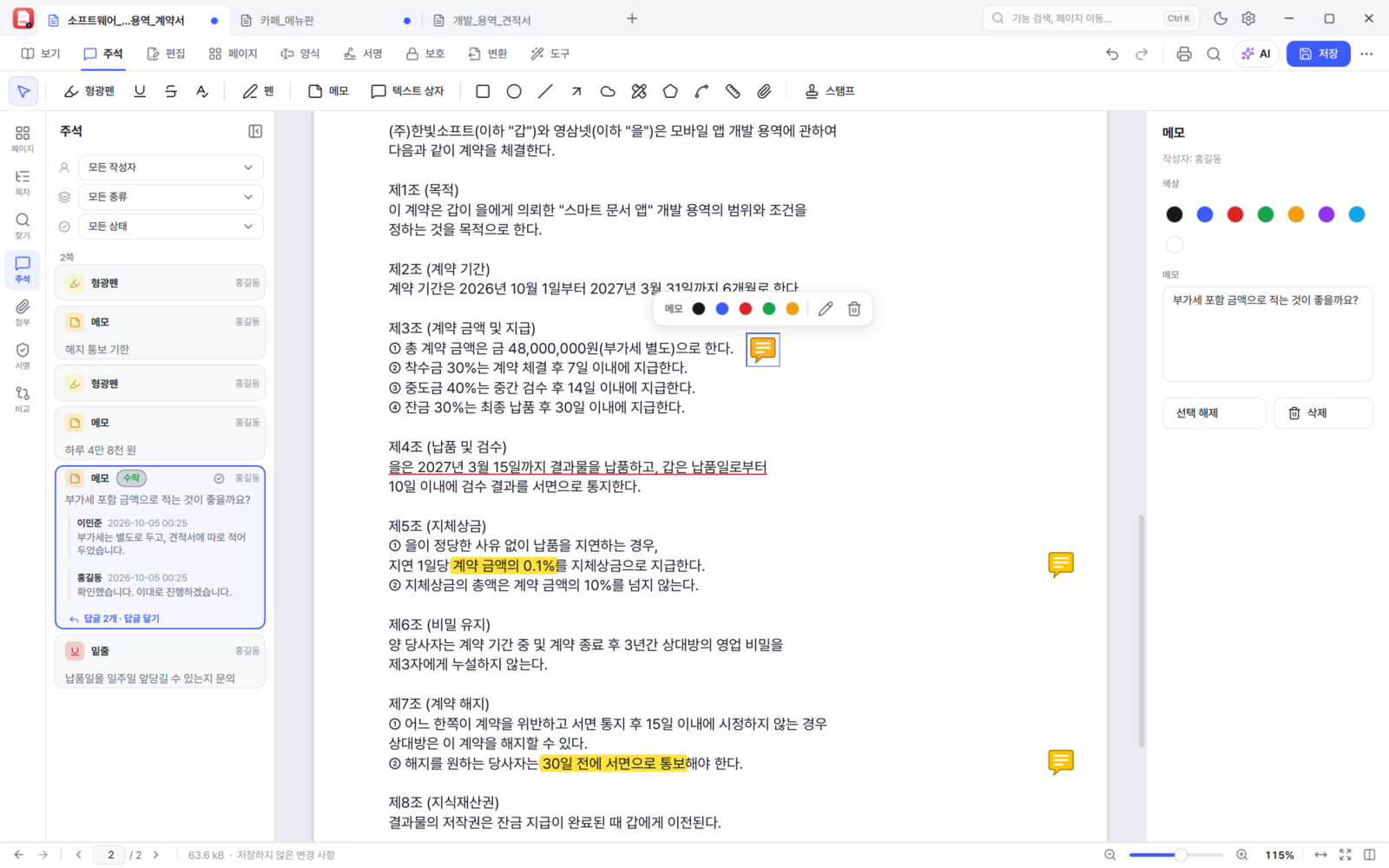
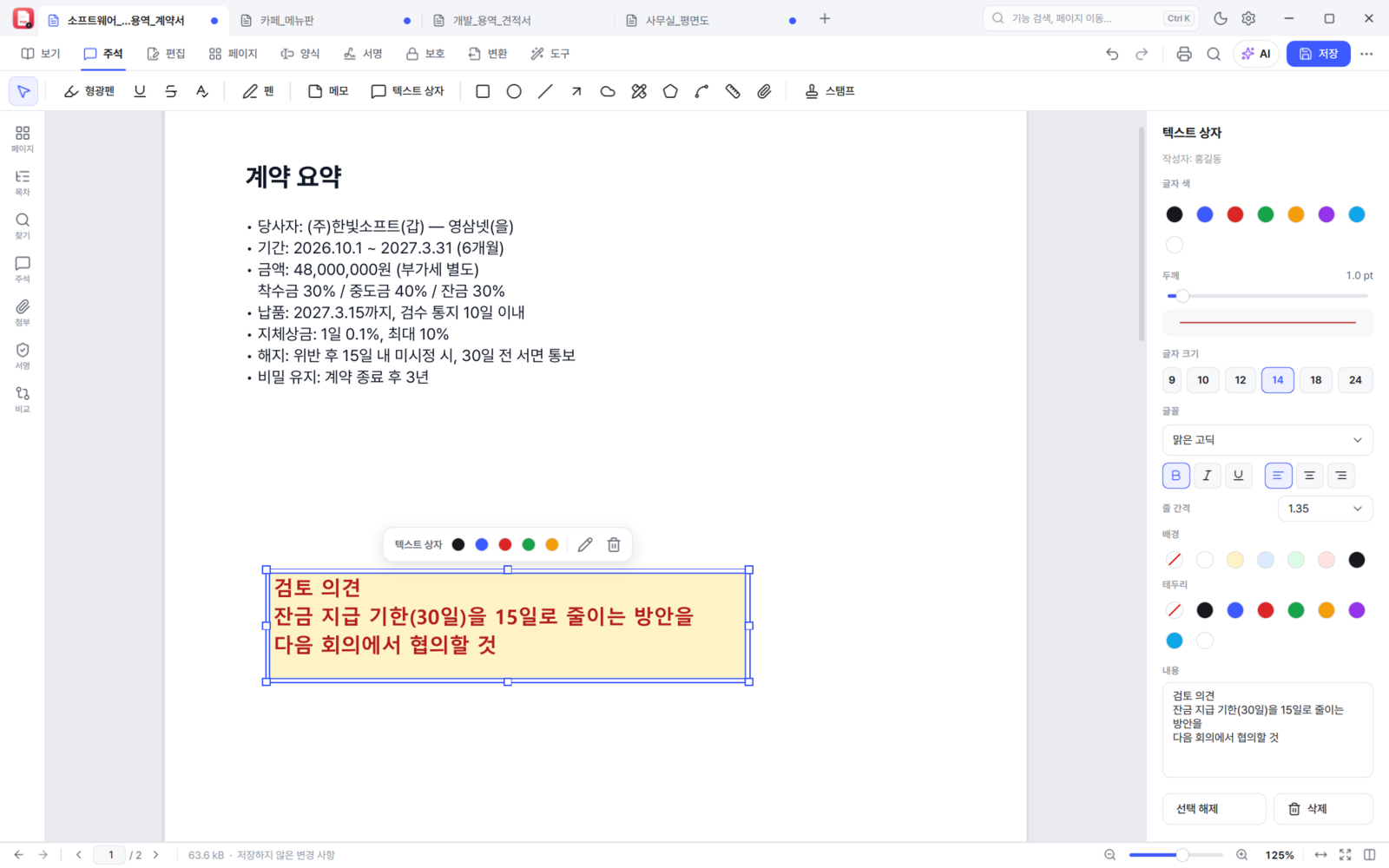
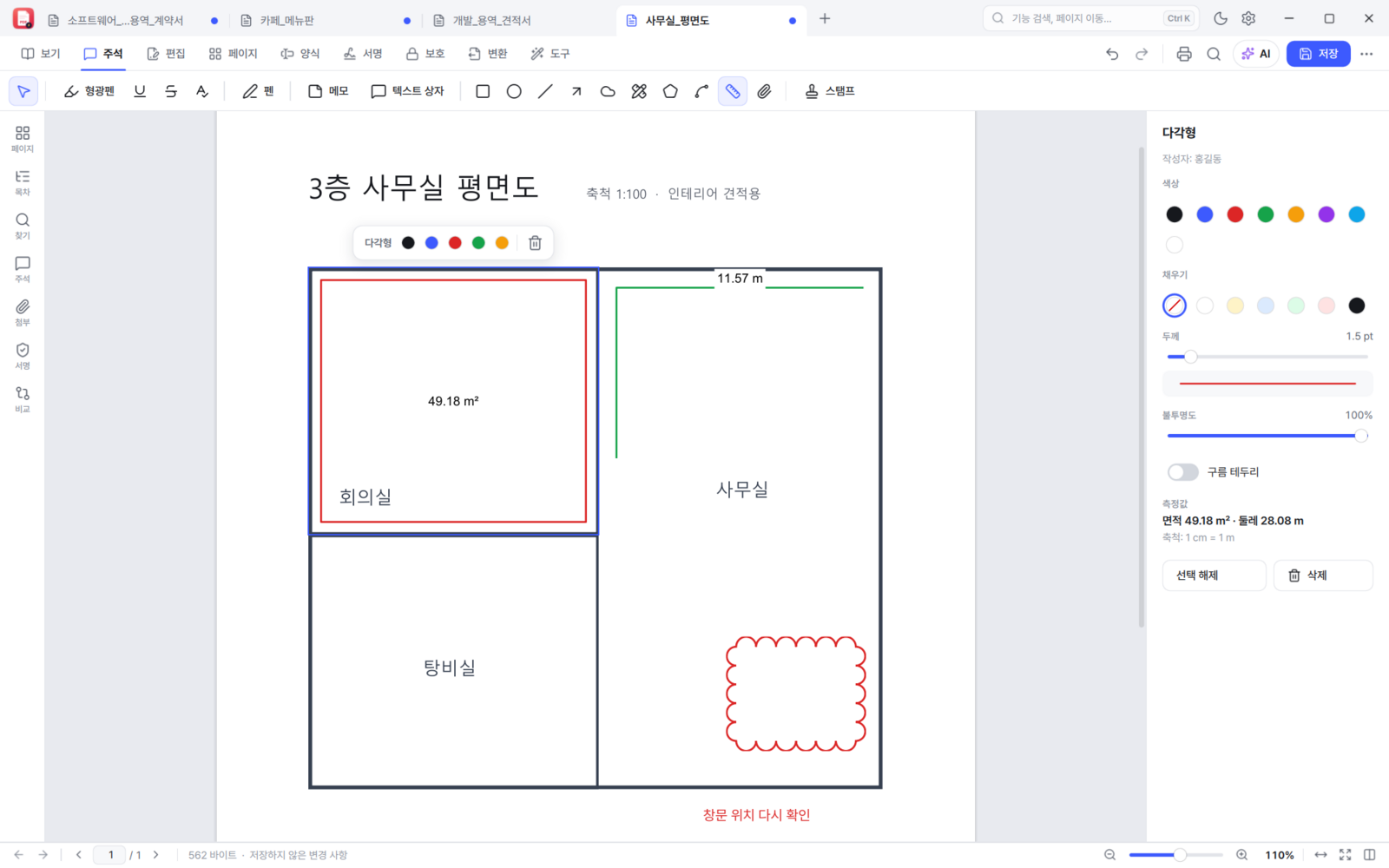
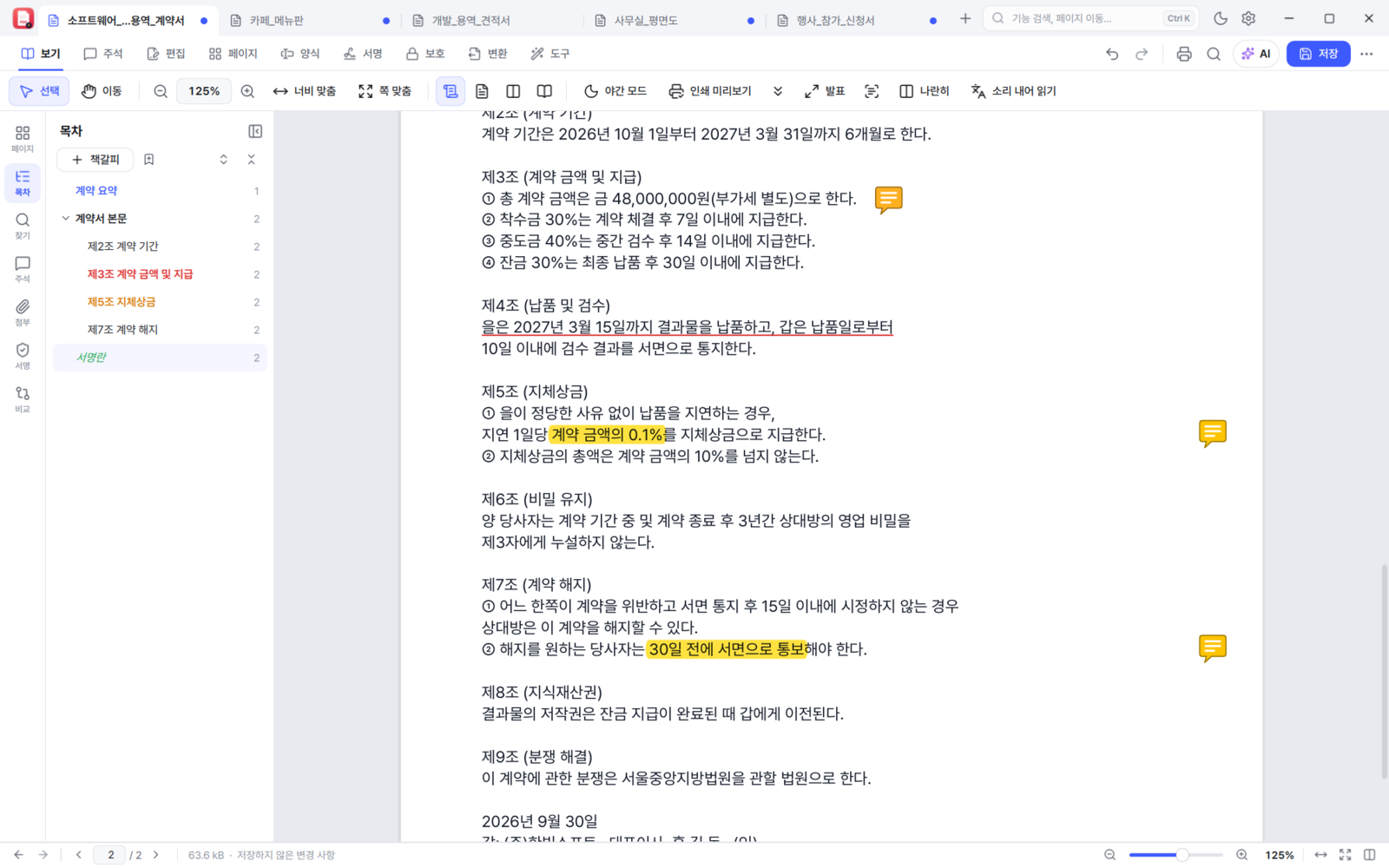
Regular-expression search means a pattern like \d+(\.\d+)?% finds every percentage in a contract at once,
with the surrounding context shown for each hit. You can also search every open document at once.
Page work and conversion
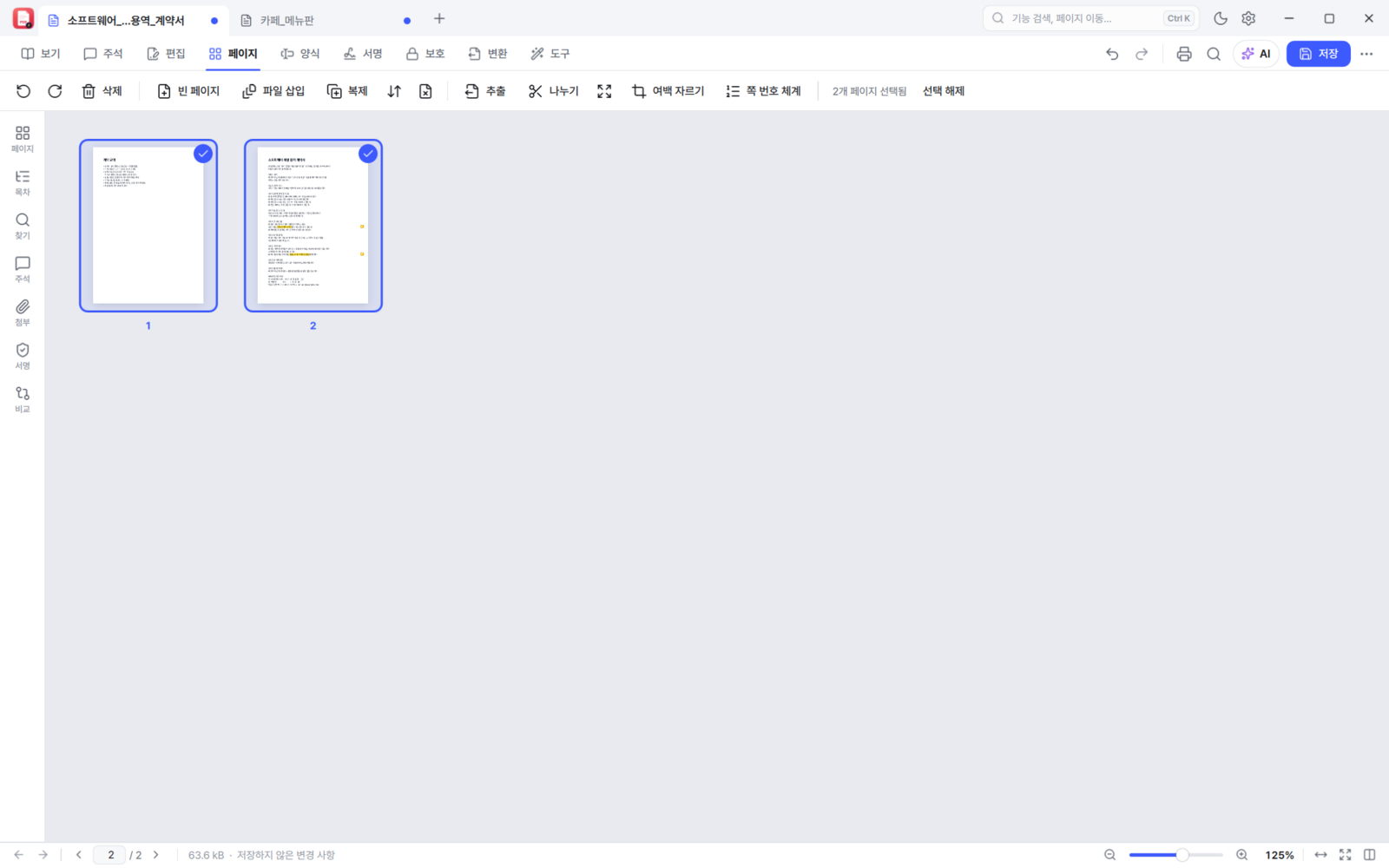
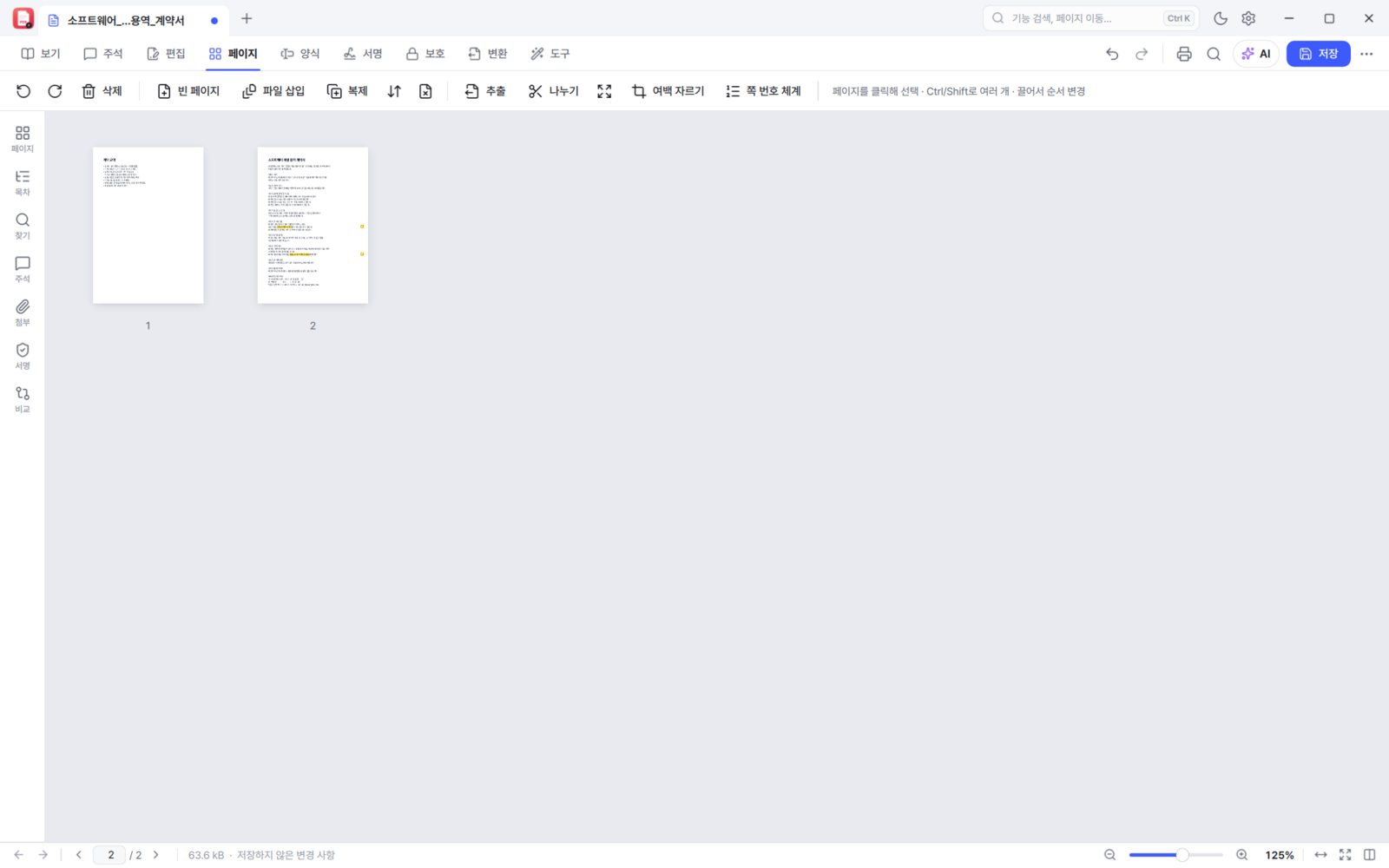
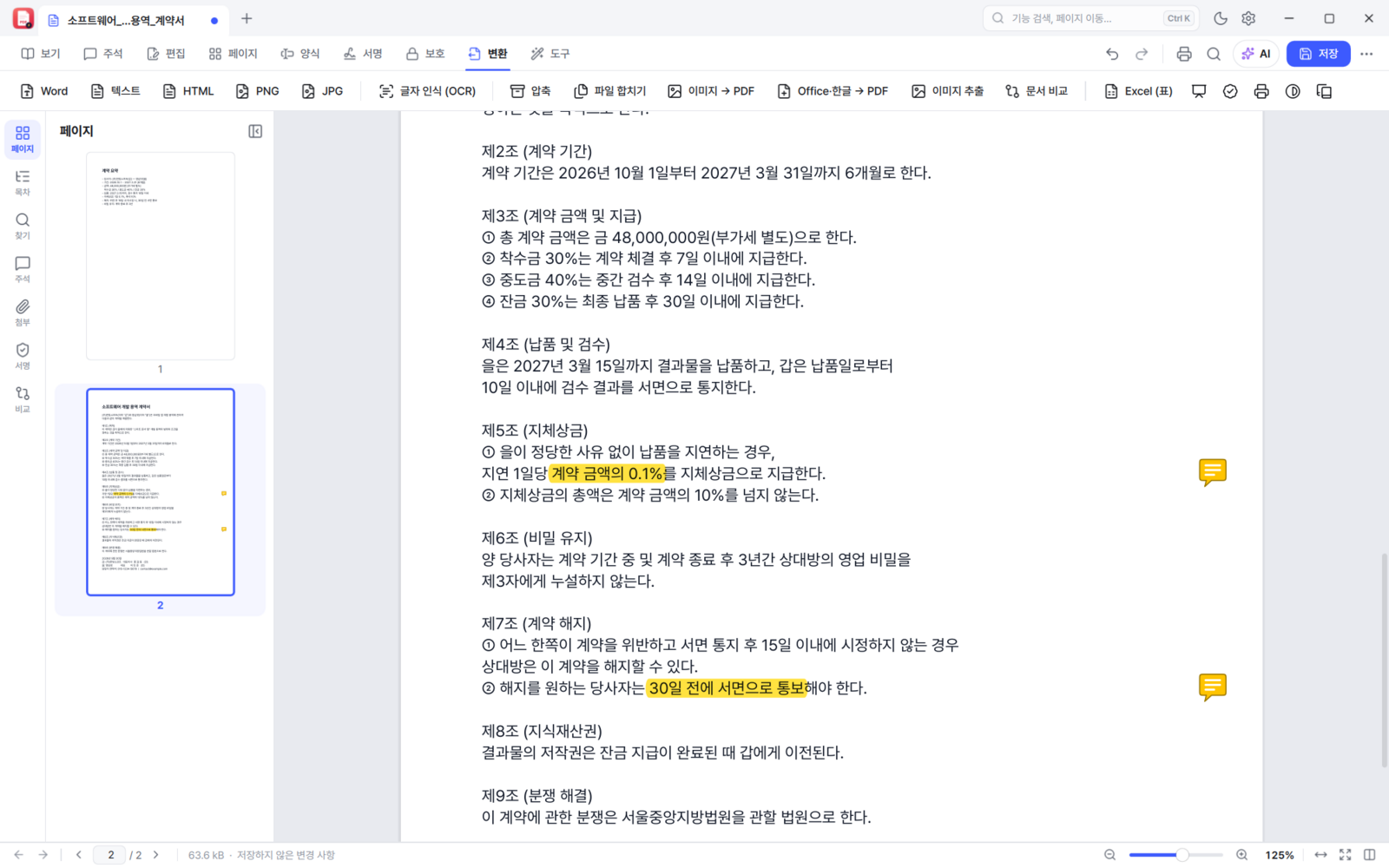
0.11.1 makes working in the thumbnail pane easier. Shift-click for a range, Ctrl-click one by one, then delete, rotate or extract them all at once; Delete and Ctrl+A work too. A document scanned two pages to a sheet is split with split in half (left/right or top/bottom, with "right first" for books read right to left).
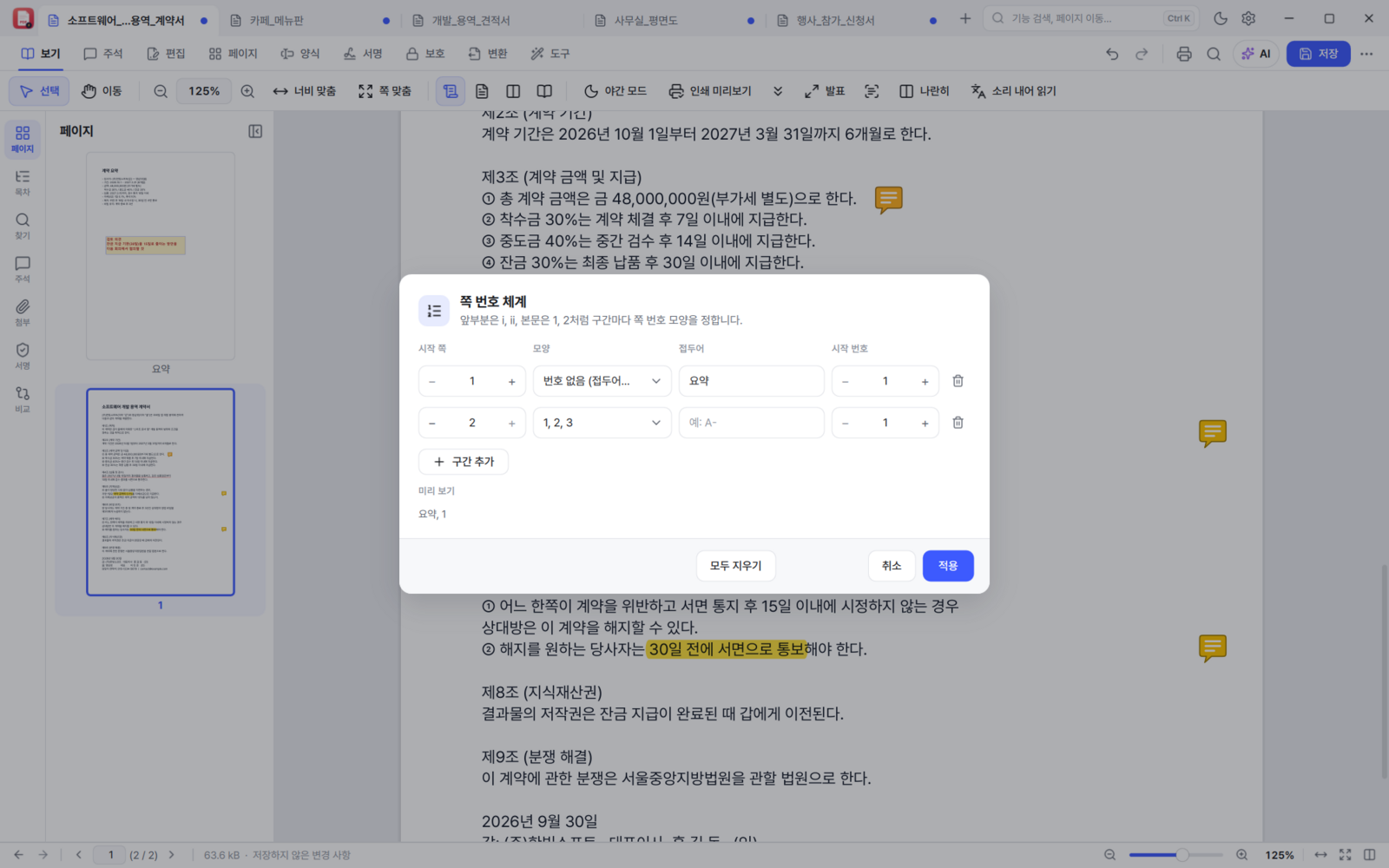
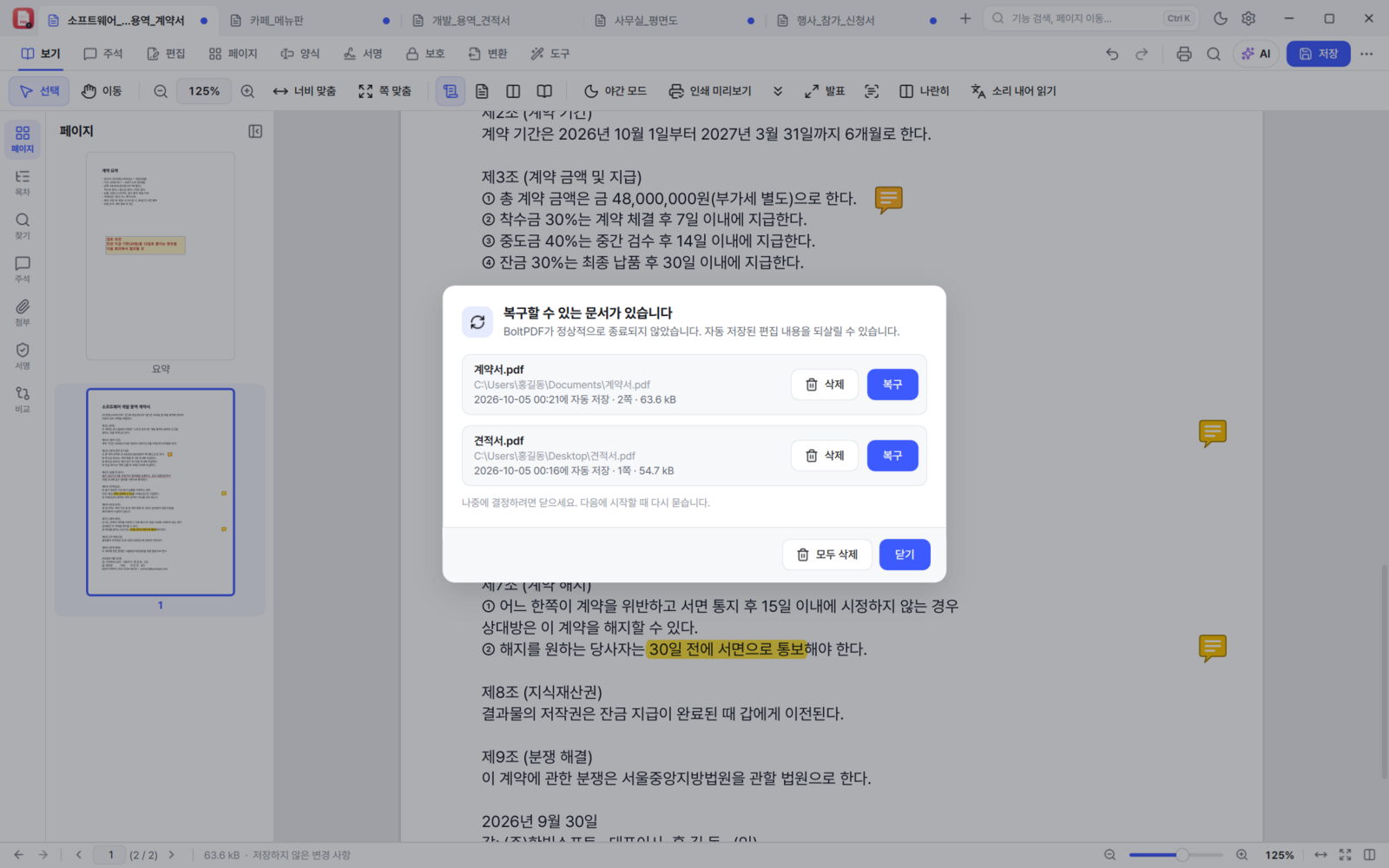
From this version, PDFs show their first page as a thumbnail in File Explorer. Turn it on during installation (or in settings for the portable build) and off again whenever; a damaged file in the folder will not hang Explorer. And if it closes unexpectedly, what it saved automatically is restored the next time you start it.
An AI assistant (optional)
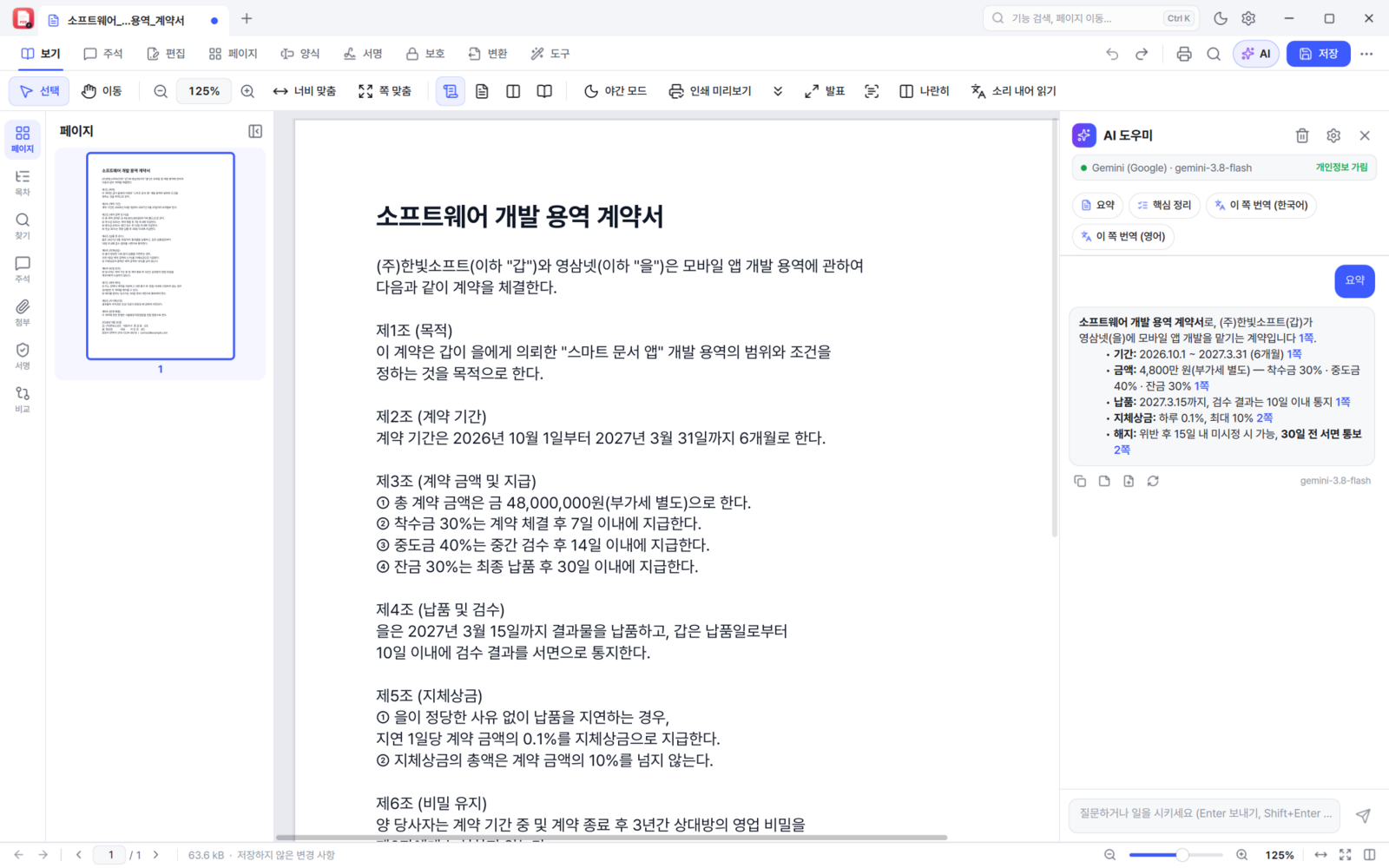
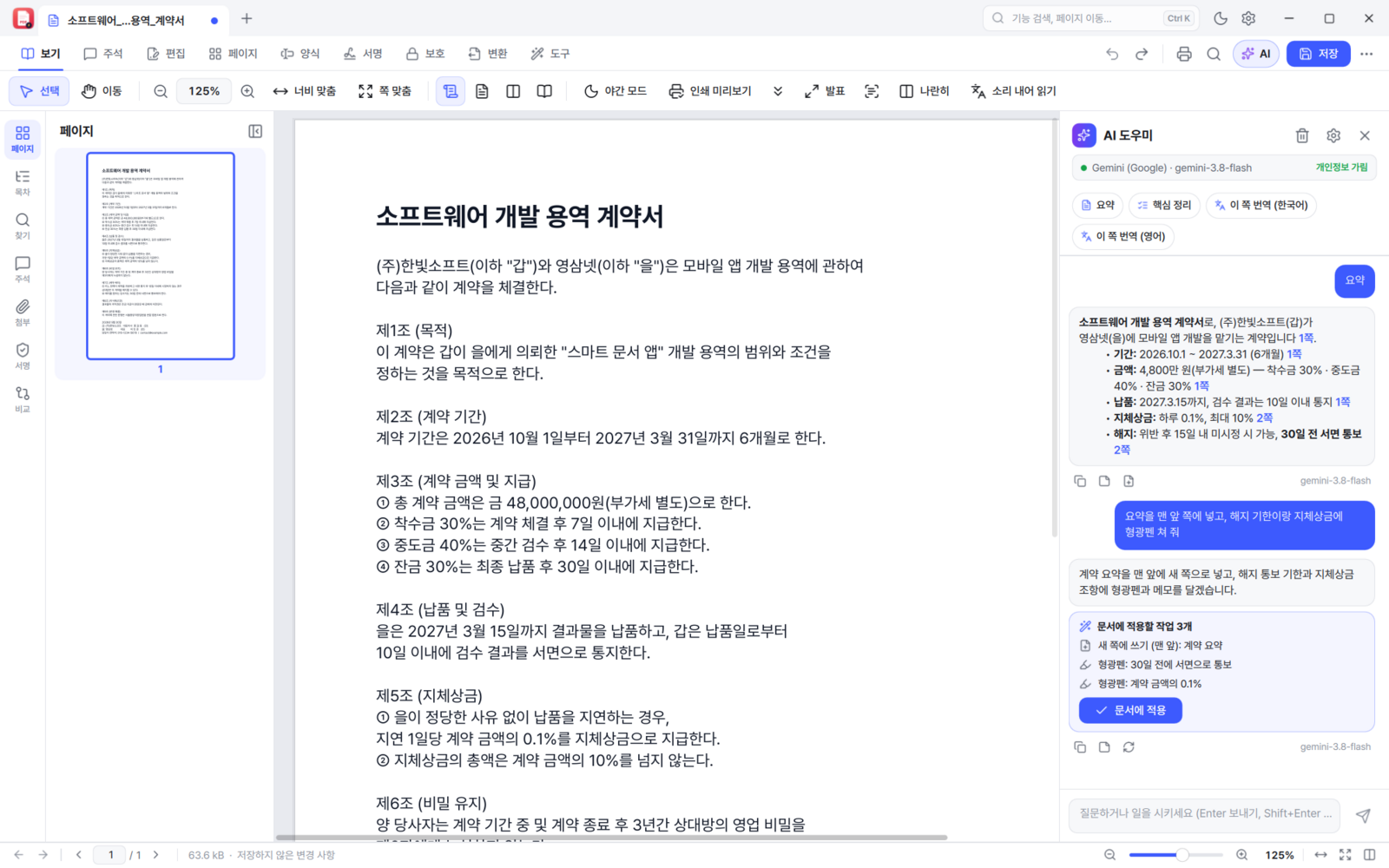
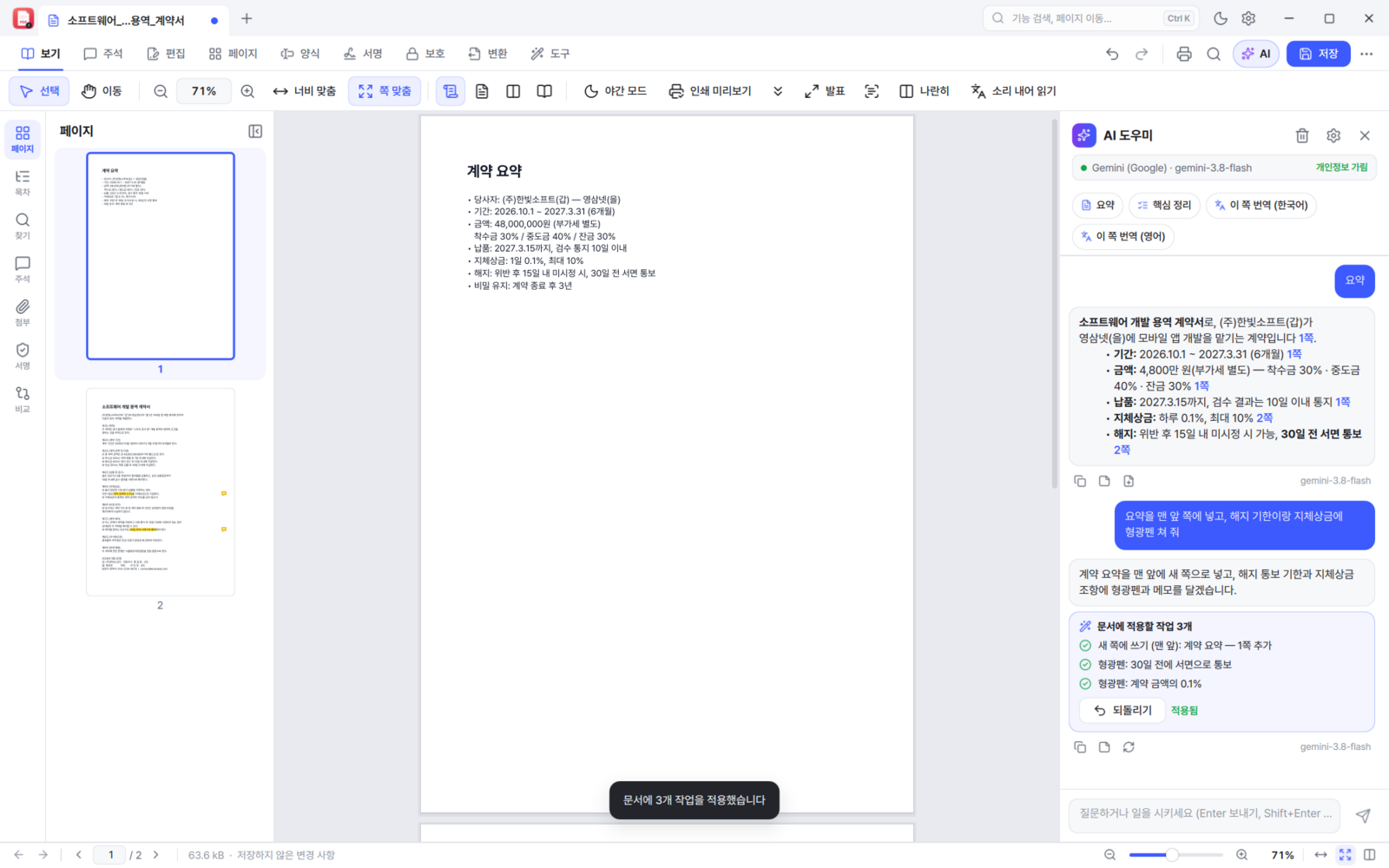
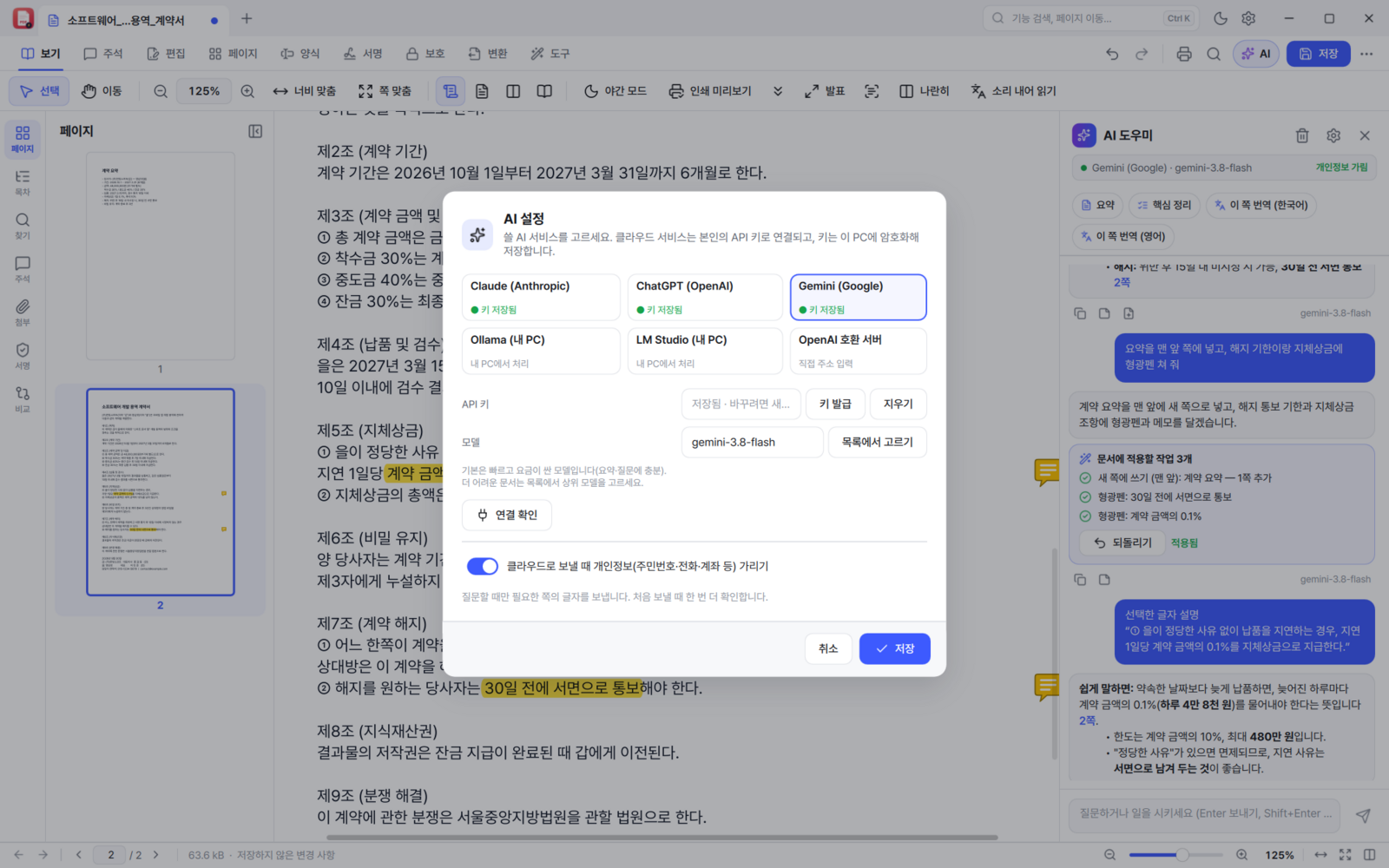
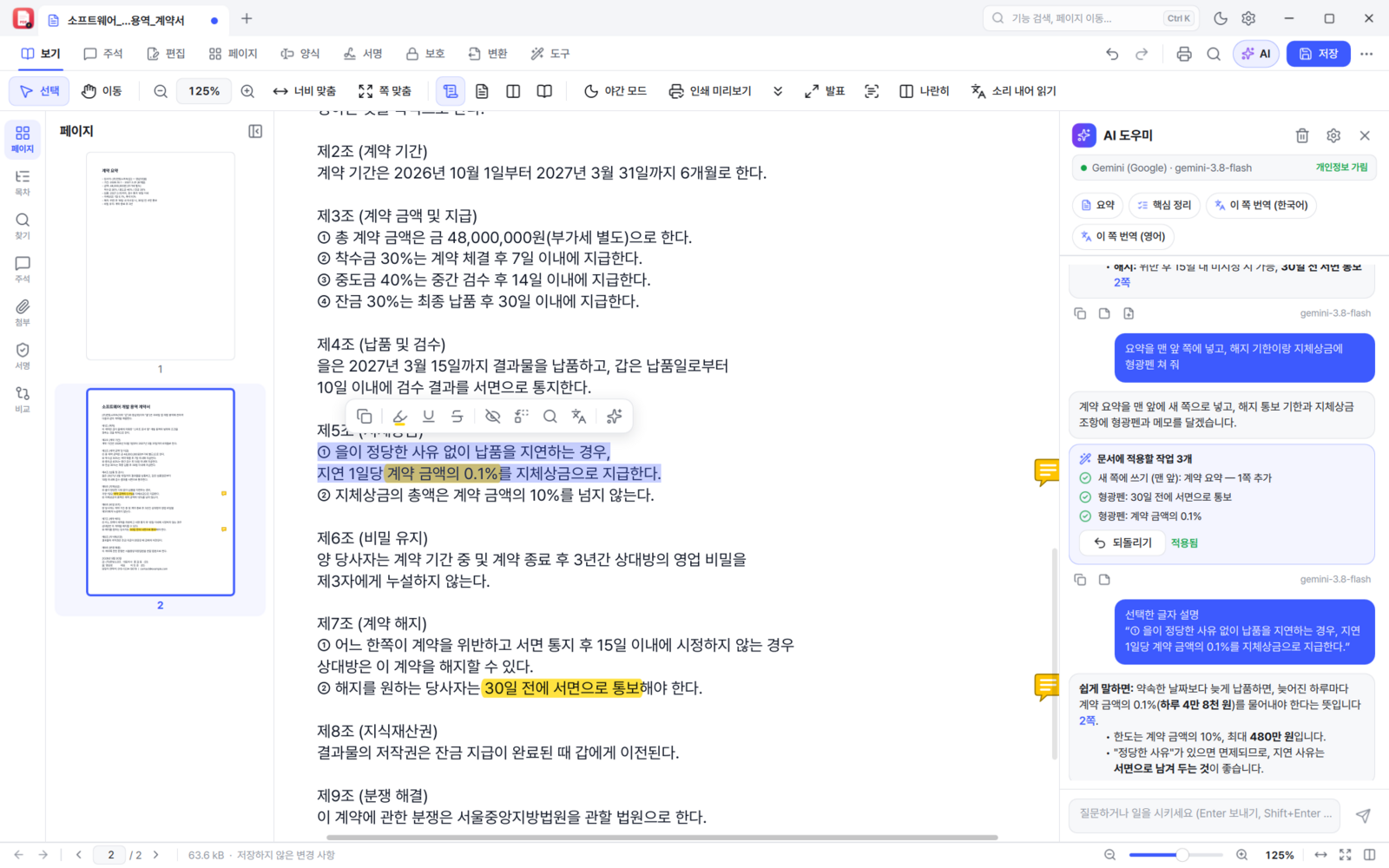
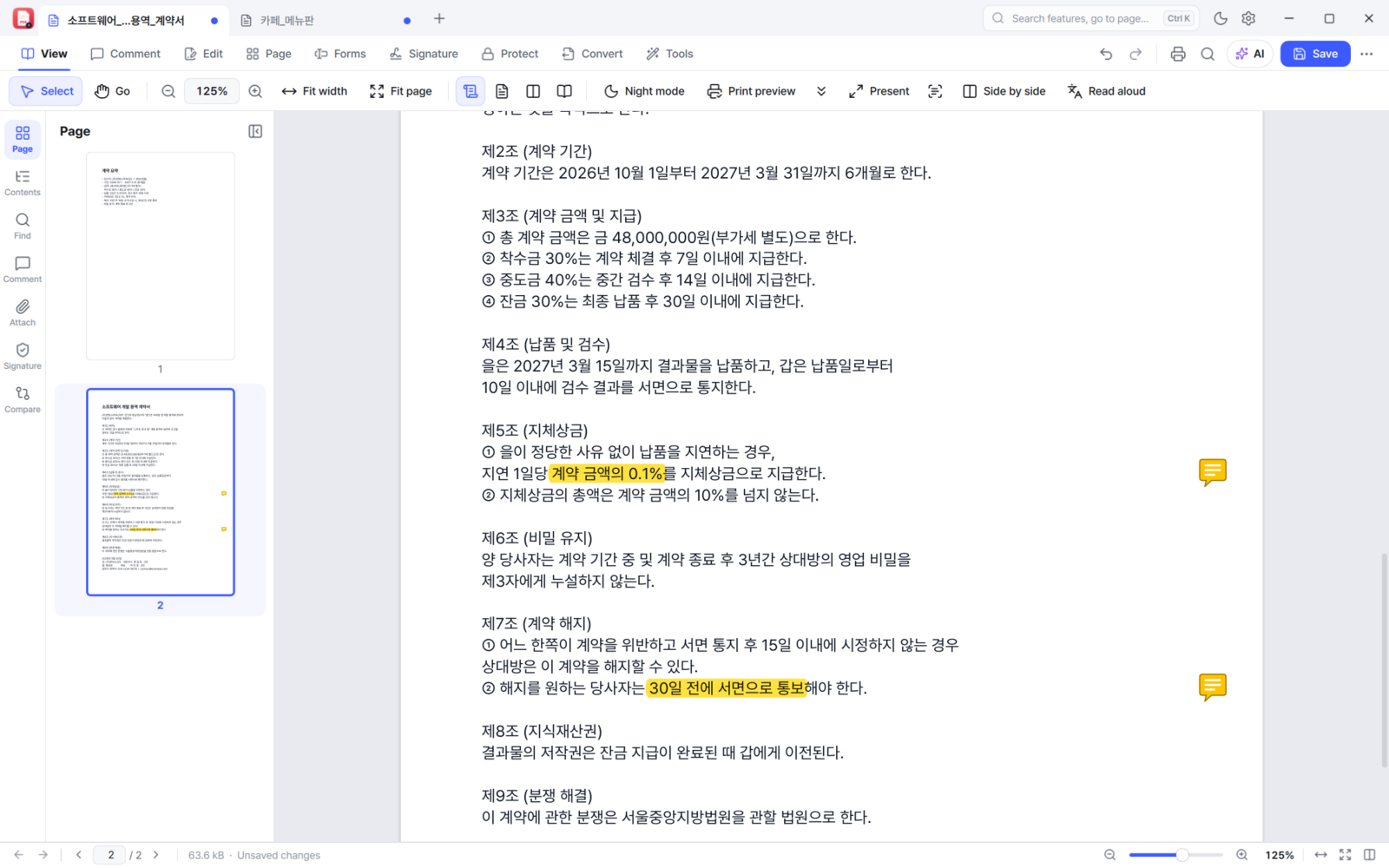
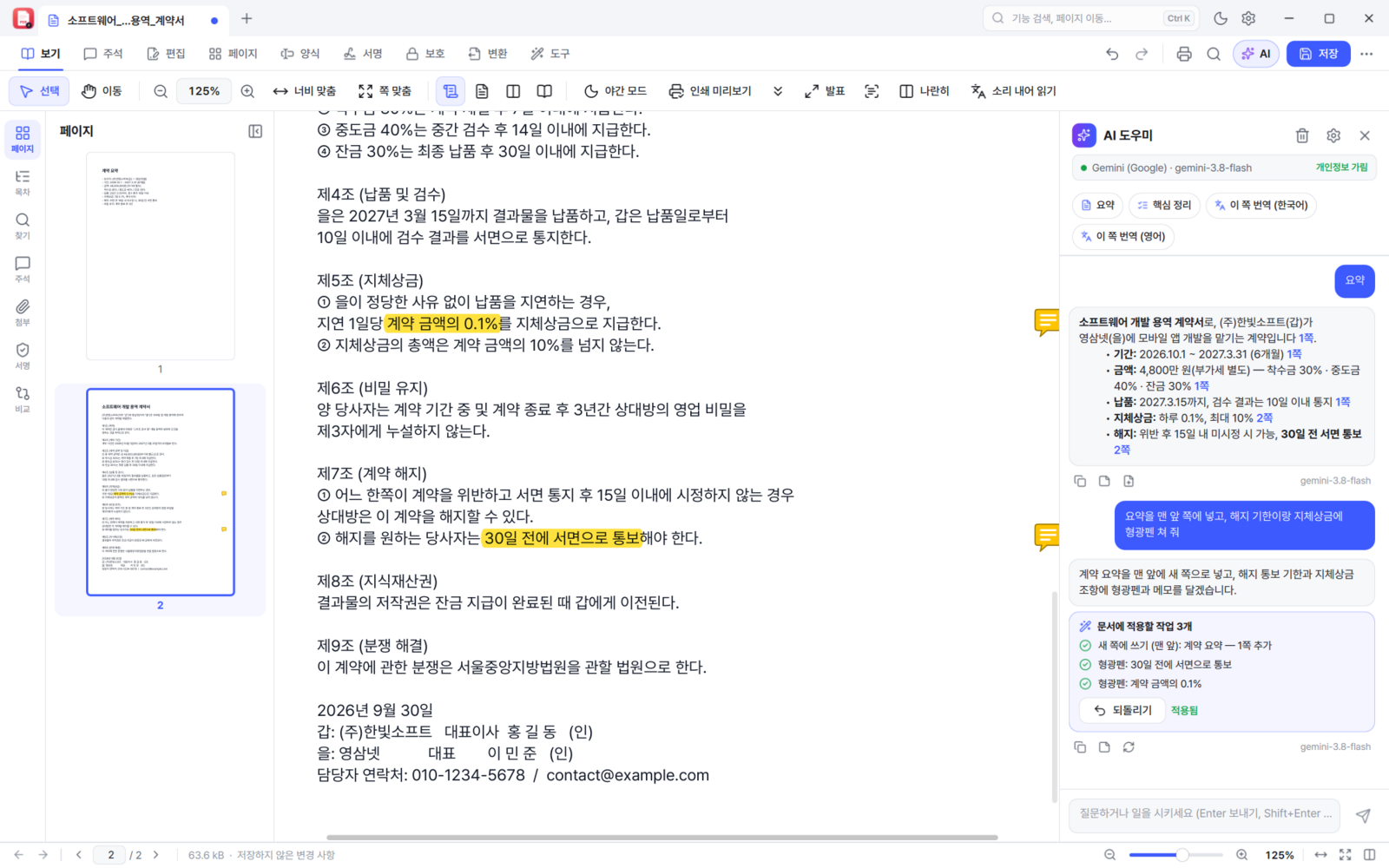
Everything works with AI switched off. Only if you want it, add your own API key or connect an AI on your own PC (Ollama, LM Studio). Then it summarises, translates and answers questions — and carries out document tasks too, such as "add a summary page at the front". Each task is shown as a card first, and can be undone after it is applied. Personal data is redacted before anything is sent.
Four languages, and quick control
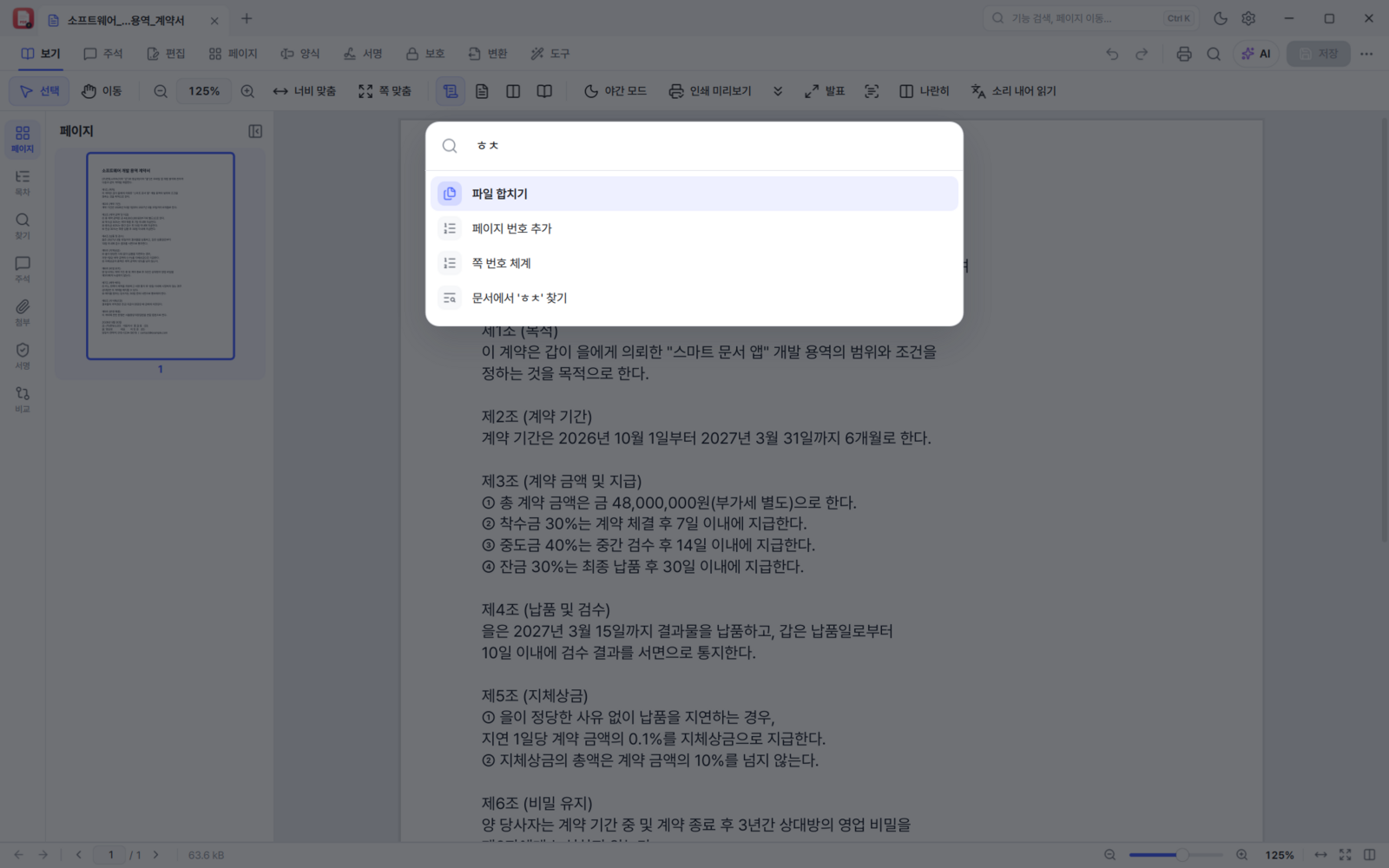
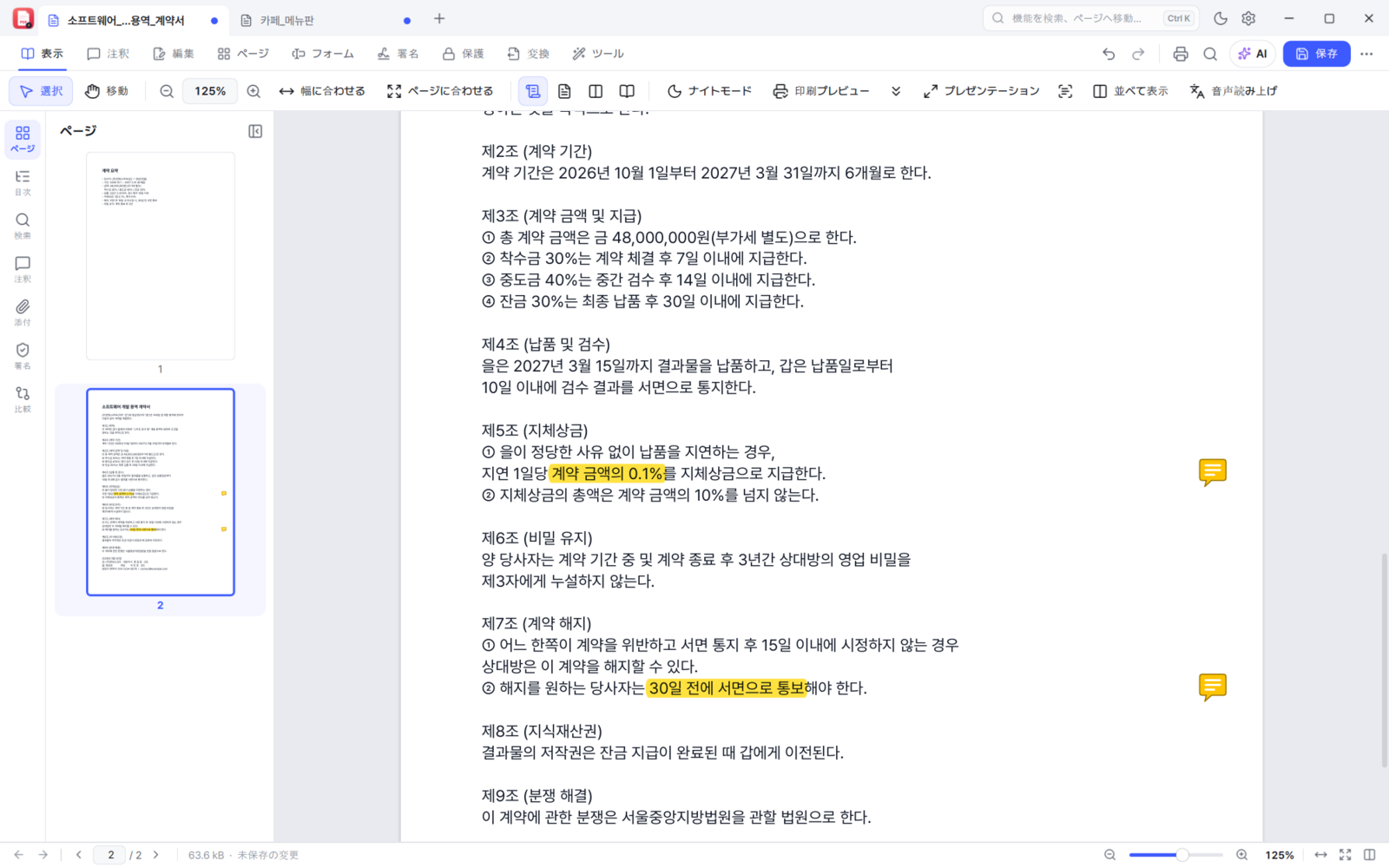
Korean comes first, with English, Japanese and Simplified Chinese interfaces. The command palette (Ctrl+K) finds features from Korean initial consonants too — type "ㅎㅊ" and "Merge" comes up.
Installing, and what you need
| Operating system | Windows 10 (1809 or later) · Windows 11, 64-bit |
| To install separately | Nothing. The runtime it needs is included |
| Installer | BoltPDF-0.11.7-Setup.exe — no administrator rights needed. During installation you can choose "open PDFs with BoltPDF" and "PDF thumbnails in Explorer" |
| Portable | Unzip and run BoltPDF.exe. Explorer thumbnails are enabled in settings |
| Price | Free · no ads · no sign-in · no tracking |
# PowerShell
Get-FileHash .\BoltPDF-0.11.7-Setup.exe -Algorithm SHA256
Get-FileHash .\BoltPDF-0.11.7-portable.zip -Algorithm SHA256

# Expected values (0.11.7)
# BoltPDF-0.11.7-Setup.exe
# 20968c7280fd3b67d826f3475c1c30fc61166d765a06303b063ea3bcde836ca7
#
# BoltPDF-0.11.7-portable.zip
# 8db686e57a0655af58022be84b626b3ae4e168be602b9cd29d59b3b67adcc8c6
#
# BoltPDF.exe inside the archive
# c5dedce9515f20526c5c61bd5497fe9db3a97b077b529854b9faba5769448576
Licence
· Redistribute it freely, exactly as you received it (a website, a download archive, internal distribution, a USB stick). Just do not alter the files inside or bundle anything with it, and pass the licence files along with it.
· It may not be modified or sold. Decompilation and reverse engineering are not permitted, nor is selling it, and the source code is not published.
· The open-source components inside (Qt, Tesseract OCR, the Pretendard typeface and others) follow their own licences. Qt is linked dynamically under LGPL-3.0, so it can be swapped for another build of the same Qt version.
※ Up to 0.9.x this was released as AGPL-3.0 open source. When the PDF engine was replaced with our own YsPDF in 0.10.0, the licence changed to free closed-source software (freeware). Using and redistributing it stay as free as before, but the source code is no longer published.
Frequently asked questions
Is BoltPDF really free?
Yes. There is no advertising, no sign-in, no paid tier and no time limit. It is free for business use in companies, schools and public bodies as well as for individuals, with no limit on the number of installations.
How much faster is it than the previous version?
From 0.10.0 the PDF engine was replaced with YsPDF, written in-house. Measured on the same PC with the same 2,000-page PDF against 0.9.3, which used MuPDF, opening a document is about 3.5x faster (172–186ms → 49–51ms), a whole-file search about 2.5–4x faster, and it uses about 40% less memory. These are figures against the earlier version, not against another company's product.
Does it recognise scanned Korean properly?
From 0.11.1 it uses the Korean recogniser built into Windows 10 and 11 first. A Korean Windows installation already includes it, so there is nothing to install, and both area text recognition and "make a searchable PDF" use it. On a PC without it, the built-in engine (Tesseract) is used instead.
Does edited text in a photo look obvious?
The eyedropper lifts the original text and background colour, and you can match the weight, opacity, blur, letter spacing and glyph width. The erased area is filled from the surrounding pattern with "match the surroundings", so little of a rectangle is left. Even after applying, a double-click reopens it to edit or move.
Will totals calculate themselves in a quotation PDF?
Yes. Sum, average, product, max and min calculations are supported, along with number, currency (₩), percentage, date, time and phone formats and input range checks. Calculations built in another PDF program work as they are.
Where can I get the source code?
From 0.10.0 the source code is not published. Up to 0.9.x it was AGPL-3.0 open source, but building our own PDF engine came with a change to free closed-source software (freeware). Using it and redistributing it exactly as received are still free.
Can we share it around a company or a school?
Yes. As long as it is exactly as you received it, internal distribution, posting it in a download archive and handing it out on a USB stick are all fine. Just do not alter the files inside or bundle anything with it, and include the licence files (LICENSE.txt and the copyright and licences file). Selling the program itself is not allowed.
Do I have to use the AI features?
No. Everything works with AI switched off. Turn it on only if you want it, with your own API key or an AI on your own PC such as Ollama or LM Studio, and personal data is redacted before anything is sent.
A warning appears when I install it.
That is the "Windows protected your PC" notice, which appears because no code-signing certificate is used. Click "More info" → "Run anyway" and the installation continues. If you would rather be sure, check the SHA-256 values above against the file you downloaded.