Free Windows File Explorer Alternative with 4-Pane View
A free file explorer to replace Windows File Explorer: 1/2/3/4-pane views with tabs, Total Commander-style F5 copy and F6 move, Ctrl+K search with FastFind whole-PC search, SFTP·FTP·FTPS·SMB (NAS), 7z·rar extraction (password-protected via Jipge PRO), folder compare and sync, duplicate finder, a Favorites bar and safe mode. Installer (recommended) or portable 4.9MB exe; launches in about 0.08 s on Windows 10/11.
v3.1·Published October 13, 2026·Updated October 17, 2026·Downloads 353
Free · Installer or portable · Windows File Explorer alternative
Opens the instant you click 4-pane file explorer
Pane is a free file manager you can use instead of the slow Windows File Explorer.
Split the window into 1, 2, 3 or 4 panes, copy with F5 and move with F6,
and handle SFTP·FTP·NAS, archives and whole-PC search all in one window. A single executable (4.9MB) that reaches the first screen in about 0.08 s.
Ctrl+K report_2026
Copying · 128 MB/sAbout 4 s left
FreeInstaller or portableTotal Commander-style keysBuilt-in SFTP·FTP·SMBKorean · English
0.08s
Launch → first screen
72–80ms measured
4.9MB
Program size
Just one Pane.exe
77MB
Memory
While running
4-pane
Split view
Tabs in every pane
$0
Price
No ads, no account
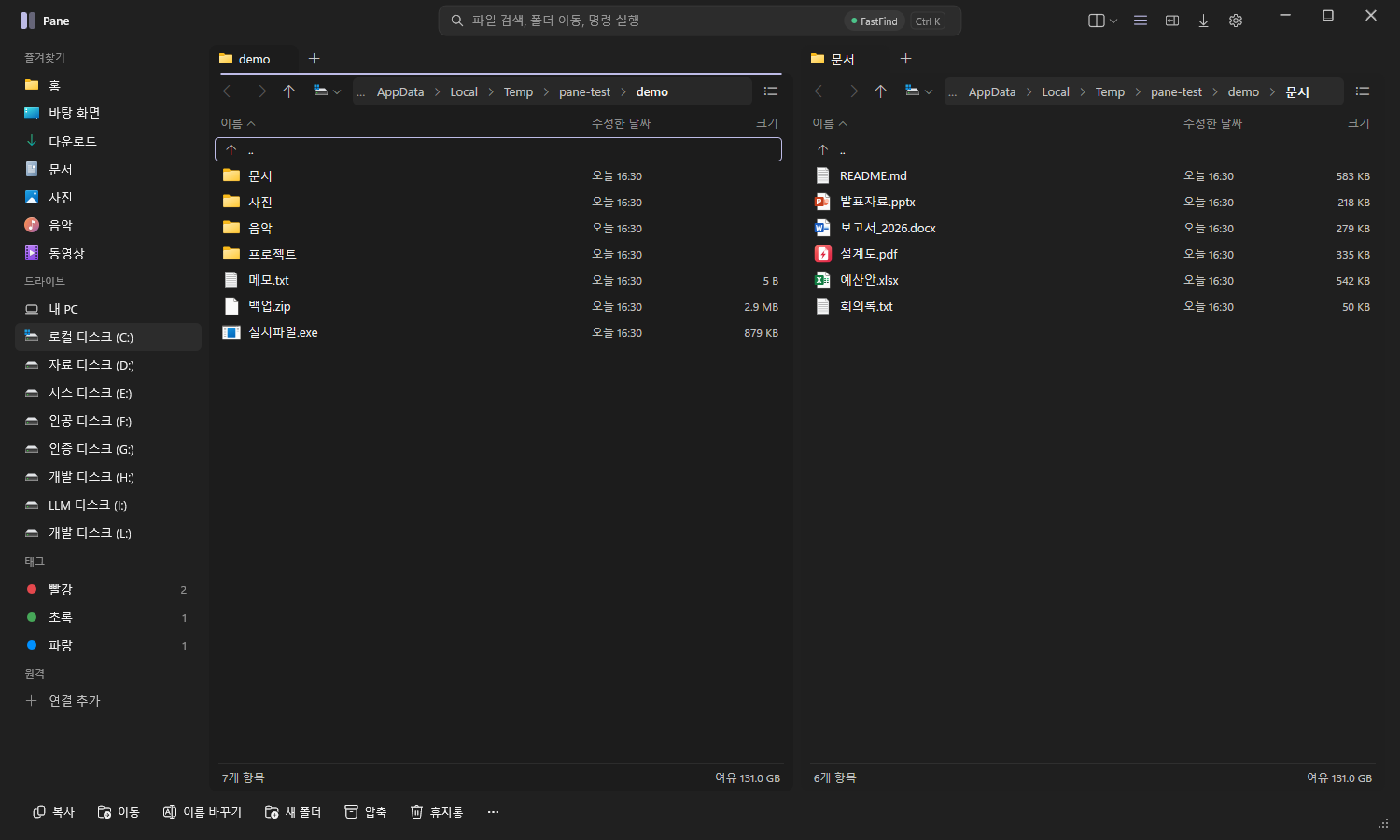
Default 2-pane view (Dark) — The left sidebar holds favorites, drives, color tags and remote connections; the Ctrl+K search box sits on top, and the bottom command bar has Copy, Move, Rename, New Folder, Compress and Recycle Bin.
NEW 3.1What changed in 3.12026-10-17
●Safe mode after a failed start
Guards against the window not appearing after moving a large folder. If Pane closes or hangs while starting, the next launch opens in safe mode (window position and tabs reset, previous settings kept as pane.ini.bak), and a window saved off-screen is moved to the center of the main monitor.
●Favorites fixed + Favorites bar
Fixed a bug where dropping a folder on the sidebar didn’t add it. Right-click to rename, reorder or remove, drag to reorder, and changes save instantly. There is also a new Favorites bar above the panes (Ctrl+Shift+B).
●Custom folder color icons
Icons changed by folder-color tools such as FolderHighlight now show. Folders with only the System attribute are no longer hidden — like File Explorer, only the Hidden attribute hides a folder.
●Password-protected 7z·rar
If Youngsam’s Jipge PRO is installed, Pane uses it — down to listing contents and extracting only the items you pick. Otherwise it uses 7-Zip or Bandizip.
●Pick your terminal · admin rights
Choose PowerShell, CMD, Windows Terminal or PowerShell 7 for “Open terminal here”; admin terminal is Ctrl+Shift+`. You can also reopen as administrator, with an “Always run as administrator” option.
●More list columns · per-folder view
Add Date created, Length, Resolution and Tags columns by right-clicking a column header. Sorting and view (thumbnails) are remembered per folder.
●Drag in Outlook mail
Drag Outlook emails and attachments into Pane to save them as .msg files and regular files.
●Address bar · double-click empty space
Click › in the address bar to list subfolders. Double-click empty space in the file list to go up a folder, and hover over a truncated name to see it in full.
●Drawing 30ms → 7ms
Drawing one frame dropped from about 30ms to 7ms, so scrolling and typing never lag. Startup no longer waits even when remote or network tabs are open.
Also fixed: F4 editing of remote (SFTP·FTP) files, “Open terminal here” at a drive root (C:\), choosing which monitor gets a desktop background, and saving settings on Windows shutdown. To update, install the new setup over your current version — settings carry over. If the window won’t appear, open Pane Safe Mode(Pane.exe --safe) from the Start menu.
01 · COMPARE
A Windows File Explorer alternative — compared with the built-in Explorer
You open your file explorer dozens of times a day. Pane's goal is to get rid of the "wait a beat" and the "drag windows around".
Feature
Windows File Explorer
Pane
Split view
Open several windows and arrange them yourself
✓1/2/3/4 panes + tabs in every pane
Right-click menu
0.3–1 s while shell extensions load
✓Instant (Shift+right-click = full menu)
Copy to another folder
Drag and drop between two windows
✓F5 Copy · F6 Move
Whole-PC search
Slow, depends on indexing
✓0.05–0.13 s with FastFind
SFTP · FTP · NAS
No SFTP; needs a separate app
✓Built-in SFTP·FTP·FTPS·SMB
Archives
Mostly ZIP
✓Create ZIP·7z; extract 7z·rar·tar·gz·cab·iso
Folder compare · sync
None
✓Compare two panes, sync including subfolders
Duplicate files · disk usage
None
✓Built in (treemap)
Files that won't delete
Only says "in use by another program"
✓Finds and ends the program using it
Themes
Light · Dark
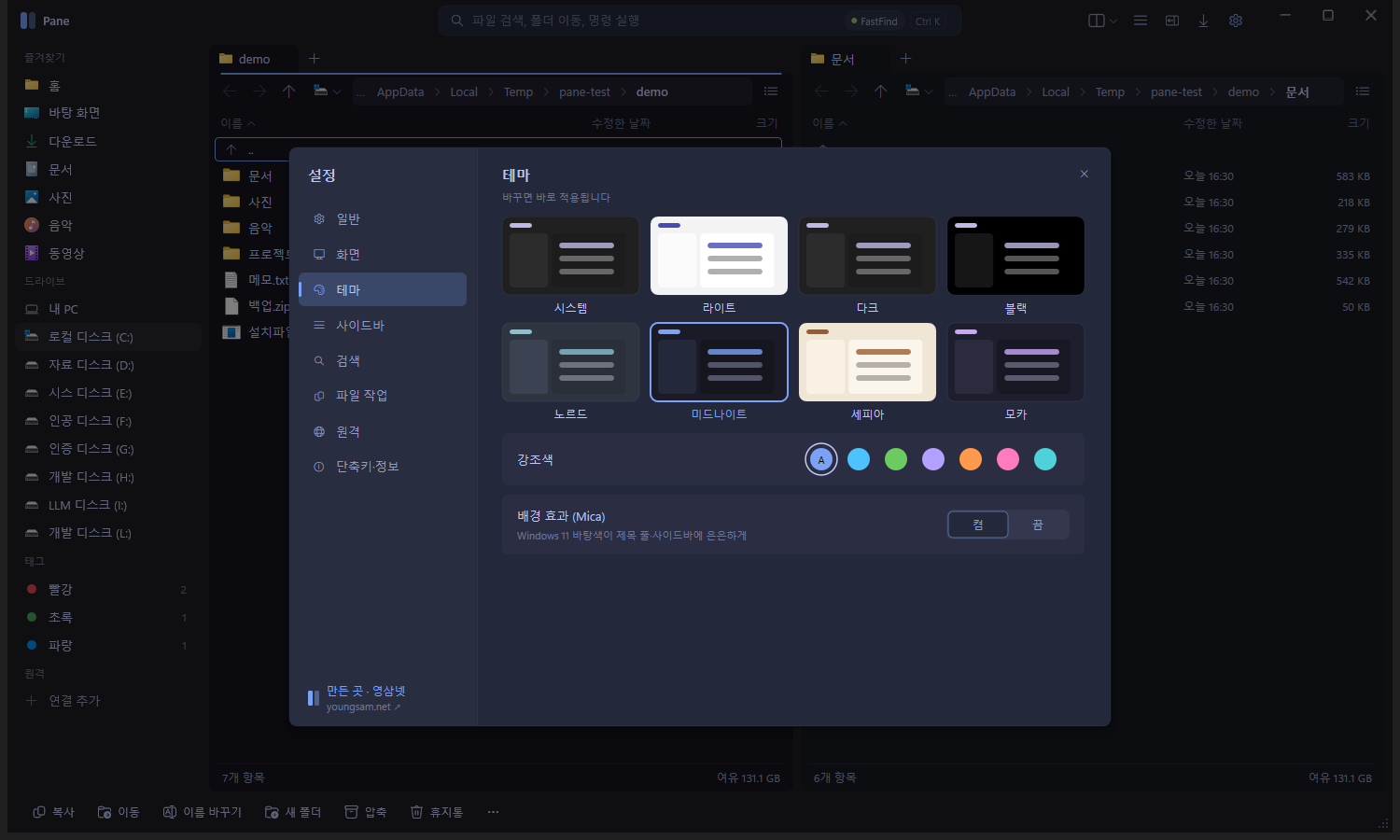
✓8 themes + 7 accent colors + Mica
Carry it on a USB stick
Not possible
✓Yes (portable.txt)
* Built-in Explorer entries reflect a typical Windows 11 setup and vary with version and installed extensions. Pane figures are our own measurements.
02 · SPEED
Speed — real measurements
Pane is written in Rust and draws its UI directly with Windows Direct2D. No heavy framework, and remote, archive and encryption features load only on first use, so they never slow down startup. Shorter bars are faster.
Time taken0 ─ 600ms
Windows default right-click menu (image file)~600ms
Whole-PC search with FastFind50~130ms
Pane launch → first screen72~80ms
Flat view (1,375 files in subfolders)17ms
File content search (source folder, 4 threads)2ms
⚡ Instant right-click menu
The Windows menu loads every installed shell extension each time, taking 0.3–1 s. Pane draws the commands you use most itself, so the menu appears the instant you click. Need the full classic menu? Use Shift+right-click.
🖼️ Remembers icons
Open a folder and the list appears first; icons you've seen once are cached and shown instantly next time. Memory use while running is about 77MB.
🛟 Errors don't close the window
If something goes wrong, only that action stops and you can keep working. The cause is logged to crash.txt in the settings folder.
* Measured on the developer's PC. Version 2.0 launched in 75–84ms. From 3.1, drawing one frame takes about 7ms (about 30ms in 3.0). Results vary with PC specs, disk and folder size.
03 · SPLIT VIEW
From 1 to 4 panes — a dual-pane and quad-pane file manager
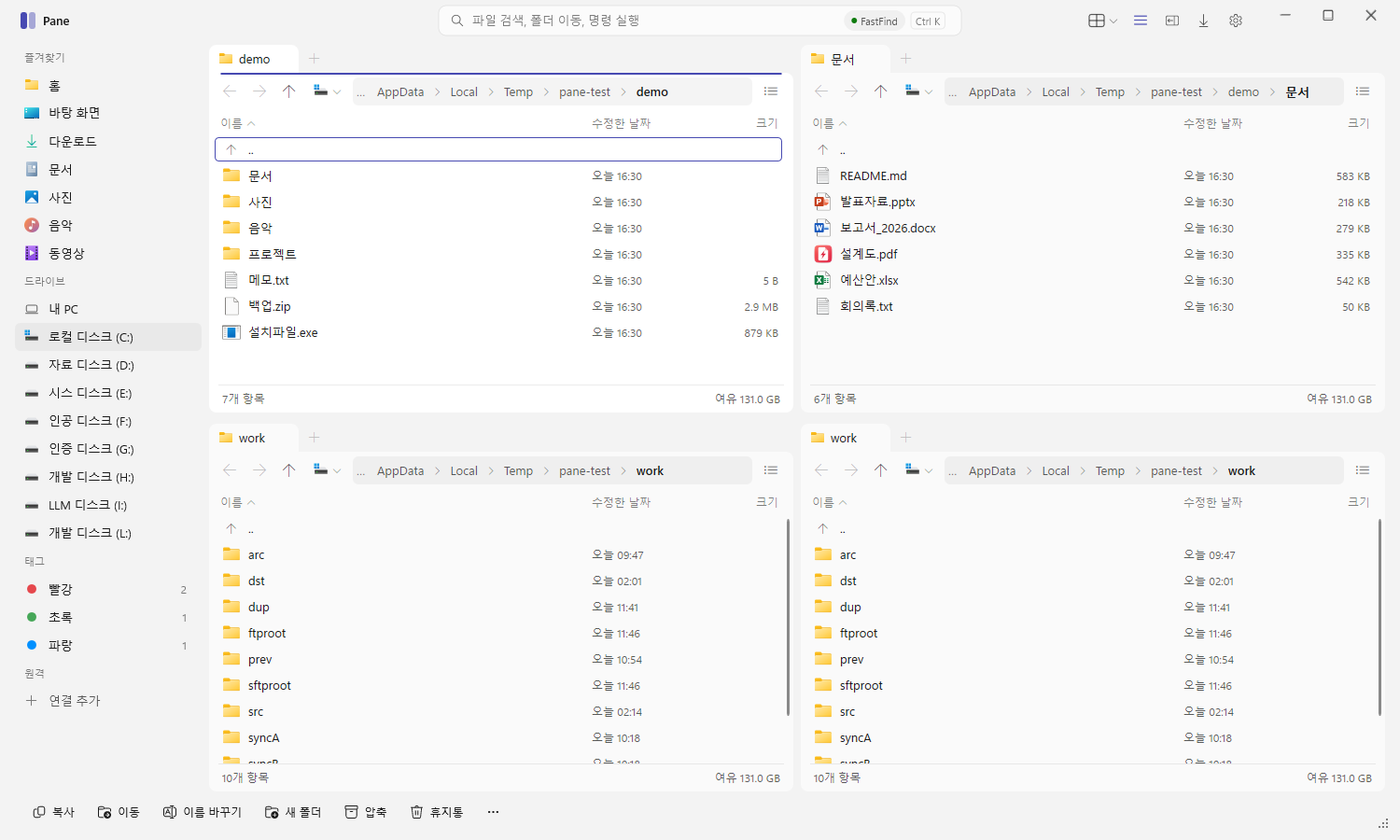
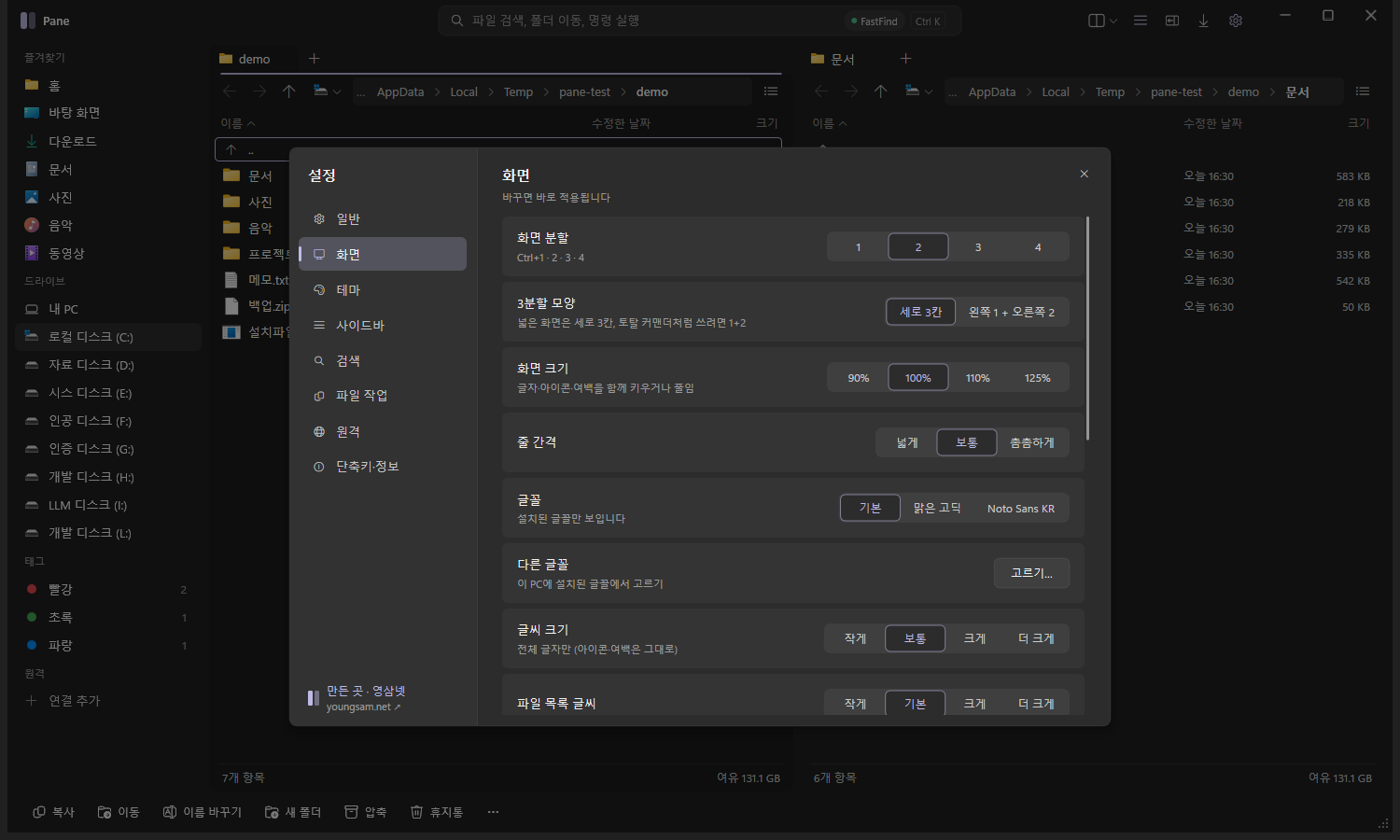
Ctrl+1 · 2 · 3 · 4 switches the layout instantly. Three panes come in two shapes — three columns, or "1 left + 2 right" — and every pane can hold multiple tabs.
1 paneCtrl+1
2 panesCtrl+2
3 panes · 3 columnsCtrl+3
3 panes · 1 + 2Ctrl+3
4 panesCtrl+4
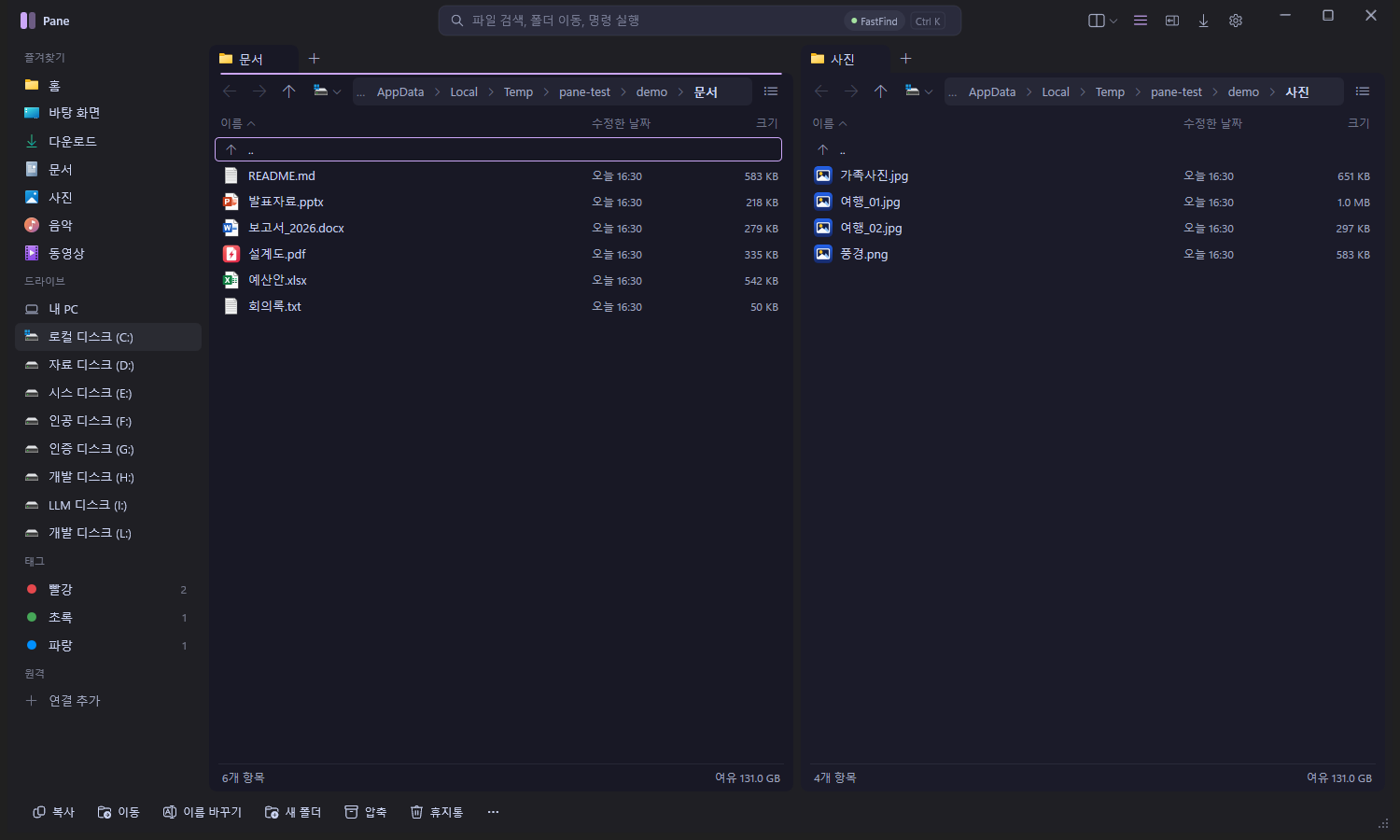
4-pane view (Light theme) — Keep four folders open in one window and hop between panes with Tab. Each pane shows a drive bar and free space.
Tabs
Ctrl+T new tab, Ctrl+W close, Ctrl+Shift+T reopen closed tab. Right-click a tab to pin, duplicate, send to the other pane or close other tabs.
Drive bar
C D E … drive buttons and free space in every pane. Pick a drive with Alt+F1 / Alt+F2 and jump with a single letter.
Workspaces
Save your current tabs and split layout under a name, then switch to it in one go from Ctrl+K.
04 · SEARCH
Search — files, whole PC and commands from one Ctrl+K
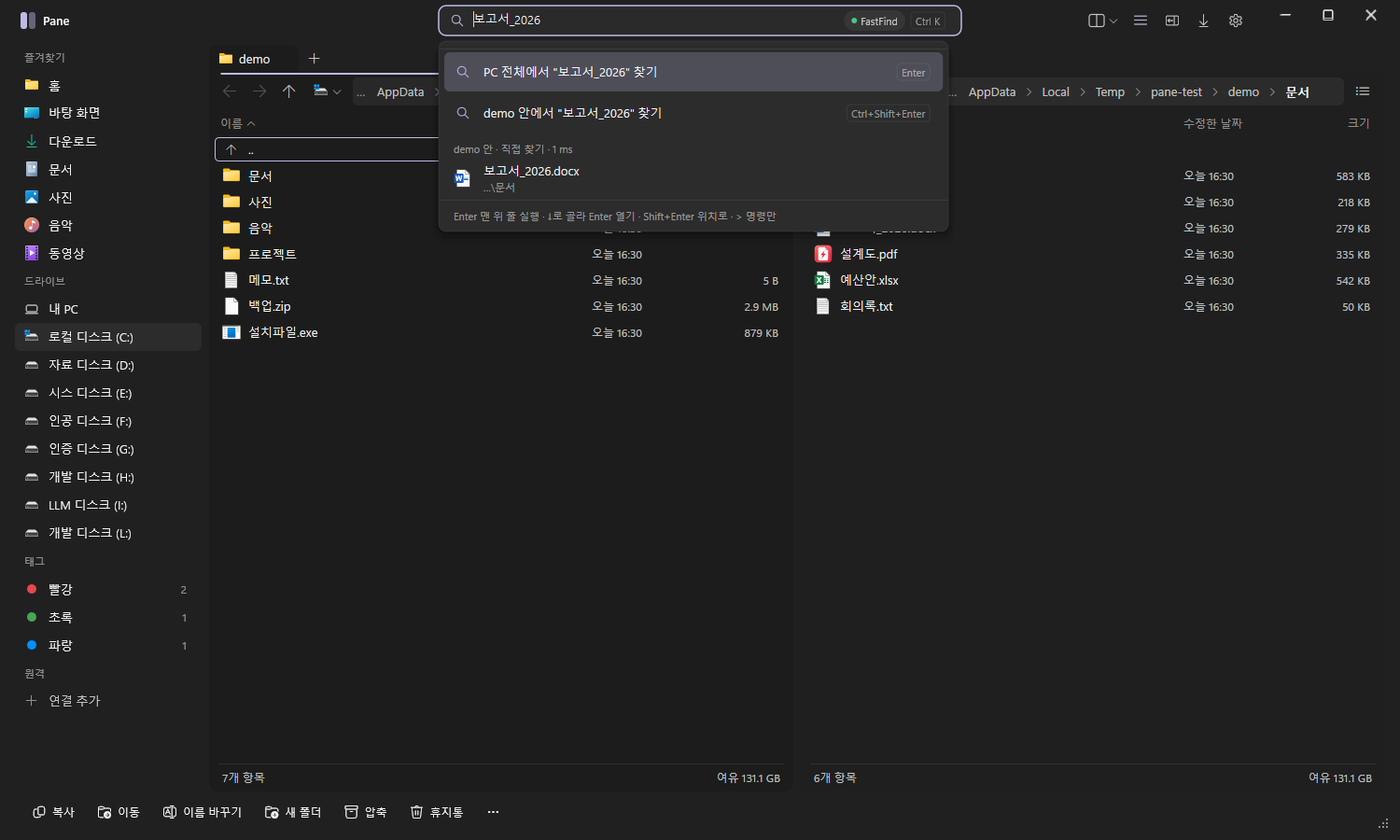
Type in the top search box (Ctrl+K) and results from the current folder appear instantly; press Enter to open a whole-PC results list. Results are split into "in this folder" and "whole PC", and you switch with the buttons above them.
⌕report_2026FastFind
🖥️Find "report_2026" on the whole PCEnter
📁Find "report_2026" in demoCtrl+Shift+Enter
📄report_2026.docx · Document1 ms
›>Sync — run folder syncCommand
Find files
Files in the current folder are filtered as you type. Not in the quick filter? Press Enter to search subfolders too.
Whole-PC search
If Youngsam's FastFind is installed, Pane connects to it and searches your entire PC in 0.05–0.13 s. Search keeps working even if FastFind is briefly busy.
Run commands
Prefix with ">" to find and run Pane features by name (e.g. ">Settings", ">Sync"). Recent files and workspaces show up too.
🔎 Search file contents · Ctrl+Shift+F
Finds text inside text files and shows the matching lines.
🧬 Find duplicate files
Compares size → first bytes → full content to group identical files, then selects all but one of each.
🗺️ Disk usage · Ctrl+Shift+U
Shows which folders take up your disk as a treemap; click to drill in.
Ctrl+K search box — Shows the FastFind connection, "Find on whole PC" and "Find in demo", with current-folder results right below.
05 · REMOTE
SFTP · FTP · NAS like local folders — no separate FTP client needed
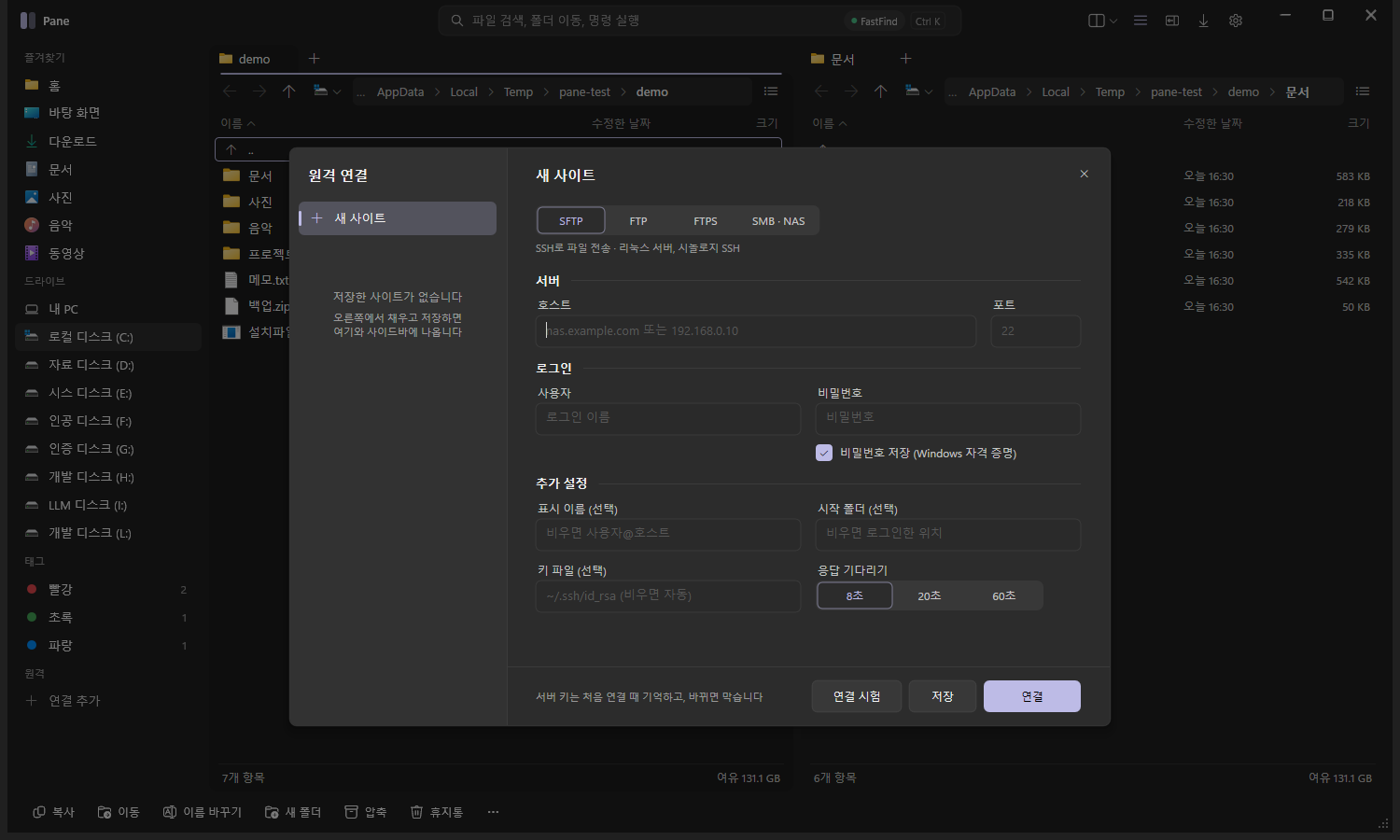
Create a site with Ctrl+Shift+O and it's saved under "Remote" in the sidebar; one click connects. Put the server in one pane and your PC in the other, then just drag and drop.
SFTPFTPFTPSSMB · Windows shared foldersNAS such as SynologySambaSSH terminal
Remote connection dialog — Choose SFTP · FTP · FTPS · SMB (NAS), test the connection, then save.
Drag and dropServer → PC pane downloads, the other way uploads. Select many and move them at once.
Edit remote filesOpen with F4, edit and save — it's uploaded back to the server automatically.
File operationsCopy, move, delete, rename and new folder — exactly like local folders.
NASType \\NAS in the address bar to list shared folders instantly.
PasswordsStored encrypted in Windows Credential Manager, and never included in settings exports.
Host key checkRemembers the server key on first connect and blocks the connection if it changes.
✓When a job starts, a card pops up at the bottom right showing progress, speed (MB/s), time left, plus Pause and Cancel buttons.
✓A progress bar also appears on the taskbar icon.
✓When finished, the "Done" card offers an [Open folder] button.
✓Jobs on the same disk run one after another, so the disk doesn't thrash.
✓On name conflicts choose Overwrite · Skip · Keep both · Only if newer, and set a default action.
✓Ctrl+Z undoes the copy, move or rename you just did.
07 · ARCHIVE
Archives — create and extract with one right-click
🗜️Compress to "report.zip"
🗜️Compress to "report.7z"
📂Extract to "report" folder
📂Extract here
↔️Extract to other pane
Creates and extracts right away, no questions asked
Open · Extract
zip7zrartargzcabiso
Create
zip7z
✓Browse into archives just like folders.
✓Non-English file names stay intact (verified with 7z round trips).
✓Password-protected ZIPs (AES·ZipCrypto) prompt for the password and extract.
✓Uses the built-in Windows engine, so the app stays lightweight.
Password-protected 7z·rar: the Windows engine doesn’t support them, so Pane borrows another archiver. If Youngsam’s Jipge PRO is installed, Pane opens them with it (including listing contents and extracting only the items you pick); otherwise it uses 7-Zip or Bandizip.
08 · DESIGN
A design that fits Windows 11 — 8 themes and font settings
System
Light
Dark
Black (OLED)
Nord
Midnight
Sepia
Mocha
7 accent colors· Toggle the Windows 11 Mica translucent background · UI scale 90 / 100 / 110 / 125%
8 themes and accent colors — Changes apply instantly.New theme "Mocha" — An easy-on-the-eyes dark purple theme.
🔤 Fonts and text size
Pick any installed font — Malgun Gothic, Pretendard, Nanum Gothic and more — and set the overall text size plus the file list, sidebar, command bar and address bar sizes separately. Ctrl + mouse wheel zooms text in and out instantly.
📅 Short dates
Dates shown short, like "Today 12:16 · Yesterday · 10-03", keep the list tidy. Row spacing: wide, normal or compact.
👁️ Preview pane · Alt+P
See the real contents of images, text, PDF, Word, Excel and PowerPoint without opening them. Drag the pane's left edge to resize.
Settings › Display — Split, 3-pane layout, UI scale, row spacing, font and text size in one place. Settings (F1) apply instantly and are saved on exit.
09 · TOOLS
Features that speed up file organizing
🏷️
Color tags
Tag files red, green, blue and more with Ctrl+Alt+1–7, and view them together in the sidebar.
⚖️
Compare two panes
Shift+F2 auto-selects the differing files; F5 brings them in line.
🔁
Folder sync
Ctrl+Shift+S. Includes subfolders, confirms the direction, and never deletes — so it's safe.
🔒
What's using this file
When a file won't delete because it's "in use by another program", find the culprit and end it.
📚
Flat view
Ctrl+Shift+E. Flattens files from all subfolders into one list to sort and select.
✏️
Batch rename
Rename many files at once by rule.
🎯
Pattern select
Num+ select, Num- deselect, Num* invert, Alt+Num+ all with the same extension.
#️⃣
Checksums
Calculates SHA-256 · MD5 and compares instantly with a pasted value.
🌿
Git status
Shows the branch and changed files (M · U · A · D) in Git repositories.
📜
F3 viewer
Text and hex view. Opens even huge files instantly in 8MB chunks, with Ctrl+F search.
⭐
Favorites
Jump with Alt+1–9. Drag folders onto the sidebar or the Favorites bar (Ctrl+Shift+B) to add them; right-click to rename, reorder or remove. Alt+↓ shows folders you’ve visited.
🐧
WSL folders
If you have a Linux (WSL) distro, a shortcut appears in the sidebar.
🏠
Set as default file explorer
Off / Add to context menu / Default. Opening folders and Win+E launch Pane; turn it off to restore the original.
⌨️
Custom shortcuts
Remap any key in Settings › Shortcuts & Info.
📤
Export · import settings
Move your setup to another PC as-is (passwords excluded).
💻
Open terminal here
Choose PowerShell, CMD, Windows Terminal or PowerShell 7. Admin terminal: Ctrl+Shift+`.
🛡️
Reopen as administrator
Straight from the command palette or Settings. “Always run as administrator” option, and a shield in the title bar when elevated.
📧
Save Outlook mail
Drag Outlook emails and attachments in to save them as .msg and regular files.
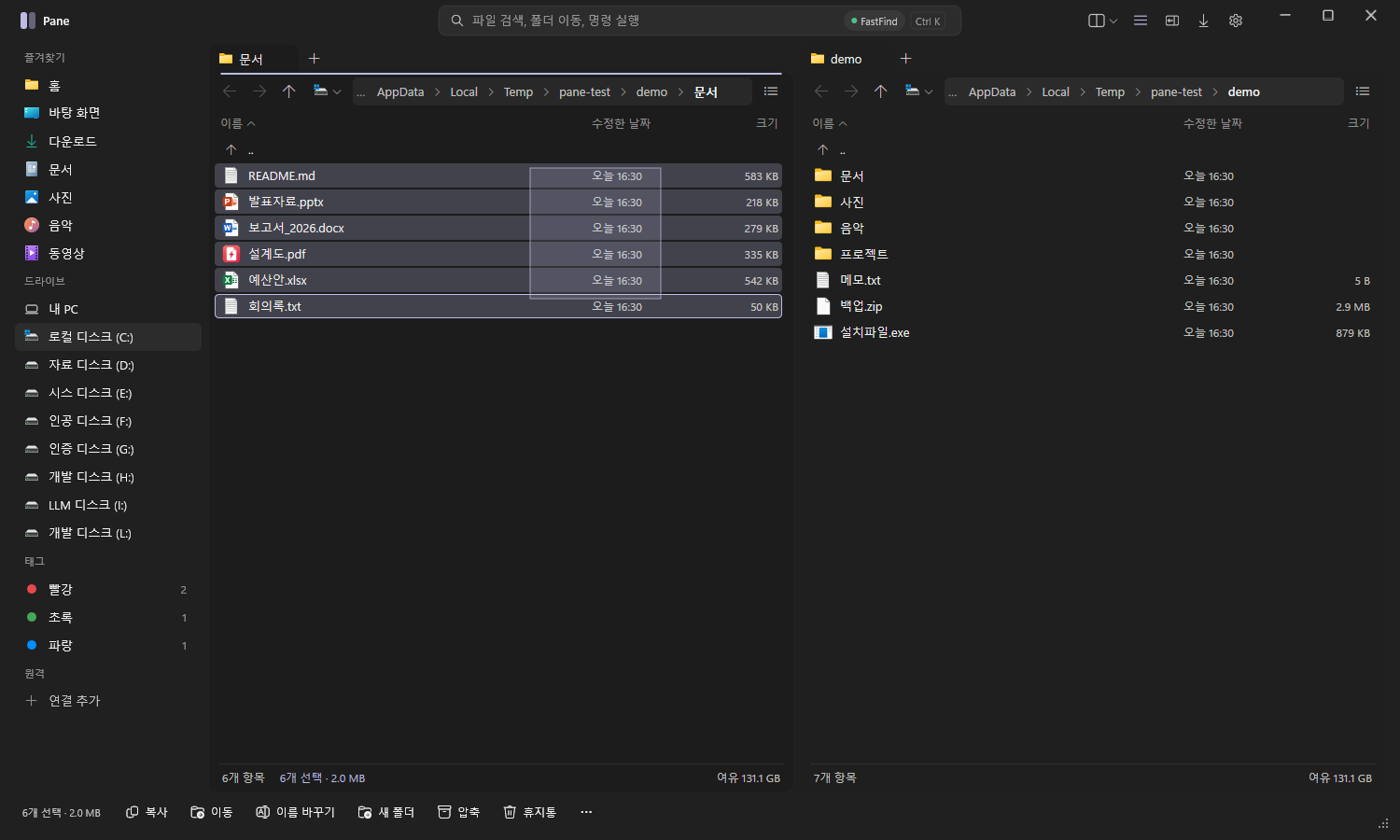
Drag to select multiple — Drag from empty space and every file inside the rectangle is selected; the count and total size appear at the bottom.
10 · TOTAL COMMANDER
Looking for a Total Commander alternative?
If you've used Total Commander, there's nothing to relearn. F5 Copy · F6 Move · F7 New Folder and the other keys work as-is, and turning on Total Commander key mode in Settings adds an F-key bar at the bottom. The interface itself is redrawn in Windows 11 style.
F3View
F4Edit
F5Copy
F6Move
F7New folder
TabSwitch pane
Same muscle memory
Tab to switch panes, Num+/Num- pattern select, Alt+F1/F2 drive picker, and the 3-pane "1 left + 2 right" layout.
What's new
Unified Ctrl+K search, 8 themes plus Mica, preview pane (Office·PDF), transfer cards, Ctrl+Z undo.
Built in
SFTP·FTP·FTPS·SMB, 7z·rar extraction, folder compare and sync, duplicate files, disk usage — no plugins to hunt down and install.
11 · SHORTCUTS
Common shortcuts
Ctrl+KSearch · commands
Ctrl+1~4Split view
TabTo other pane
F2Rename
F3 / SpaceQuick view
F4Edit (remote auto-uploads)
F5 / F6Copy / Move
F7New folder
DelRecycle Bin (Shift+Del = permanent)
Ctrl+ZUndo
Ctrl+HHidden files
Alt+PPreview pane
Ctrl+BSidebar
Ctrl+wheelText size
Shift+right-clickFull Windows menu
F1Settings
Click the Pane logo for shortcut help, and remap any key in Settings › Shortcuts & Info.
12 · FOR YOU
Who it's for
🐢
Anyone frustrated by slow, clunky Windows File Explorer
🗂️
People who often organize two folders side by side
🌐
Developers and admins who upload and download web server and NAS files often
⌨️
Total Commander keyboard users who want a modern interface
💾
Anyone who carries the same setup on a USB stick across PCs
13 · DOWNLOAD
Download and how to use
InstallerRecommendedAbout 3.4MB
Pane-Setup-3.1-x64.exe
✓Installs in seconds with a setup wizard
✓Added to the Start menu (with a "Pane Safe Mode" shortcut)
✓Uninstall from Windows Settings › Apps
Portable ZIPUSB-ready~2.0MB
Pane-3.1-x64.zip
✓Extract anywhere and run Pane.exe
✓Works from a USB stick too
✓To remove, delete the folder
Portable executableRun directly~4.9MB
Pane-3.1-x64.exe
✓Run the downloaded file directly
✓Move it to any folder you like and use it from there
✓Feel free to rename it to Pane.exe
OSWindows 10 / 11 64-bit
InstallChoose the installer (recommended) or the portable version · same features
LanguagesKorean / English (follows your Windows language)
Settings location%APPDATA%\Pane · Pane.exe + a portable.txt beside it → settings saved in the program folder (for USB)
PriceFree · no ads · no account
Before removing: If you set Pane as the default file explorer, switch it to "Off" in Settings before removing it (installer: Windows Settings › Apps; portable: delete the folder). Turning it off restores the registry exactly (we verified the registry is identical after registering and unregistering).
"Windows protected your PC" on first launch This appears because Pane is an independently developed app without a code-signing certificate. Click "More info" → "Run anyway" to continue. You can first check the file matches the original using the SHA-256 values below.
Pane sends no usage data and doesn't check for updates. It uses the network only when you connect to a remote site. Whole-PC search talks only locally with FastFind installed on the same PC. No account means no personal data collected.
Not there yet
Direct server-to-server copy · user tool buttons · update notifications · splitting into 6 or more panes. New versions will be posted on this page.
Verified by hand: extracting 7z·RAR4·RAR5·tar.gz·cab; creating 7z with Korean file names round-trips identically; extracting encrypted ZIP (AES·ZipCrypto); FTP·SFTP listing, download, upload, new folder, rename, delete; both folders diff-identical after folder sync; checksums match sha256sum·md5sum; preview (PDF·Word·Excel); themes and 3-pane layout.
15 · FAQ
FAQ
Is there a free Windows File Explorer alternative?
Yes. Pane is a free file explorer you can use as a Windows File Explorer alternative. It brings 1/2/3/4-pane views with tabs, F5 copy and F6 move, Ctrl+K search, SFTP·FTP·NAS connections, archives and folder sync into one window — and if you like, you can set it as the default file explorer in Settings so opening folders and Win+E launch Pane.
Can Pane replace Total Commander?
Yes. It uses Total Commander-style keys as-is — F3 view, F4 edit, F5 copy, F6 move, F7 new folder, Tab to switch panes, Num+/Num- pattern select — and turning on "Total Commander key mode" in Settings adds an F-key bar at the bottom. FTP·SFTP, archives and folder compare are built in, so there are no plugins to install.
Is Pane really free?
Yes, it's free. No ads, no sign-up or login, and no feature limits.
What's the difference between the installer and the portable version?
The features are identical. The installer (recommended, about 3.4MB) sets Pane up with a wizard, adds it to the Start menu and can be removed from Windows Settings › Apps. The portable version runs as soon as you extract it and launch Pane.exe (about 4.9MB), so you can carry it on a USB stick; to remove it, just delete the folder. If you set Pane as the default file explorer, turn that off in Settings before removing it.
How fast is it?
Measured on the developer's PC: 72–80ms (about 0.08 s) from launch to first screen, 50–130ms for whole-PC search with FastFind, and 17ms to flatten 1,375 files from subfolders. Memory use while running is about 77MB. Built with Rust and Direct2D, there's no heavy framework.
Can it replace my FTP/SFTP client?
Yes. Open SFTP·FTP·FTPS servers like local folders to copy, move, delete, rename and create folders, and upload or download by drag and drop. Open a remote file with F4, save it, and it's uploaded back to the server automatically. Passwords are stored encrypted in Windows Credential Manager, and the connection is blocked if the server key changes.
Can it open a Synology NAS or shared folders?
Yes. With SMB support you can connect to Windows shared folders, NAS devices such as Synology, and Samba — type something like \\NAS in the address bar to list shared folders instantly.
Can I extract 7z and rar without an archiver?
Yes. It opens and extracts zip·7z·rar·tar·gz·cab·iso, and creates zip·7z right from the right-click menu. Password-protected ZIPs extract too. Password-protected 7z and rar aren’t supported by the built-in Windows engine, so from 3.1 Pane extracts them with Jipge PRO if it’s installed on your PC (otherwise 7-Zip or Bandizip).
How do I search my whole PC?
Type in Ctrl+K and press Enter to see whole-PC results. If Youngsam's free file search app FastFind is installed, Pane connects automatically and searches your entire PC in around 0.1 s. Without FastFind, it falls back to regular search.
Can I set it as the default file explorer and switch back later?
Yes. In Settings choose Off / Add to context menu / Default; switching to Off returns you to the original Windows File Explorer. We verified the registry is identical after registering and unregistering.
Where are settings stored? Can I run it from a USB stick?
By default in %APPDATA%\Pane. Create a portable.txt file next to Pane.exe and settings are stored in the program folder, so you can carry it on a USB stick and use the same setup on any PC. Settings export/import (passwords excluded) is available too.
Which versions of Windows does it run on?
It runs on 64-bit Windows 10 and 11. Menus automatically appear in Korean or English to match your Windows language.
Is the "Windows protected your PC" warning safe to ignore?
It appears because Pane is an independently developed app without a code-signing certificate. Click "More info" → "Run anyway". You can first check that the downloaded file's hash matches the SHA-256 value on this page.
What if the Pane window doesn’t appear or closes while starting?
From 3.1, if Pane closes or hangs while starting, the next launch opens in safe mode. It resets the window position and tabs and keeps your previous settings as pane.ini.bak. To open it yourself, use the “Pane Safe Mode” shortcut in the Start menu or Pane.exe --safe. If the saved window position is off-screen (monitor unplugged or resolution changed), Pane opens in the center of the main monitor.
How do I add and organize favorites?
Drag a folder onto the sidebar or the Favorites bar above the panes (Ctrl+Shift+B), or right-click a folder in the file list and choose “Add to Favorites”. Right-click a favorite for Open, New tab, Other pane, Rename, Move up/down and Remove, or drag to reorder. Changes save instantly.
Where do I report a problem?
Youngsam Community is the place to post. If an error occurs, the cause is logged to crash.txt in the settings folder — send it along and we can fix it faster. Clicking "Made by · Youngsam" at the bottom left of the Settings screen brings you straight to this site.
Windows is a trademark of Microsoft Corporation, and Total Commander is a trademark of Ghisler Software GmbH. Pane is not affiliated with either; comparisons are provided for reference only.
Version history(2)
v3.1Latest
October 17, 2026
켜다가 꺼지면 다음 실행은 안전 모드(시작 메뉴 Pane 안전 모드), 화면 밖 창 위치 보정. 즐겨찾기 등록·편집 버그 수정과 오른쪽 클릭 메뉴·끌어서 순서 바꾸기, 즐겨찾기 막대(Ctrl+Shift+B). FolderHighlight 폴더 색 아이콘 표시. 터미널 선택(PowerShell·CMD·Windows 터미널·PowerShell 7)·관리자 터미널·관리자 권한으로 다시 열기. 만든 날짜·길이·해상도·태그 열, 폴더마다 정렬·보기 기억. 암호 7z·rar는 집게 PRO(없으면 7-Zip·반디집)로 풀기. 아웃룩 메일 끌어 놓아 .msg 저장. 화면 그리기 약 30ms → 7ms.
1·2·3·4분할(3분할 두 모양), 패널마다 드라이브 줄, 테마 8종·강조색 7종·Mica, Ctrl+K 통합 검색(이 폴더/PC 전체·FastFind 연동·명령), 파일 내용 검색, 7z·rar·tar·gz·cab·iso 풀기와 7z 만들기, 암호 ZIP 풀기, SFTP·FTP·FTPS·SMB 원격과 사이트 관리자, 두 패널 비교·폴더 동기화·중복 파일·공간 분석, 이 파일을 쓰는 프로그램, 색 태그, 펼쳐 보기, 체크섬, 미리보기(Office·PDF), Git 표시, 작업 공간, 단축키 바꾸기, 기본 탐색기 등록, 설정 내보내기·가져오기.