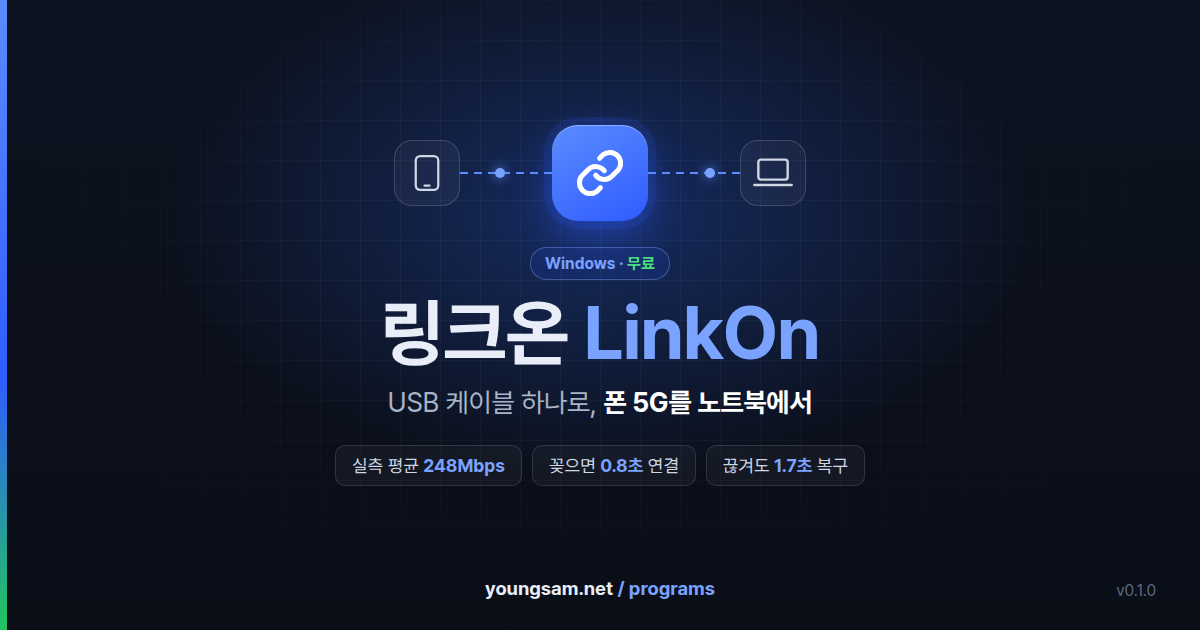
When café Wi-Fi is slow, use your phone's fast 5G on your laptop
with just one USB cable.
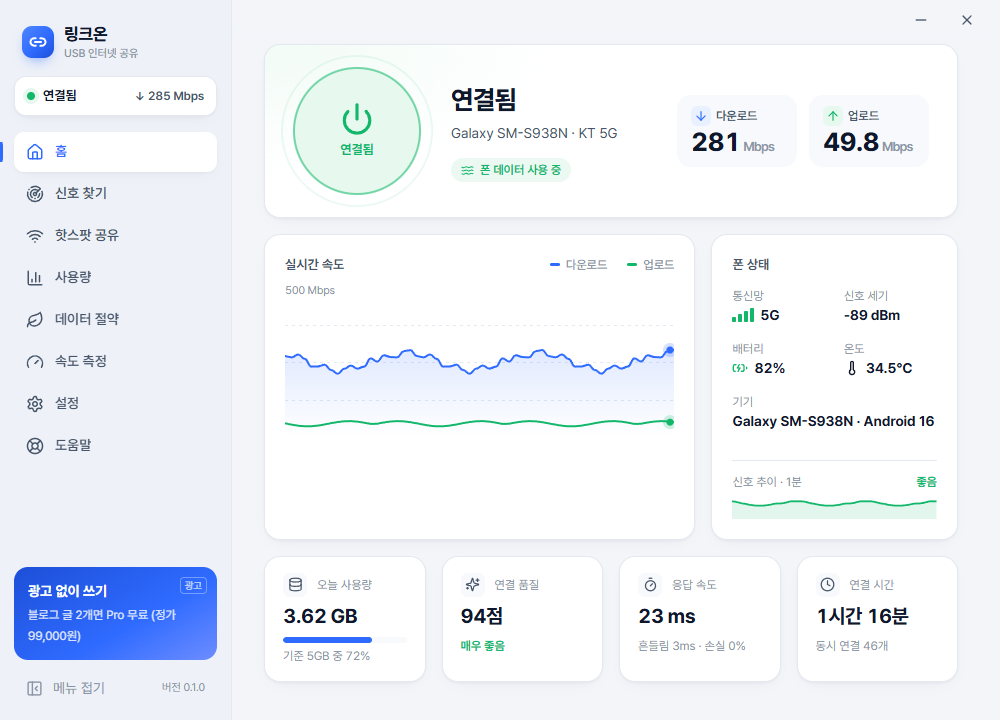
LinkOn lets your PC use your Android phone's internet the moment you connect it with a USB cable. It's a free Windows program: just plug in the cable and it connects automatically, showing real-time speed, signal strength, and per-app usage on a single screen. If the connection drops, it reconnects on its own within 2 seconds.
248Mbps 5G measured average 2-min continuous download |
0.8s From launch to connected Auto-connects on plug-in |
1.7s Auto-recovery from drops Even if the phone app closes |
1% or less PC CPU usage About 100MB of memory |
Free Every feature is free Available in 4 languages |
Same PCs already registered keep Pro offline — Once a PC is registered, Pro stays on even without internet. Keys left 'waiting for server check' in 0.2.0 are confirmed automatically once you're online
New 'Check for updates' in Settings › About and a 'Guide & FAQ' button under Help
Since 0.2.0 One key works on up to 3 PCs — Registering a key confirms it with the server and shows how many PCs use it. 0.2.0 also fixed slow PC internet with no phone connected and improved responsiveness during big downloads
Who it's for
- Anyone whose café or library Wi-Fi is slow or keeps dropping
- Anyone who needs to work on a laptop while traveling or on the move
- Anyone tired of typing hotspot passwords, dropped connections, and draining phone batteries
- Anyone who wants to see connection status, speed, and usage at a glance
How LinkOn works
- The LinkOn app on your phone connects to the internet and passes the traffic to your laptop over the USB cable.
- Your laptop's every program (browser, KakaoTalk PC, Zoom, games, updates) uses the internet as-is, with no extra setup.
- Because it's connected over USB, your phone charges while it runs, and with no wireless interference it stays stable.
How fast is it really? We measured it ourselves
Test setup: Galaxy S25 Ultra · Android 16 · KT 5G (signal -94 to -100 dBm) · Windows 11 desktop · October 12, 2026
| Item | Result |
|---|---|
| Phone's own speed (FAST.com) | 150 Mbps |
| Download via LinkOn (2 min continuous, average) | 248 Mbps |
| Peak speed | 346 Mbps |
| Data received in 2 minutes | 3.5 GB, 0 drops |
| Latency during download | About 206 ms (600–1,500 ms before optimization) |
| From launch to connected | 0.8 s |
| Auto-recovery when the phone app closes | 1.7 s |
| 100 concurrent connections (web requests) | All 100 succeeded |
| PC resource usage | CPU under 1%, about 100MB of memory |
| Phone app resource usage | About 22MB of memory; phone at 34.6°C after the test |
LinkOn passes your phone's speed to the laptop without loss. The LinkOn result came out higher than the phone's own test because the signal and test server differed at the time of measurement.
On the same day, after switching to LTE (weak signal), it measured about 33 Mbps. When that happens, use the Signal Finder feature below to find a spot with better reception.
Compared with other ways to connect
| Feature | Wi-Fi hotspot | USB tethering (built-in) | Bluetooth tethering | LinkOn |
|---|---|---|---|---|
| How to connect | Turn on hotspot on the phone and enter a password | Connect the cable, then enable it in phone settings | Pair devices | Plug in the cable and it connects automatically |
| Speed | Fast (affected by nearby Wi-Fi interference) | Fast | Very slow | Fast (5G measured average 248 Mbps) |
| Stability | Drops with distance and interference | Stable | Frequent drops | Stable + auto-recovers within 2 s if dropped |
| Phone battery | Drains fast | Charges while in use | Moderate | Charges while in use |
| Multiple devices | Yes | 1 laptop | 1 device | 1 laptop + up to 8 via laptop hotspot |
| Speed, signal & usage view | None | None | None | Real-time graph, Signal Finder, per-app usage |
| Data saver | None | None | None | Blocks Windows Update and cloud sync |
Key features
1. Real-time speed and connection quality score
Download and upload speeds are shown on a real-time graph; hover over it to see the speed at that moment. Signal, latency, jitter, and packet loss are combined into a 0–100 connection quality score, and if something's wrong, a one-line fix is suggested.
2. Signal Finder
Move your phone slowly and the signal strength updates on a live gauge and graph. It shows trends like "Improving +4dB" along with highs and lows, so you can easily find the spot with the best reception at home or in the office.
3. Usage and per-app control
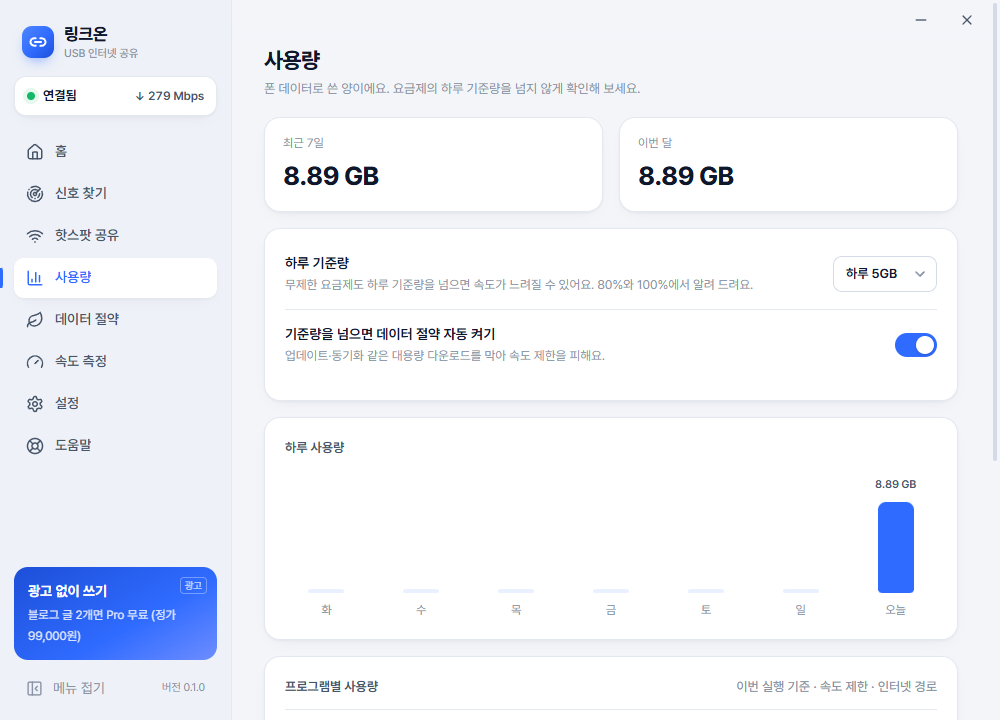
- See today's, this week's, and this month's usage at a glance
- Set a daily limit and get alerts at 80% and 100%
- Per app, set a speed limit or choose to route via the PC's original internet / block
4. Data saver · Game mode
Blocks traffic that quietly downloads large files, like Windows Update, OneDrive sync, and game launcher updates. Game mode blocks large downloads and prioritizes low latency.
5. Share via laptop hotspot
If your laptop has Wi-Fi, turn it into a hotspot so tablets, other laptops, and more — up to 8 devices — can share the connection. Join instantly with a QR code.
6. Protection that takes care of itself
- If the cable is unplugged or the phone locks, it reconnects with auto-recovery
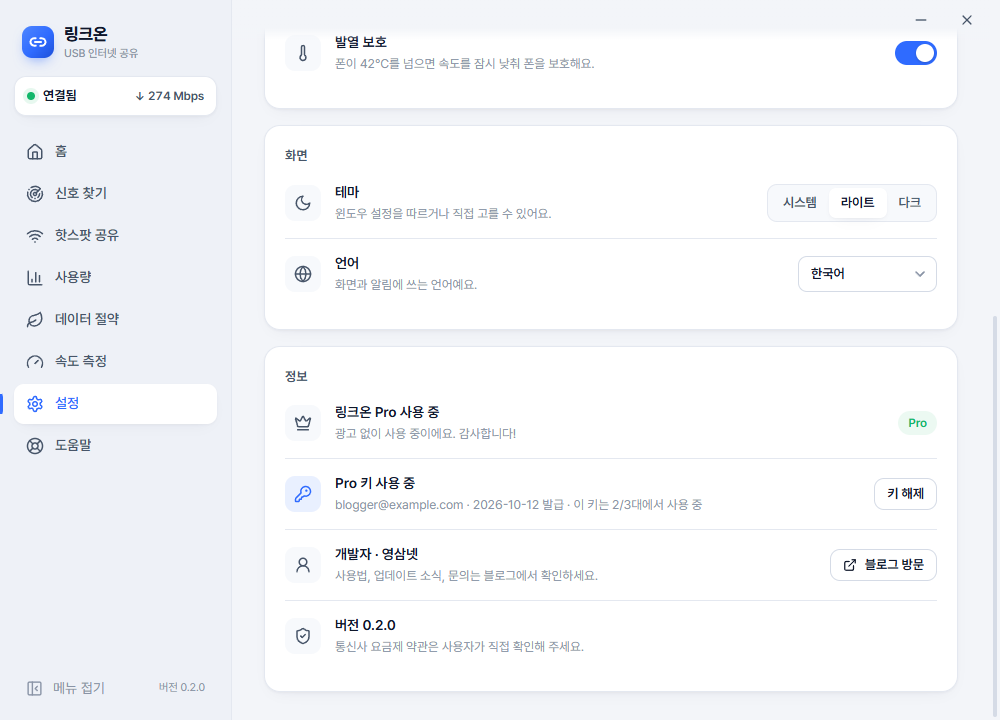
- Briefly lowers speed when the phone exceeds 42°C: heat protection
- Low phone battery, connections, and drops are announced via Windows notifications
- If a faulty cable makes the connection flicker, you'll see "Please replace the cable"
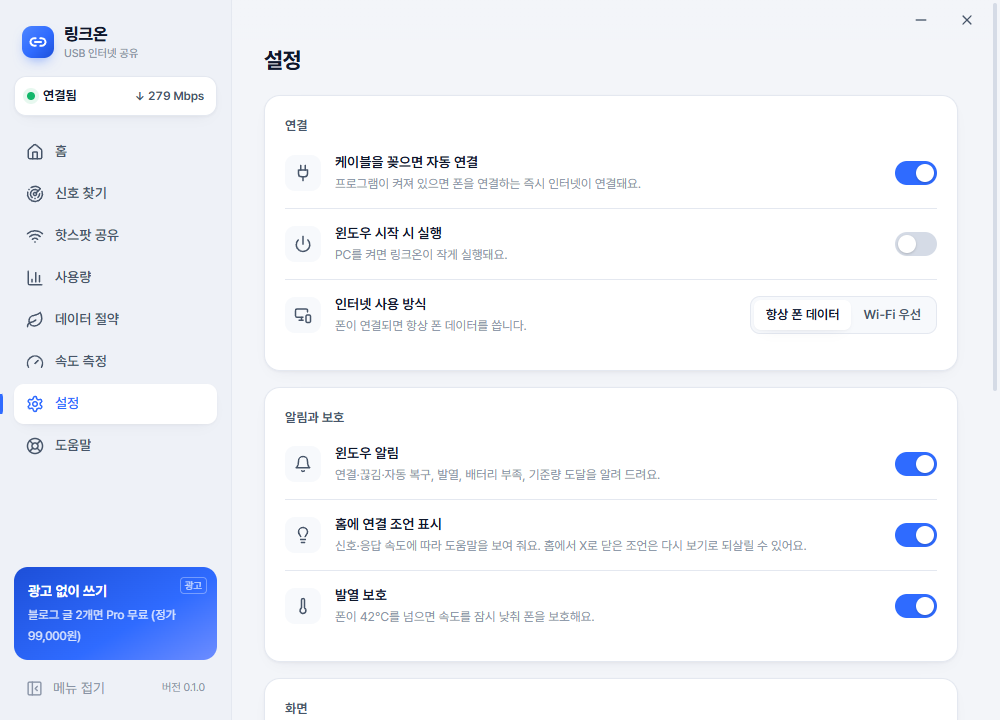
7. Dark mode · 4 languages
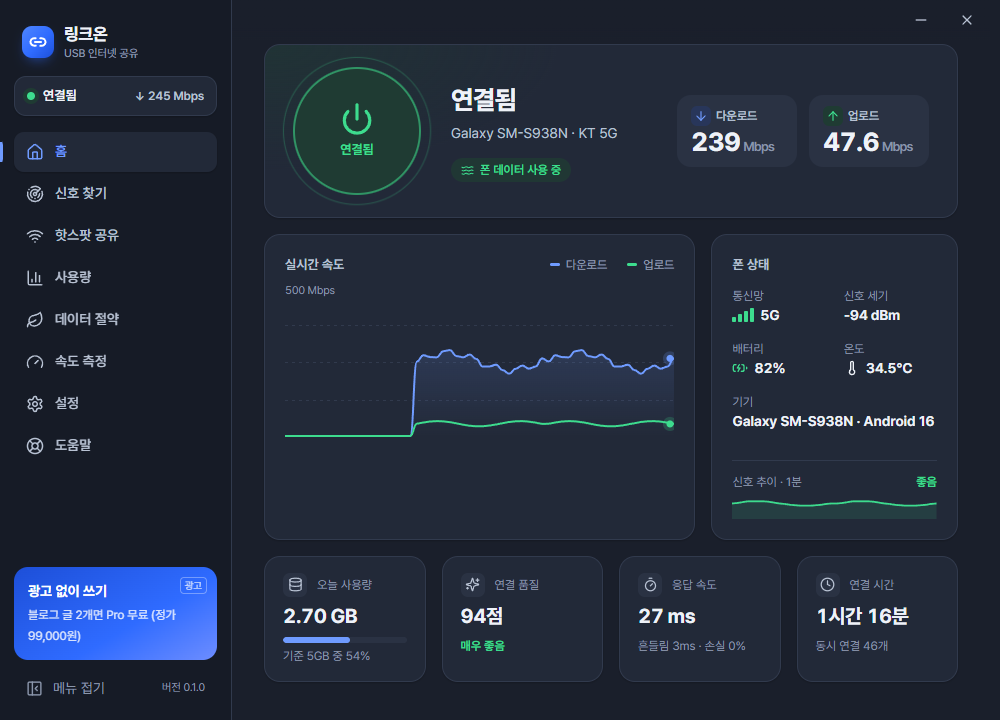
Supports light and dark themes, and Korean·English·日本語·中文. You can also collapse the menu for a wider view.
Install and first connection (done in 3 minutes)
| File | Description |
|---|---|
InstallerLinkOn-0.2.1-setup.exe | Installing adds shortcuts to the Start menu and desktop. |
PortableLinkOn-0.2.1-portable.zip | Unzip it and run LinkOn.exe — that's it. Carry it on a USB drive and use it anywhere. Settings and usage history are saved in %APPDATA%\LinkOn. |
On first launch, when Windows shows the administrator permission prompt, click "Yes". It's needed to create the network adapter (virtual NIC) on your laptop.
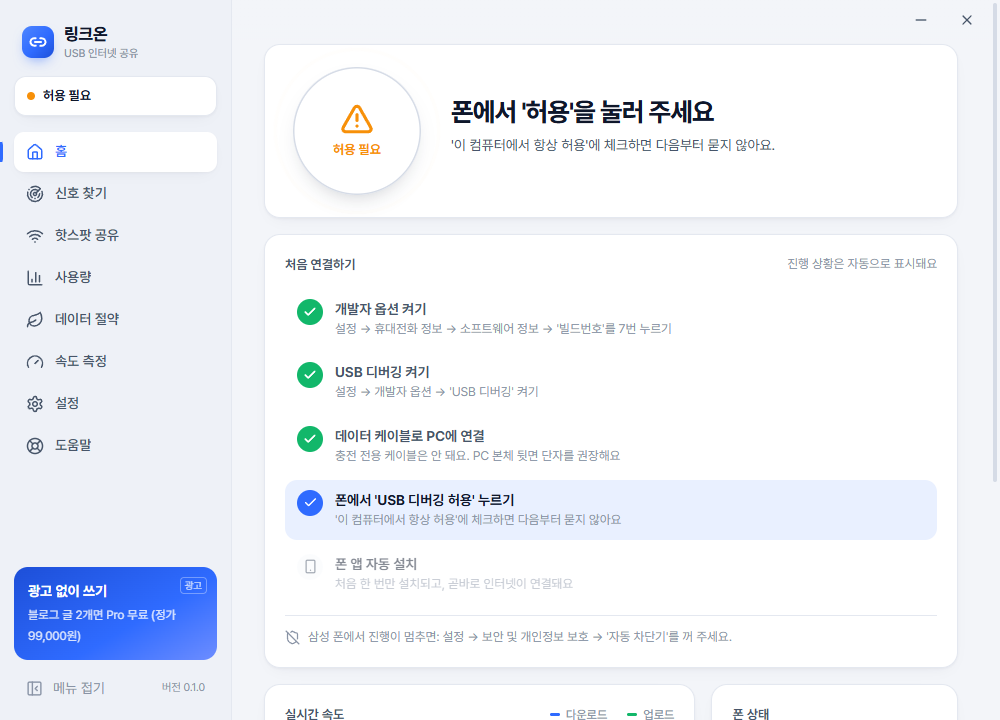
- Enable developer options on your phone: Settings → About phone → Software information → tap 'Build number' 7 times
- Turn on USB debugging: Settings → Developer options → turn on 'USB debugging'
- Connect with a data cable, then in the prompt on your phone check 'Always allow from this computer' → Allow
That's it. The phone app is installed automatically the first time and you're online right away. After that, just plug in the cable and it connects automatically.
go to Settings → Security and privacy → turn off 'Auto Blocker'.
Use it free, or go ad-free
In LinkOn, every feature is free, with a small banner shown on one side of the screen. You can get banner-free Pro in two ways.
Pro doesn't buy you speed. It only removes the ads.
The free version runs on the exact same engine and is just as fast as Pro. No feature limits, no speed caps, no time limits.
| Free | Pro | |
|---|---|---|
| Connection speed & stability | ✓ Same | ✓ Same |
| All features: Signal Finder, usage, data saver… | ✓ Same | ✓ Same |
| Laptop hotspot (up to 8 devices) | ✓ Same | ✓ Same |
| Updates | ✓ Same | ✓ Same |
| Ad banner | Small banner on one side | None (PC & phone) |
| Price | Free | Free for two blog or forum posts or ₩99,000 lifetime |
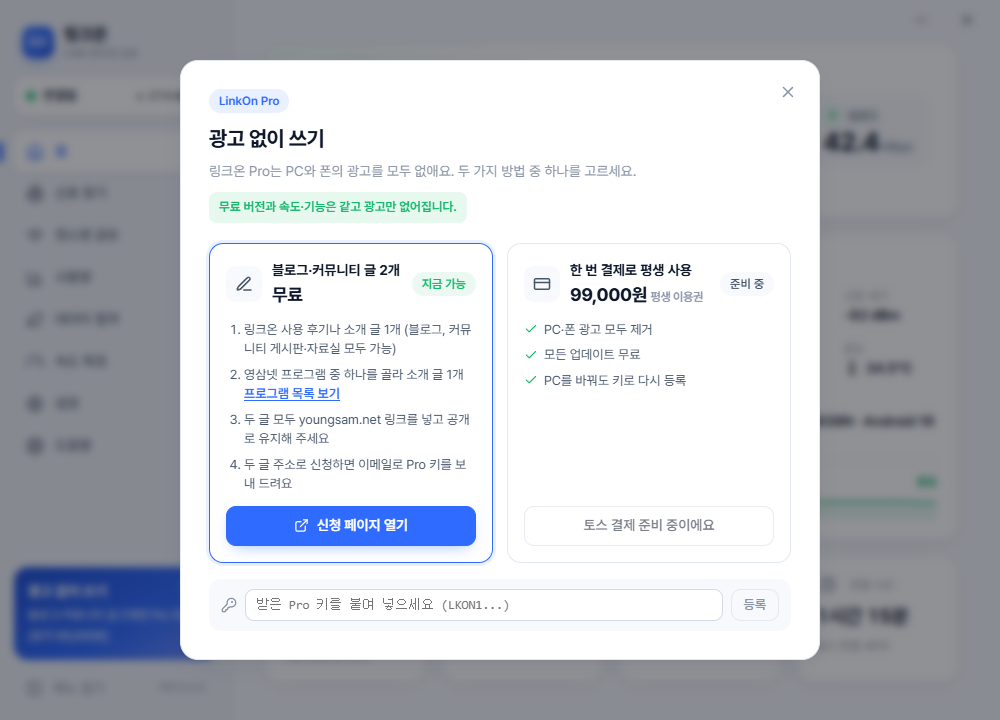
· Youngsam.net programs: pick one and write one introduction post
· Both posts must include a youngsam.net link and stay public
· Pro request page: enter both post URLs and they're verified automatically and your key is issued instantly
· Removes ads on both PC and phone, all updates free
· Toss payment integration is in progress
Paste the key you receive into Settings → About → Register Pro key and the ads disappear on both your PC and phone. One key works on up to 3 PCs, and it's confirmed with the server once when you register. Registering needs an internet connection; after that, Pro stays on even when you're offline.
Download and file verification
System requirements: Windows 10 / 11 (64-bit), Android 8.0 or later · Current version 0.2.1
To check that the downloaded file matches the original, run Get-FileHash filename in PowerShell and compare the result with the values below.
| File | SHA-256 |
|---|---|
| LinkOn-0.2.1-setup.exe | ff69c5602bad39656e63e3b874f01a3b250046076b8b74706d812fb6208310b2 |
| LinkOn-0.2.1-portable.zip | cc261407889404ee388d62f3b0bfae1488fbe2a28de68dfd31ed4c279b997f82 |
| LinkOn.exe (inside the zip) | 878ba3fbb7e6de4c4b88f96875a167cc69c8ec5afd0f8a1ec207b81d8aa67606 |
FAQ
Nothing happens when I connect my phone.
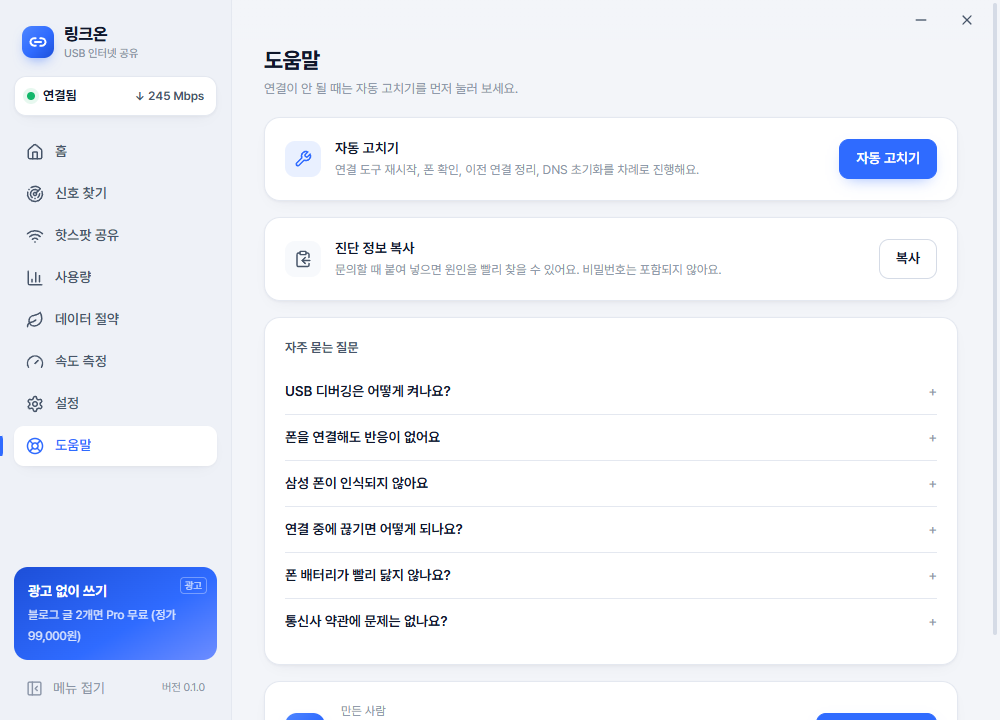
Charge-only cables aren't recognized. Use a cable that supports data transfer, and try a USB port on the back of the PC. Click Help → Auto Fix in the program and it will find the cause for you.
I get a "Windows protected your PC" window when I run it.
Because the program is new, Windows SmartScreen doesn't have reputation data for it yet. Click More info → Run anyway to proceed. If you're concerned, compare the downloaded file against the SHA-256 values above.
Does it work with iPhone?
Currently only Android phones (8.0 or later) are supported. Support for iPhone and Mac is under consideration.
Is it OK for my phone's battery?
Over USB, your phone charges while it runs. For long sessions, keep heat protection on (it's on by default).
Does my mobile plan matter?
LinkOn uses your phone's mobile data. Data allowances and PC connection (tethering) terms vary by plan, so be sure to check your plan's terms.
How do I get a Pro key?
Publish 2 blog or forum posts (1 about LinkOn + 1 about a Youngsam.net program, both with a youngsam.net link), then on the Pro request page, enter both post URLs and your email — the server checks the posts and shows your key on the spot.
Is the free version slower or limited?
No. The free version and Pro have the same speed, stability and features. Pro only removes the ad banner.
How many PCs can one Pro key be used on?
Up to 3 PCs. Reinstalling on the same PC doesn't count again. If you change PCs and go over 3, let us know through the contact link on the Pro page and we'll clear old devices.